Accessing and Reviewing Payment Batches
Accessing & Reviewing Payment Batches
1. From anywhere in the app, click on the Payments icon to reach the payment batch page.
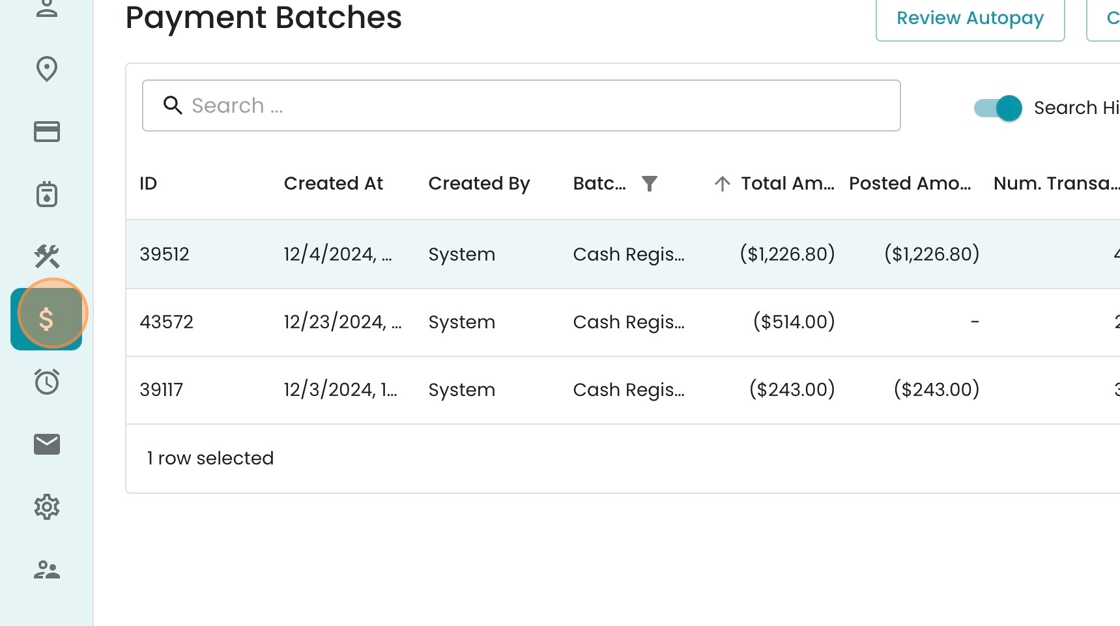
2. View a list of your batches in the main table on this page.

3. You may interact with the columns to find a specific batch. See the possible actions by clicking the three-dot menu on any column.

4. In this case, click "Filter"

5. You can type out what you want to filter to in the "value" field. Note that the "contains" operator finds partial matches (e.g. "Cash" for "Cash Register")

6. You may also click the arrows to sort the table by that columnn's value.

7. See now how we have identified the largest cash register batch by sorting & filtering.

8. To look into a specific batch, click here.

9. In this case, the payment batch was canceled, so there are no posted transactions to show.
To return to the previous page, you can press the "Back" button in your browser, or navigate via the breadcrumbs in the top left by clicking "Batches"

10. Let's now look at a completed batch, which will have more information.

11. You can see specific transaction details in each row, including the payment amount and its impact on the account balance.

12. You can also see summary information in the top right, such as the number of payments and the total amounts.
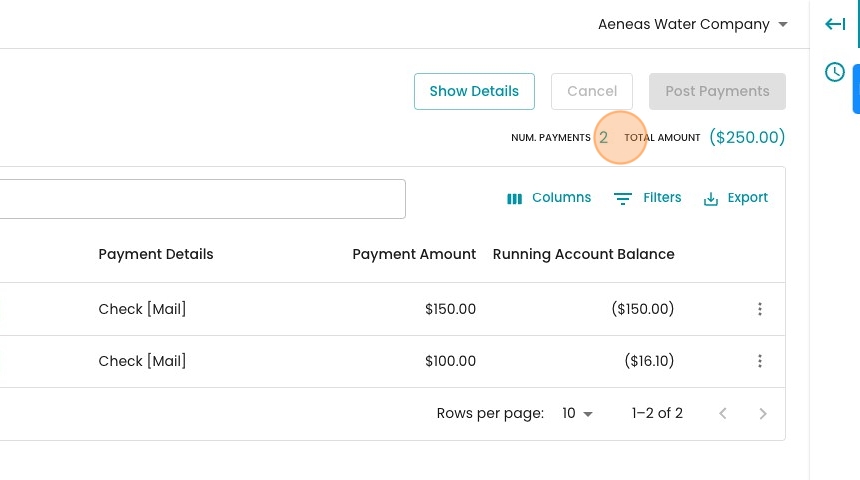
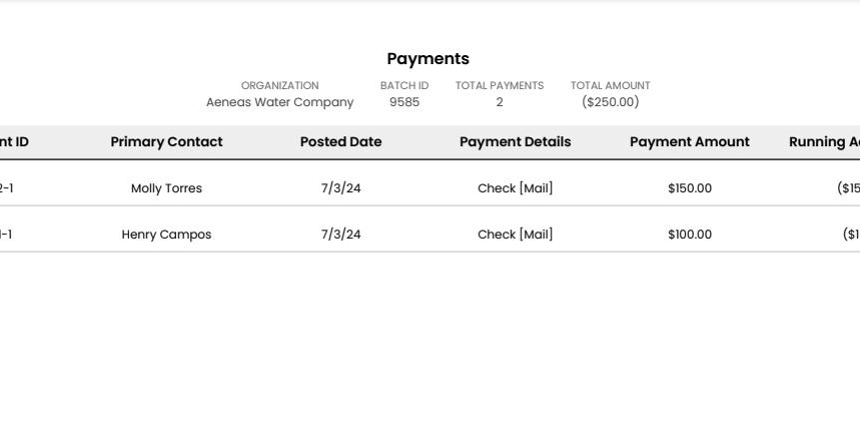
13. To print a report of this batch, click "Export".

14. Select from one of our export options (CSV vs PDF, and "Current Page" vs "All Table Rows"). In this case, select the PDF for "All Table Rows"

15. See the generated report open up in a new tab, ready for printing