Adjusting Payment - Wrong Amount
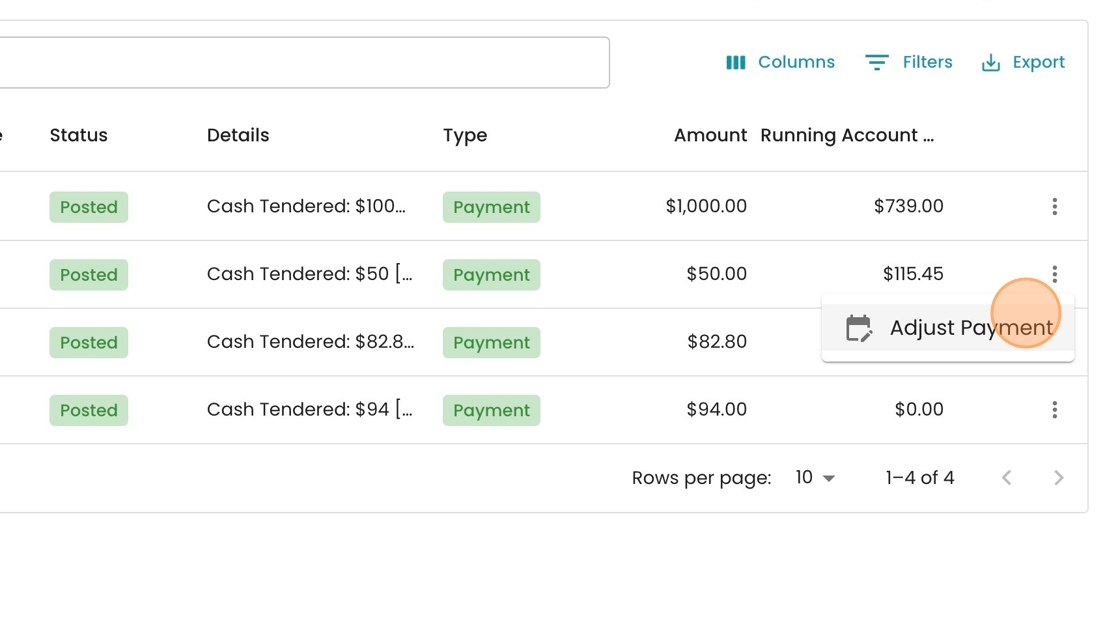
1. On any screen showing payment information (including Payment Batches or from the Account Details Transactions), click the three-dot menu.

2. Click "Adjust Payment"
3. The adjustment type is defaulted to "Amount", so you can go straight to clicking the Amount field.

Tip: Note that you want to input the new amount that the transaction should be, not the adjustment amount
4. In this case, let's assume the transaction was inputted with an extra 0. It should be $5 instead of $50, so we type in "5.00" instead.
You may add a comment for your records if you'd like.

5. In this case, we simply wrote "Typo" to explain why the amount needed to change. Click "Save" to finalize the changes.

6. To see how this action impacts the account, click on the hyperlinked text to open the peek.

7. Note the sequence of transactions created:
- Original Payment: $50
- Payment Adjustment: $50 (to undo the first payment)
- New Payment: $5

Tip: Note that if the adjustment occurs in the same billing period as the original transaction, Current will clean up the transaction log to only show the new payment amount.
That way, your customers won't have to see the full history of adjustments. Unless of course this spans multiple billing periods, in which case they will want to see that log.