Create and Post a Manual Batch
Create and post a manual batch
1. From the Payments page, click "New Payment Batch"

2. Click "Create New Batch Manually"

3. To get started, click "+Row"

4. The batch entering process is keystroke optimized:\ - Use "Tab" to navigate across the columns\ - Use "Enter"to complete a row.
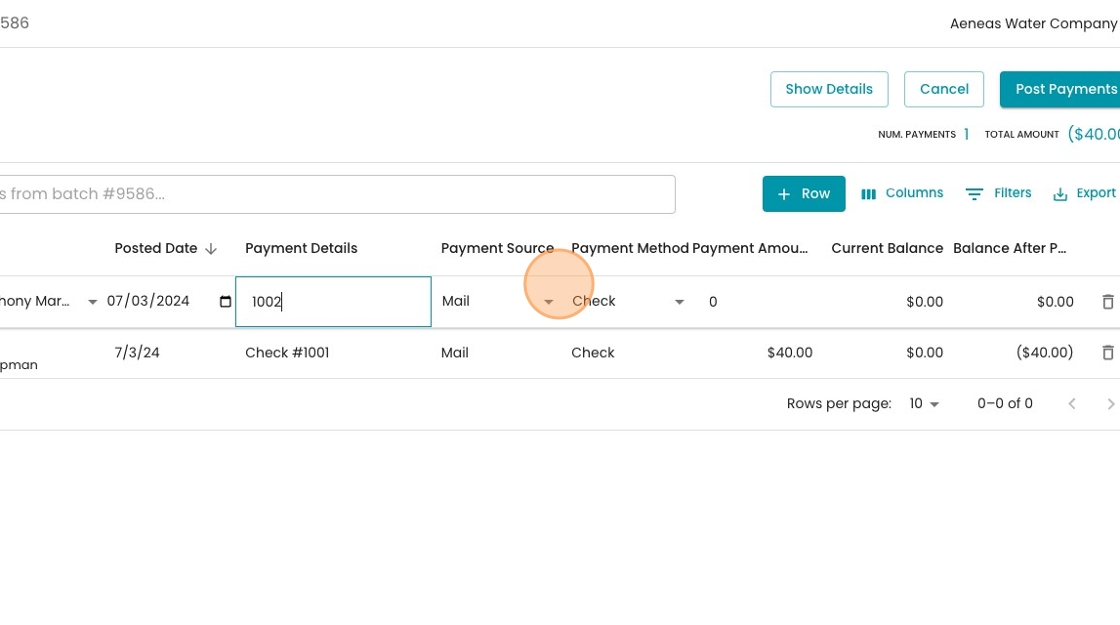
5. The "Account" field is searchable by account number or name. You just have to start typing to find the right account

Tip: You can use your arrow keys to navigate the list, or use your mouse to select the right account.
6. The payment details tab is good for storing information like the check or money order number.

Tip: You only have to type in the check number itself, and the system will add "Check #" to the display automatically.
7. After you enter your first payment, the system remembers the Payment Source & Method that you selected, assuming that you are entering a batch of similar payments.

8. If you want to change these fields, you can! Simply click and select a new option.
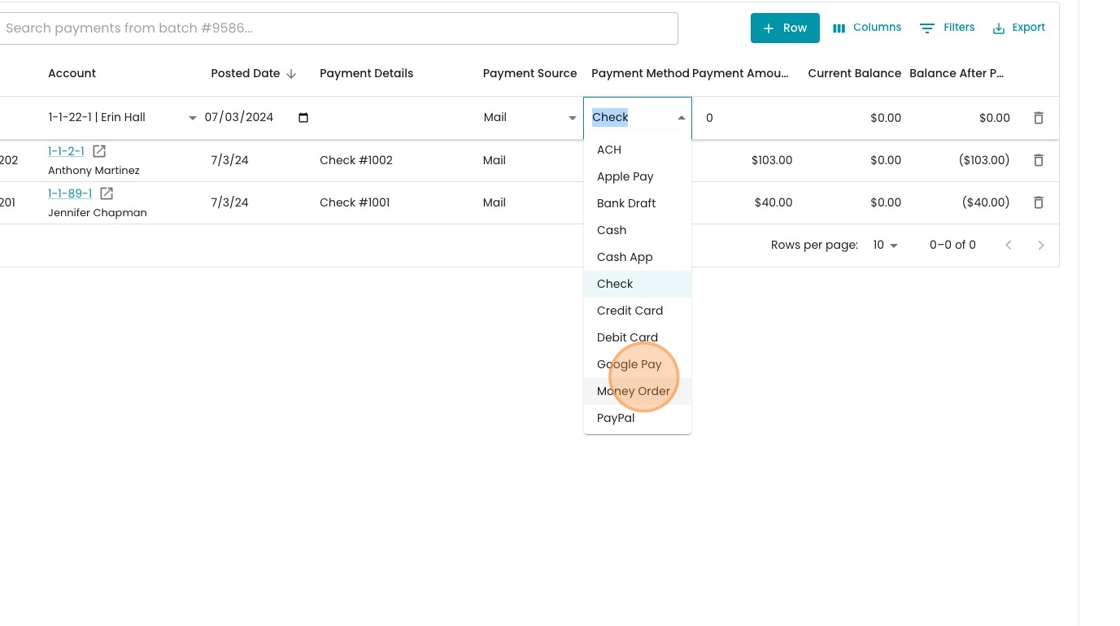
9. The "Payment Amount" field is the last field you need to enter. When you're done with this, you can press "Enter" and a new row will open automatically.
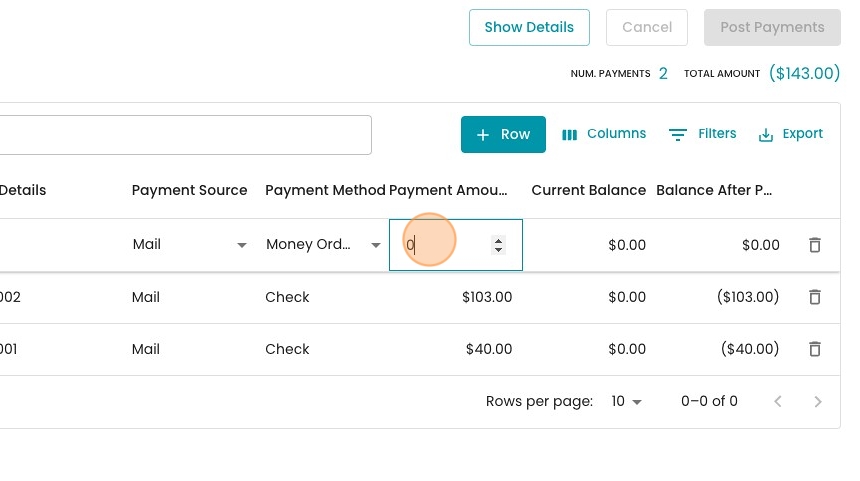
10. For each payment that you've entered, you can see how the payment would impact the balance.

Tip: To get rid of an extra empty row, press "Esc"
11. When you're ready, click "Post Payments"

12. You'll see the payments processing for a couple of seconds.

13. When processing is done, the blue box will disappear and you'll see this "Posted" chip.

14. You can see some summary details in the top right.

15. And you can export a batch summary from here.
