Exporting Payment Batch Reports
Exporting Payment Batch Reports
This guide is essential for anyone looking to efficiently export payment batch reports, offering a clear overview of the process and different export options. By following the steps, users can quickly obtain the format they need, whether it's for detailed analysis or a concise summary. The guide also highlights the flexibility of export formats, allowing for tailored outputs based on specific needs. Overall, it streamlines the reporting process, making it easier to manage and present payment data.
1. From the payment batches page, double click on the row of any payment batch you wish to export.

2. Note the summary details are presented in the top right area. If this is all you need, you don't need to proceed further.

3. If you need a file to print, press Export.

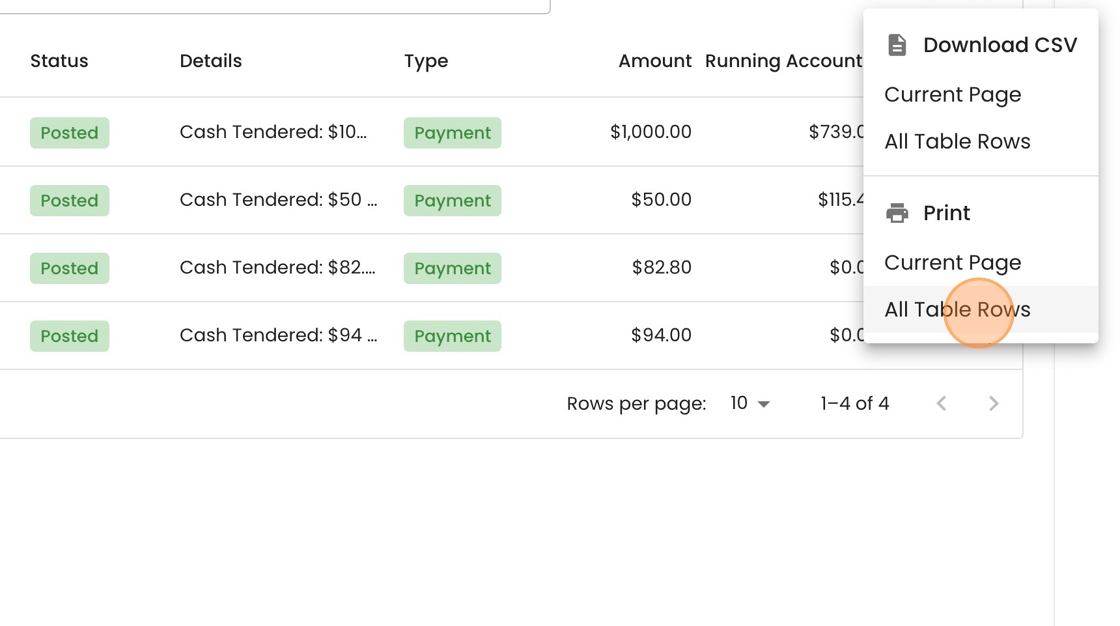
4. There are multiple export options:
- Download: Exports as CSV. Useful for ad-hoc analysis in excel
- Print: Exports as PDF. Is more human-readable
- Current Page: Only exports the transactions visible on the page in front of you.
- All Table Rows: Full Export of all data (useful for full batch summary).
In this case, we will select Print for All Table Rows, which prodcues a PDF summary of the entire batch.