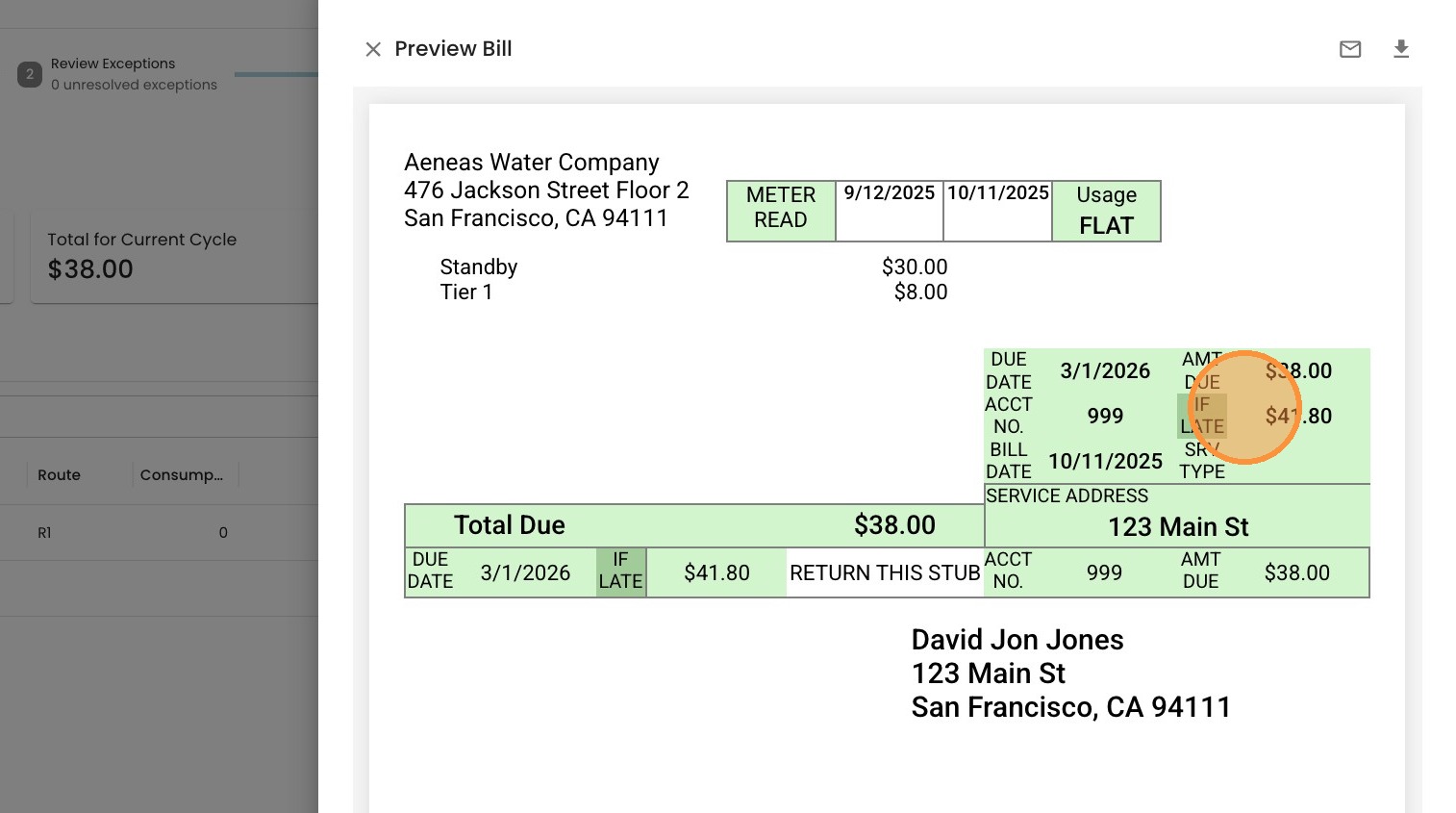
Update "Due If Late" Section of Bill
Learn how to configure automatic late fee settings within the Current software. This guide will walk you through the necessary steps to adjust billing preferences and ensure your late fee policies are correctly calculated on your bills.
- Start by Navigating to settings
- Billing
- Bill Template
- Find the option for "Late Fee" which corresponds to the "due if late" section of the bill template
- Select the late fee that would apply if they are late. In this case, it's "Late Fee", which assesses 10% of the balance.

6. Select "Save"
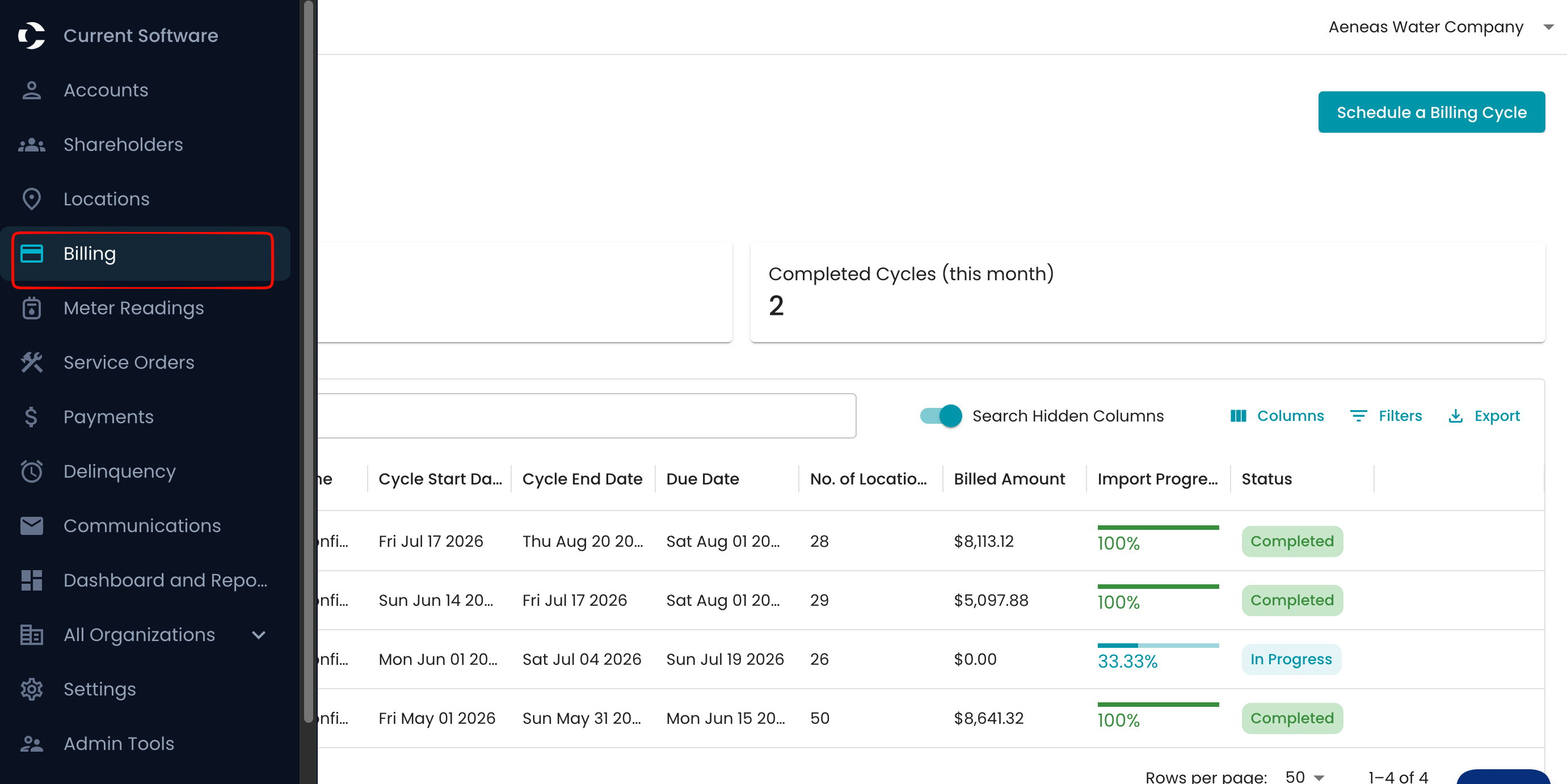
7. To check how this shows up on the bill, you can navigate to a recent billing cycle. Start by navigating to "Billing"
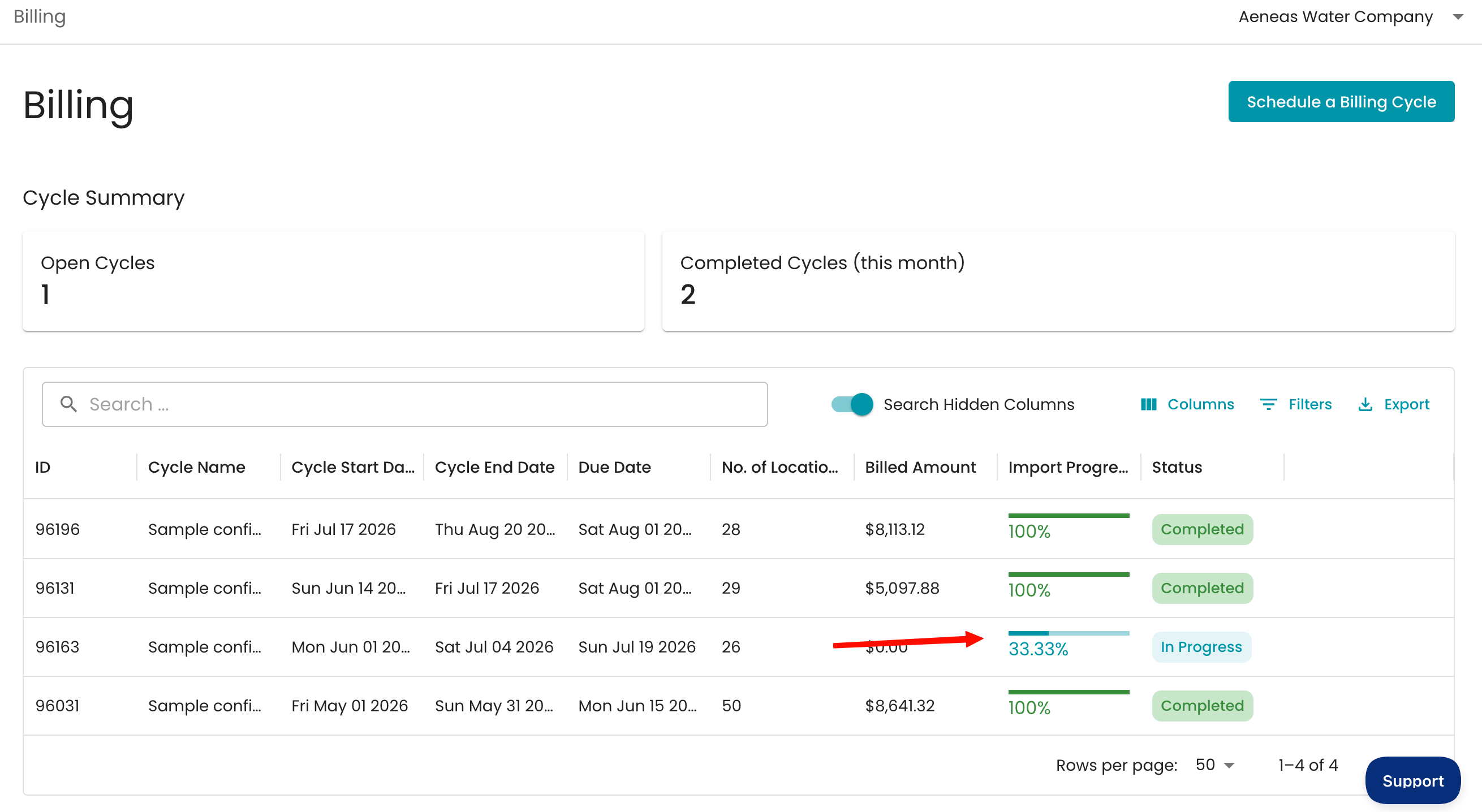
8. Select a recent Billing cycle, ideally one that is "In Progress"
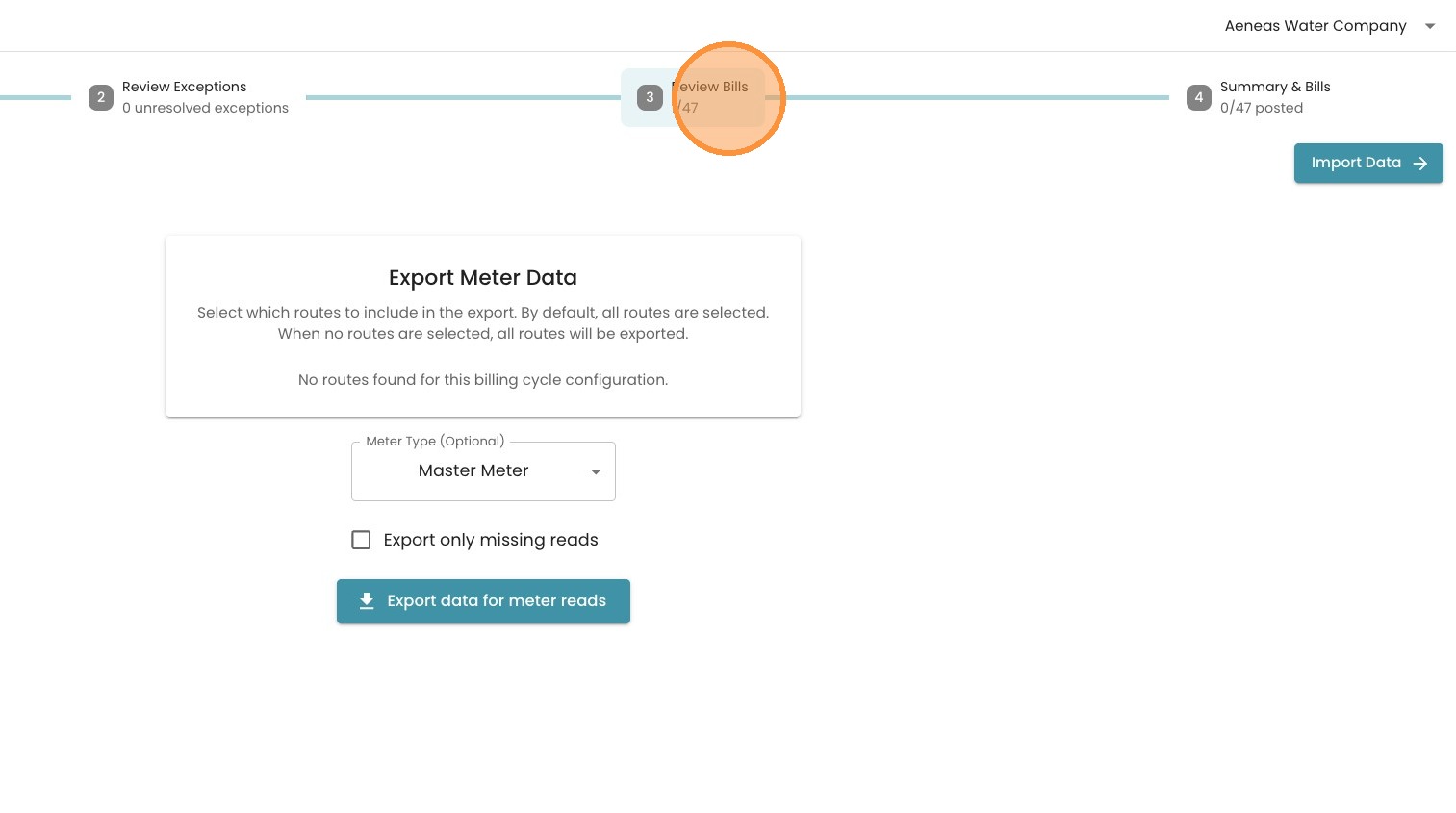
9. Navigate to "Step 3: Review Bills"
10. Preview any bill by selecting the "eye" icon
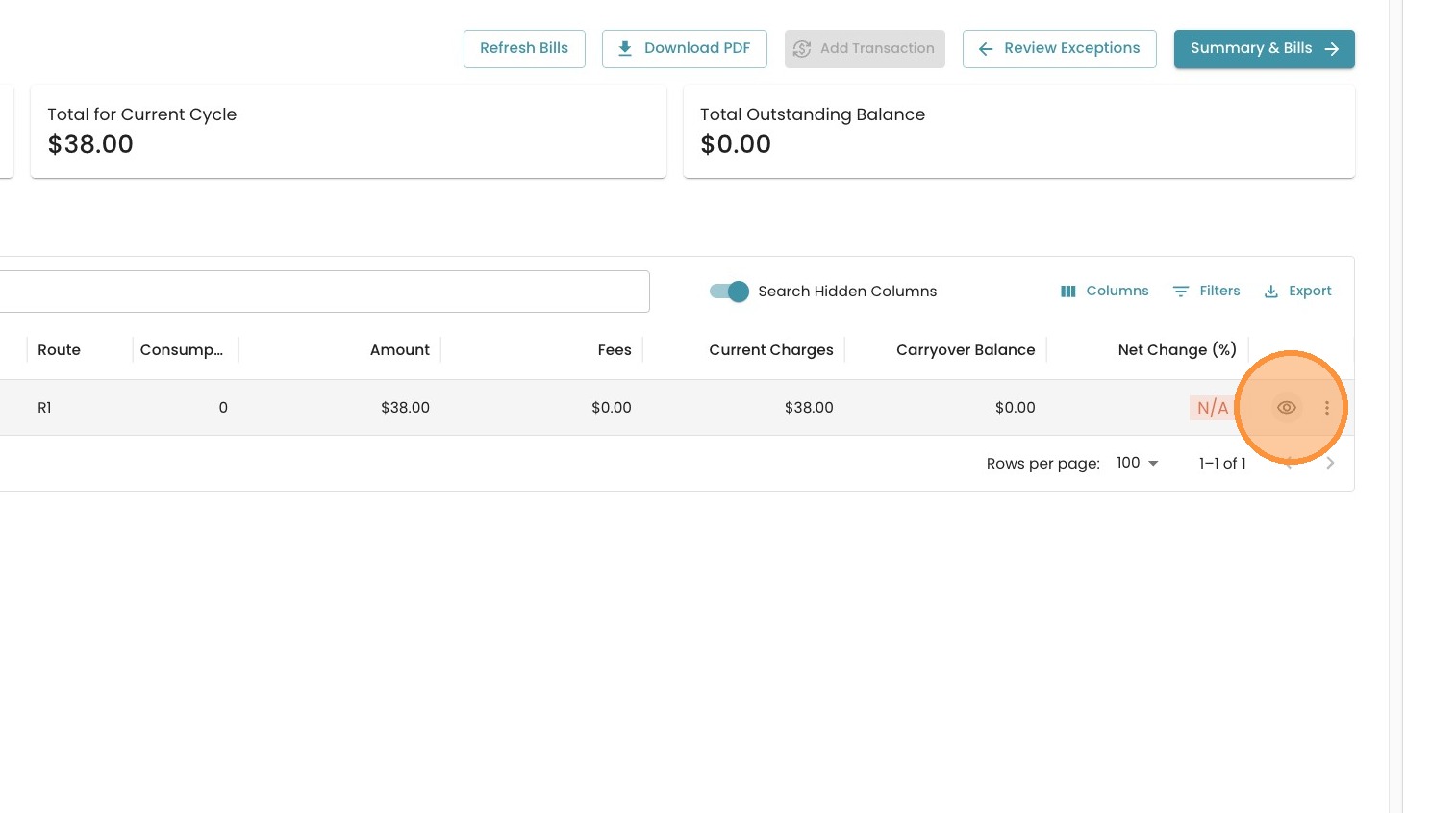
11. Notice how the "if late" section shows a higher amount - in this case, an extra 10% of $38.00!