Managing or Deleting Autopayments
Made by Tess Metcalf with Scribe
Learn how to easily access the Autopay management settings. This guide provides a quick walkthrough to help you update your residents' autopay settings or delete an existing autopay setup. This is especially helpful if the resident account isn't linked to their customer payment portal account.
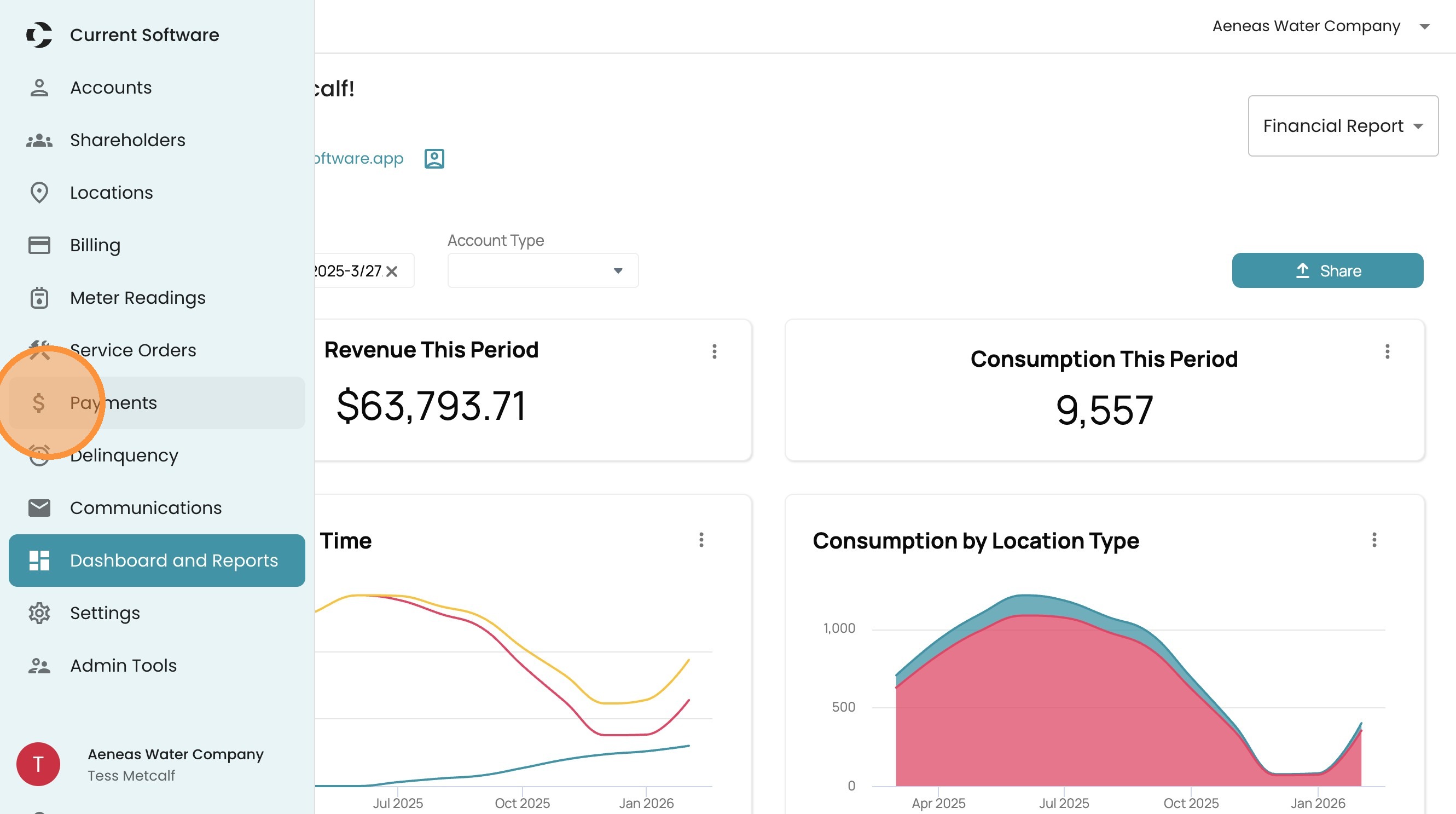
1. From the home screen, select 'Payments' from the menu on the left.
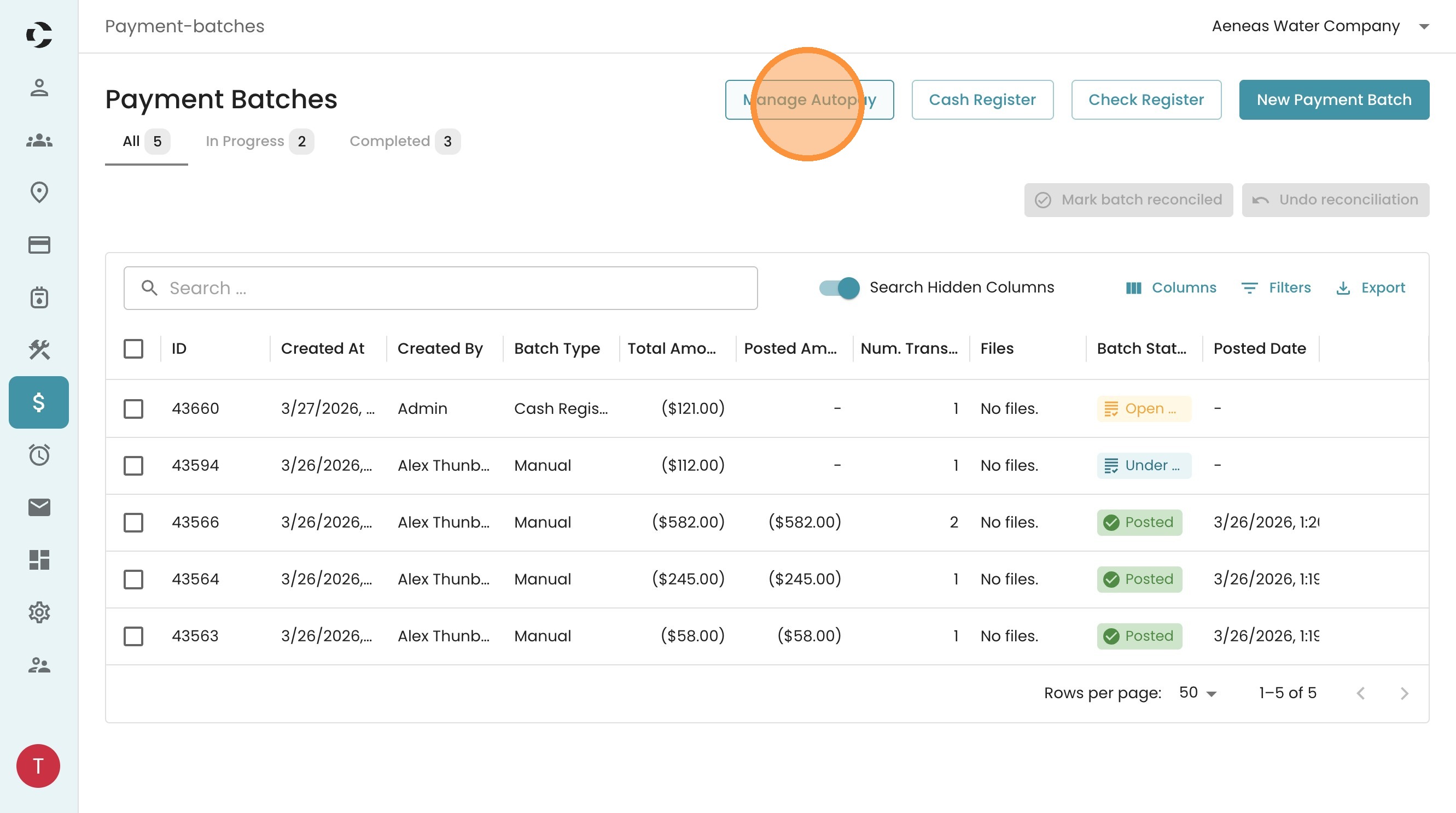
2. Click "Manage Autopay"
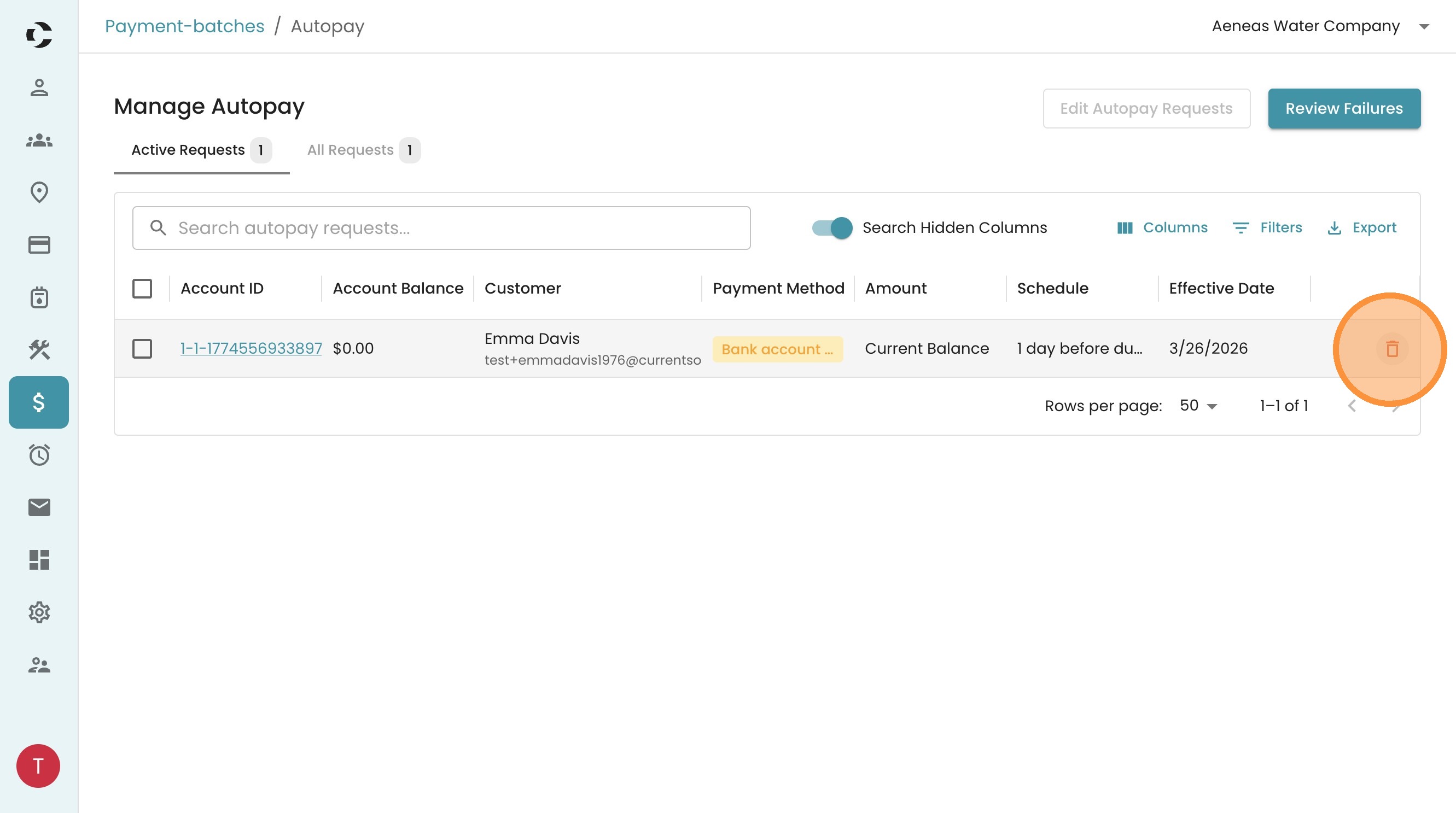
3. Search for the account you need to update. Autopayments can be deleted by hovering over the row and clicking on the trash icon
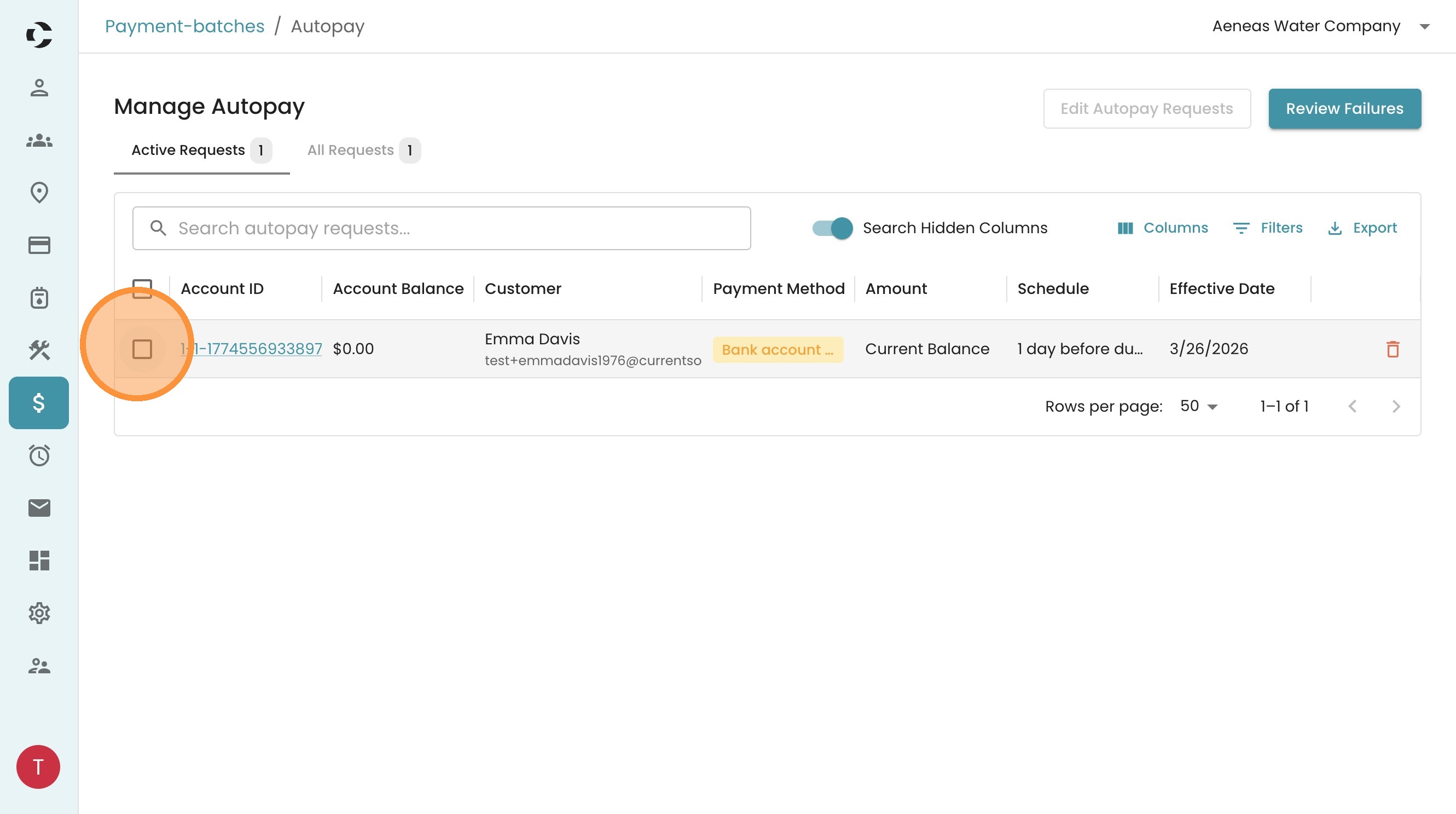
4. You can modify an autopayment by selecting the account with the checkbox on the left
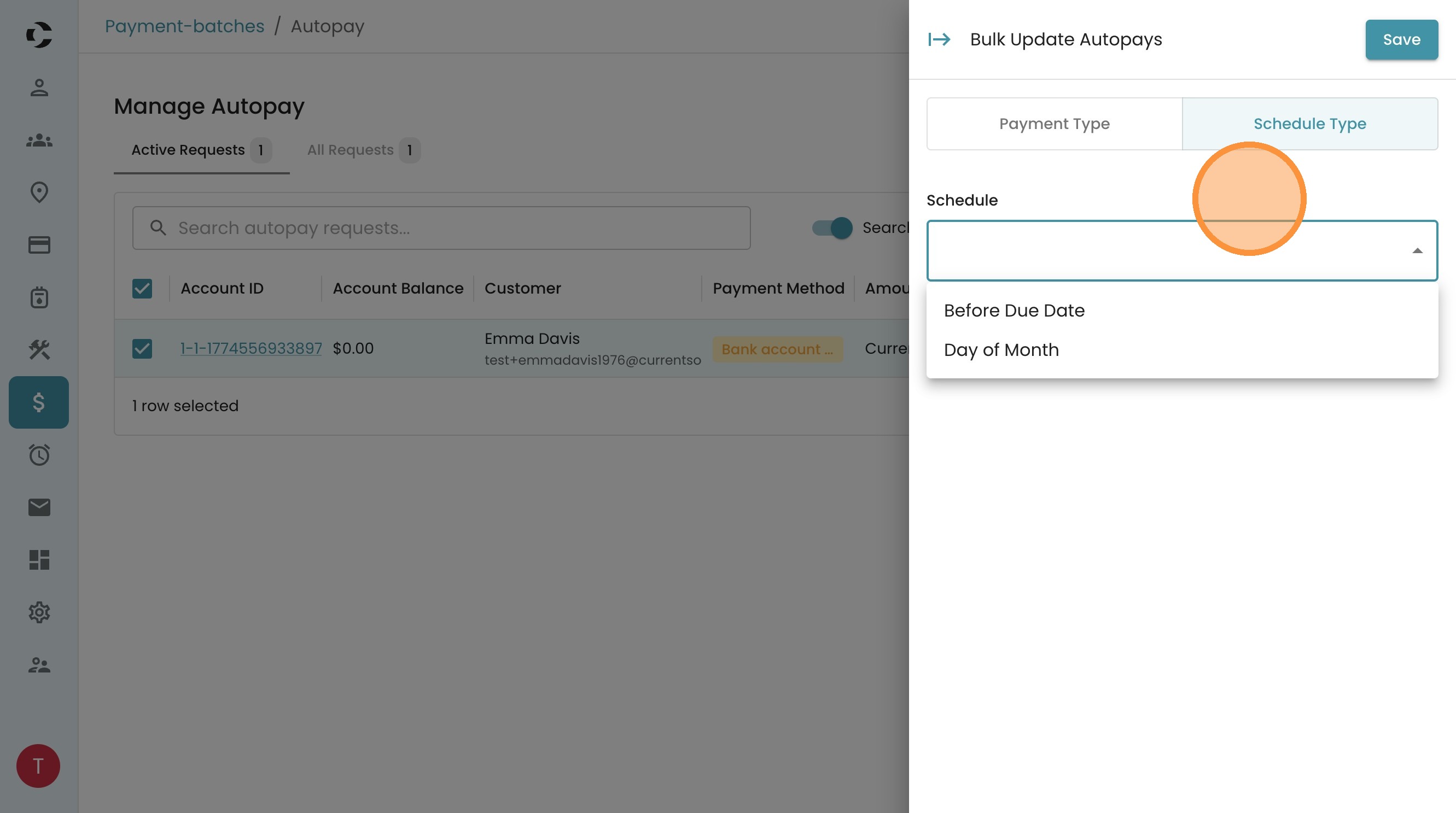
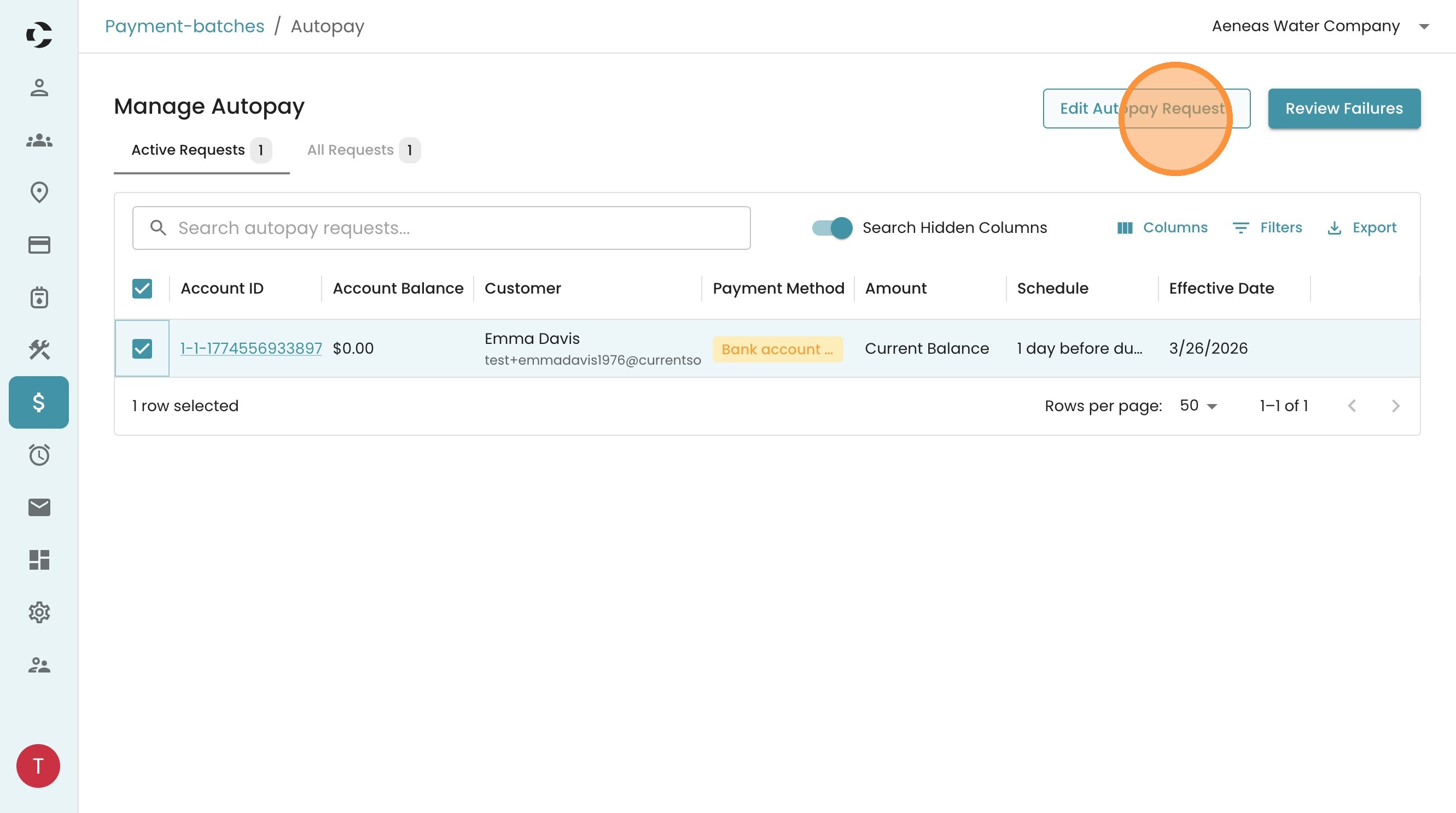
5. Click "Edit Autopay Requests"
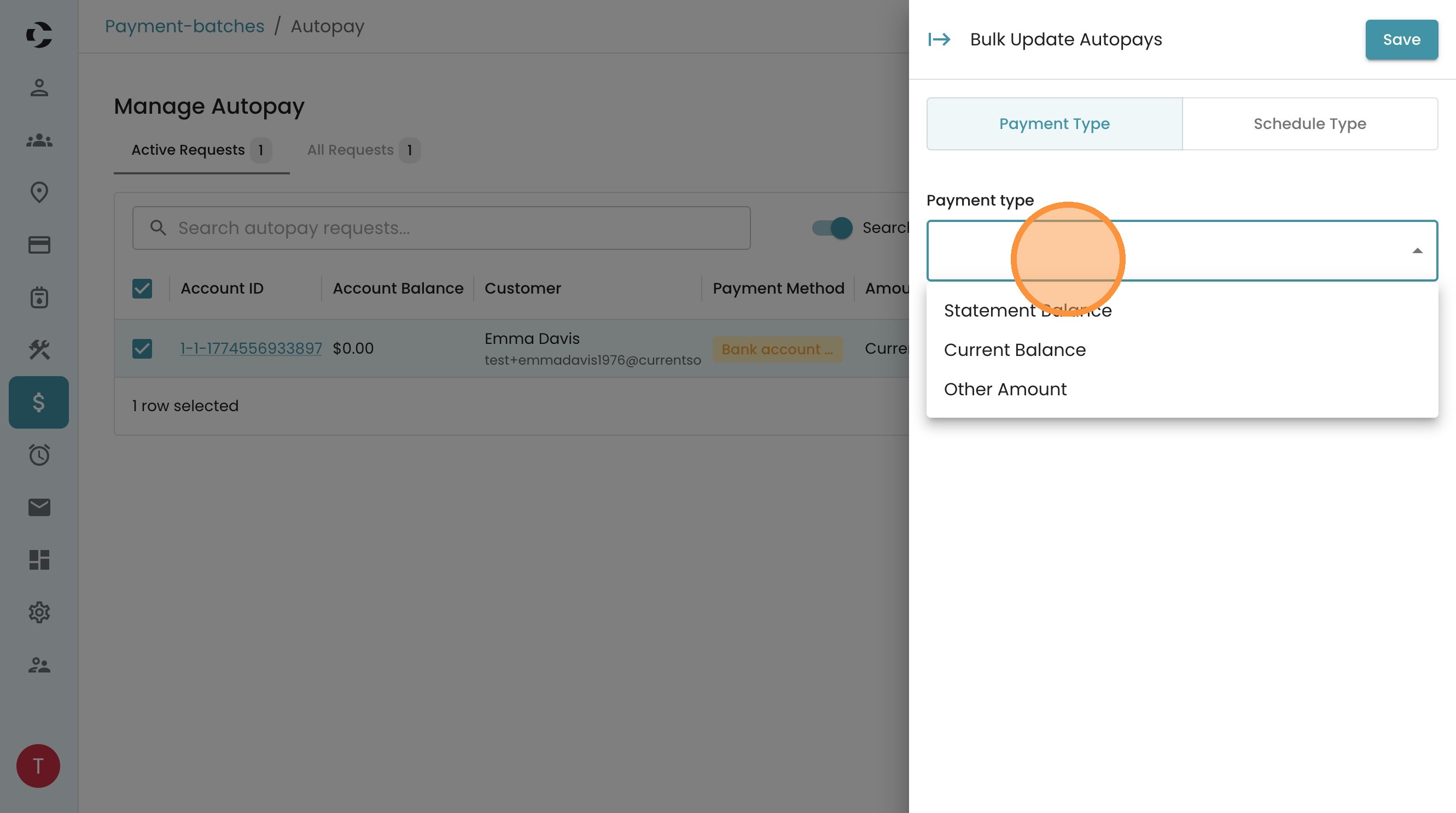
6. You can modify the payment type to be the Statement Balance, Current Balance, or Other Amount
7. You can modify the payment schedule by clicking the Schedule Type tab and selecting Before Due Date or Day of Month.