Managing Default Electronic Templates
Find default templates (such as autopay enrollment)
Learn how to access and customize your default templates. This guide shows you how to find the default templates within Communications Settings, edit them if you like, and send a preview to confirm how it works.
Access Communications Settings
1. Click Settings.
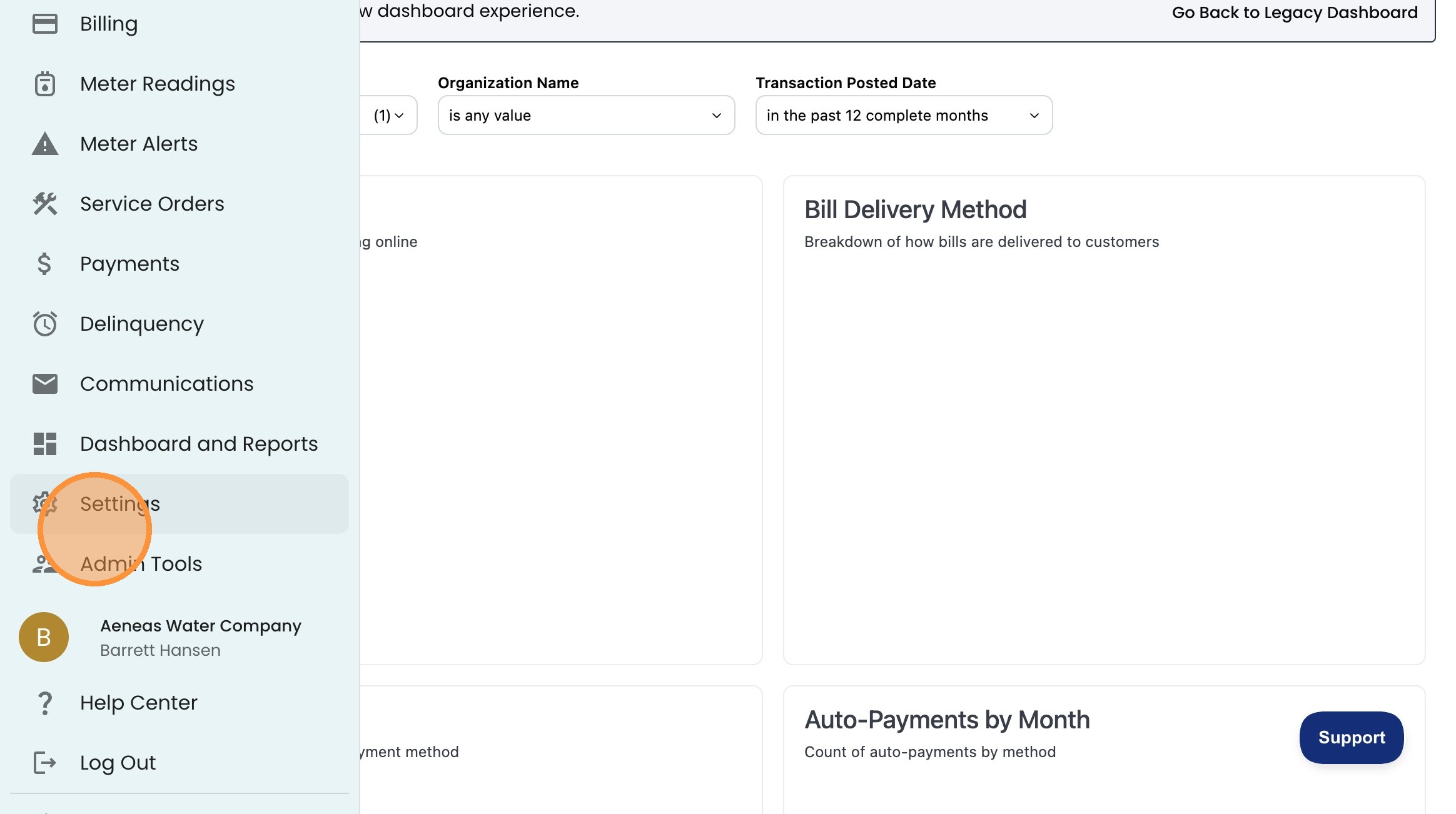
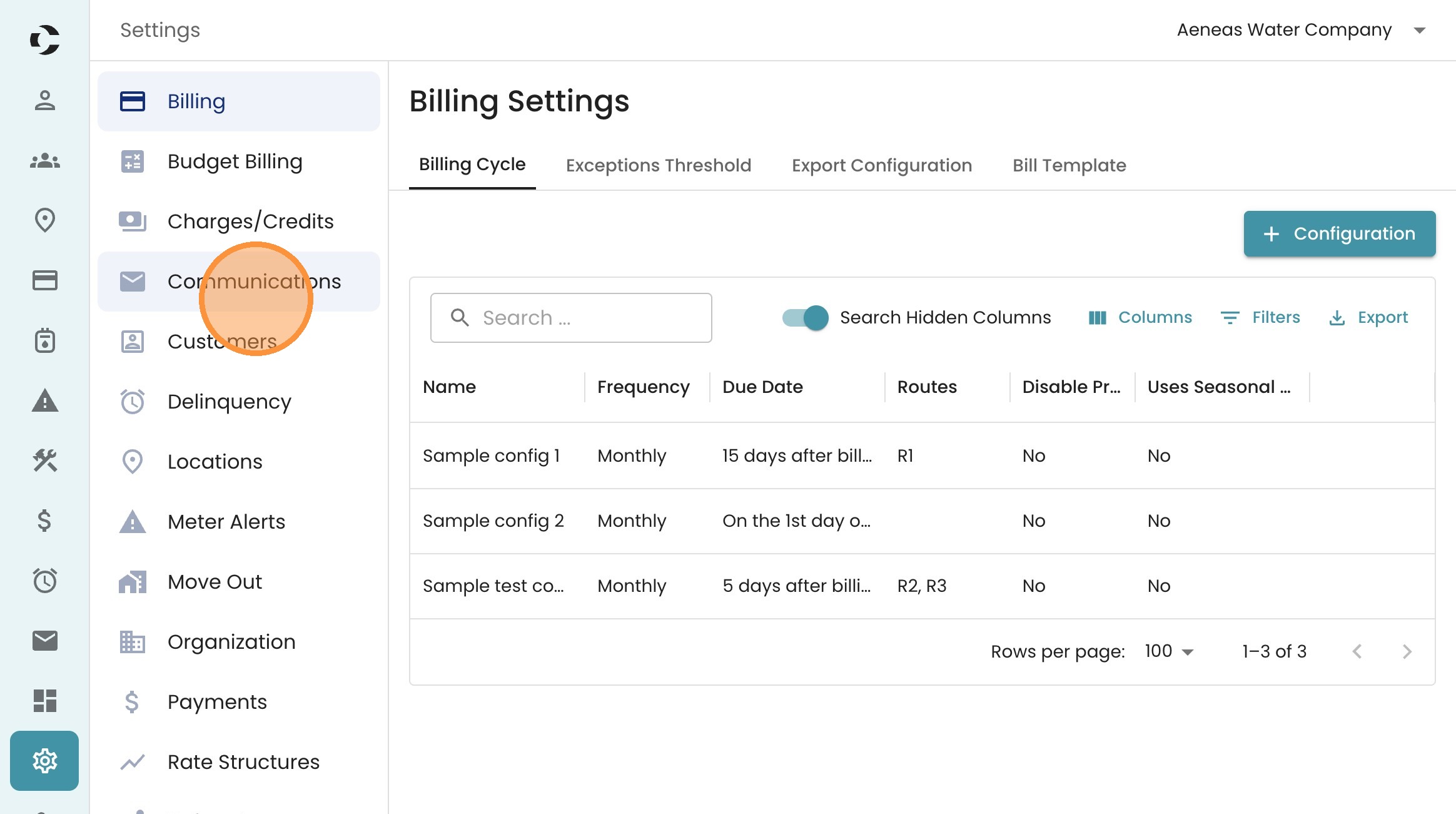
2. Select Communications.
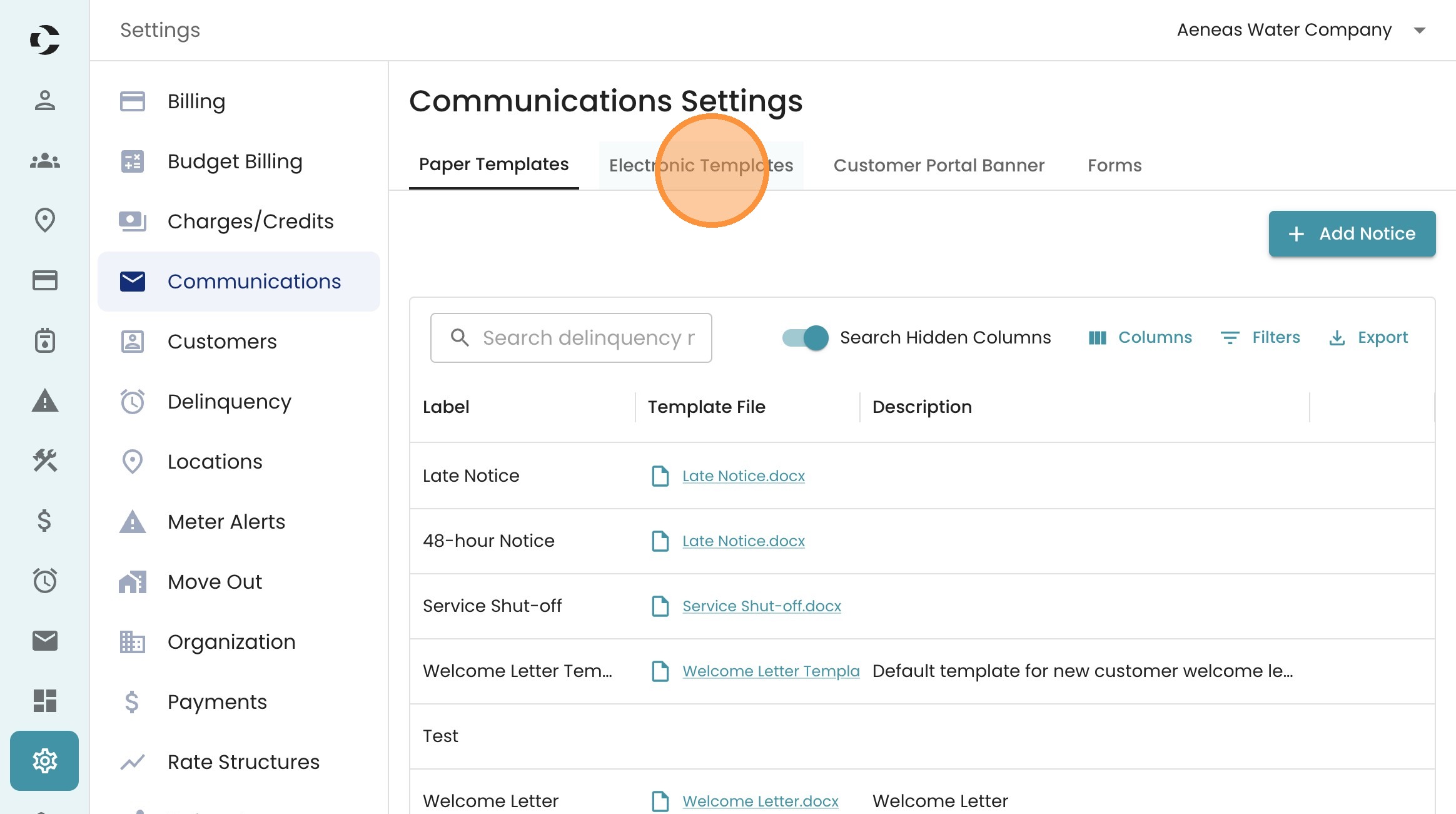
3. Click the Electronic Templates tab.
Locate and Open Template
4. Search for 'default' in the template list.

5. Note the list of templates that you have by default based on the template name and channel. Different templates are generated for email and SMS.
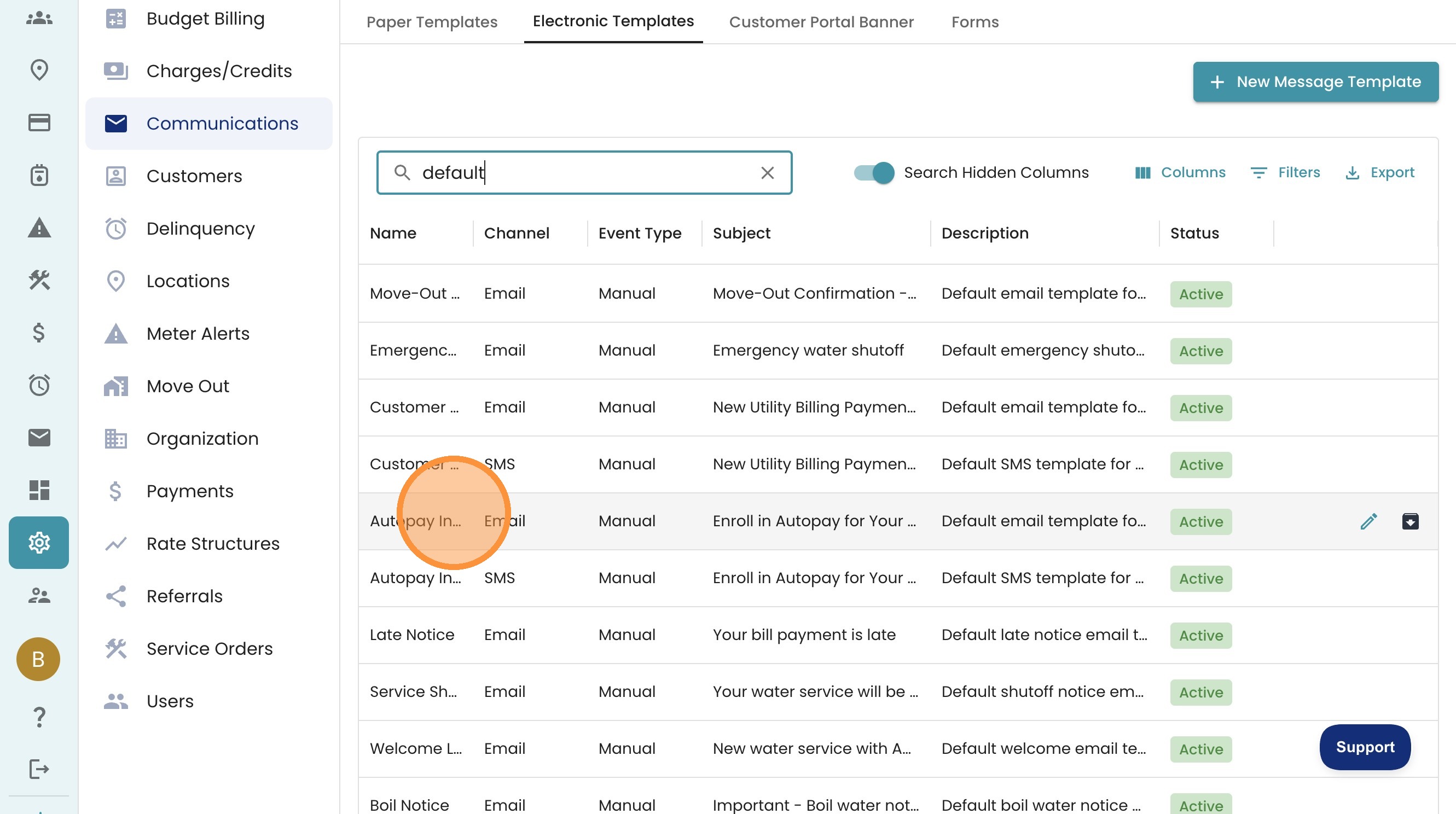
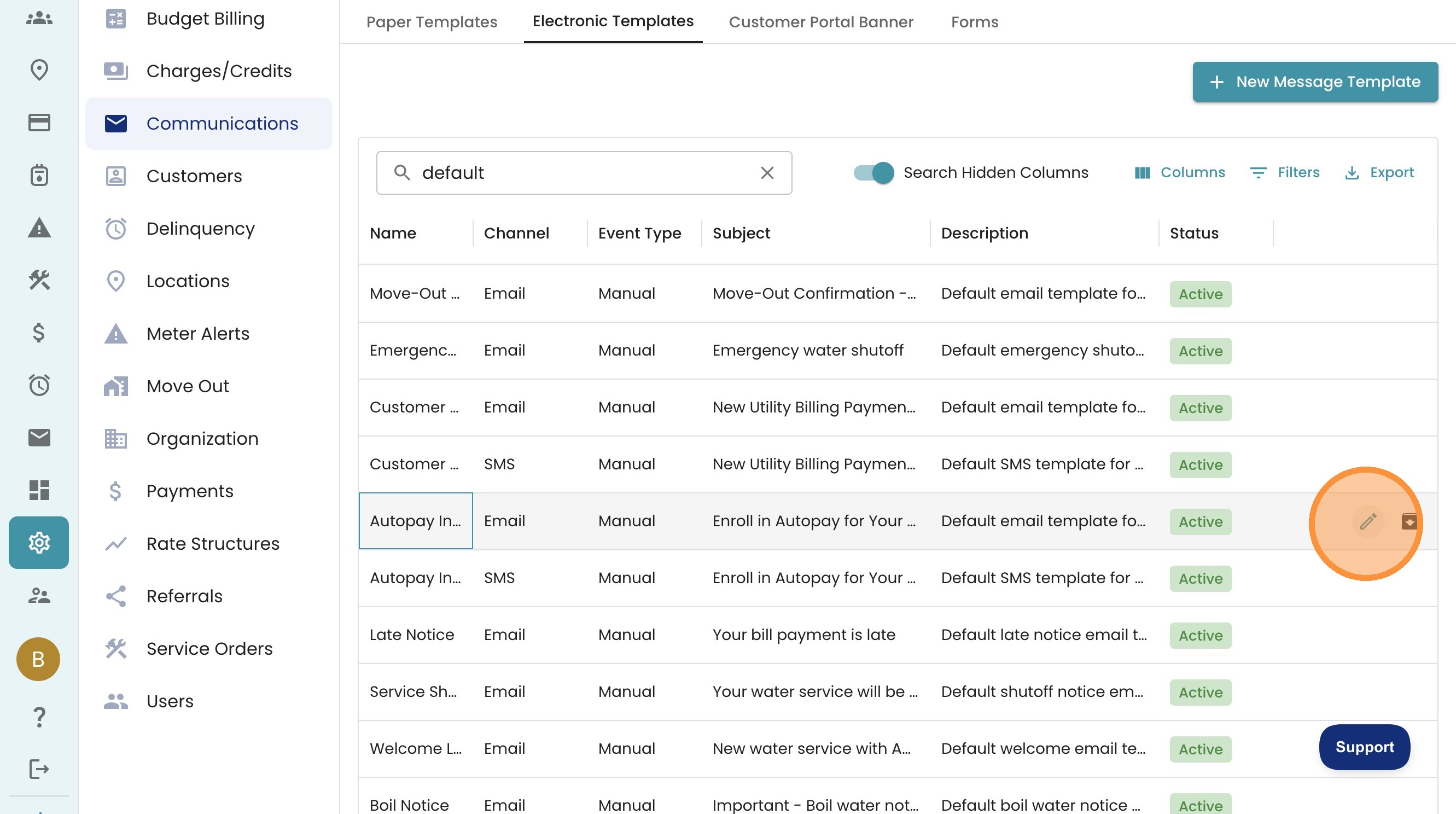
6. To see more, click the Edit icon for the selected template.
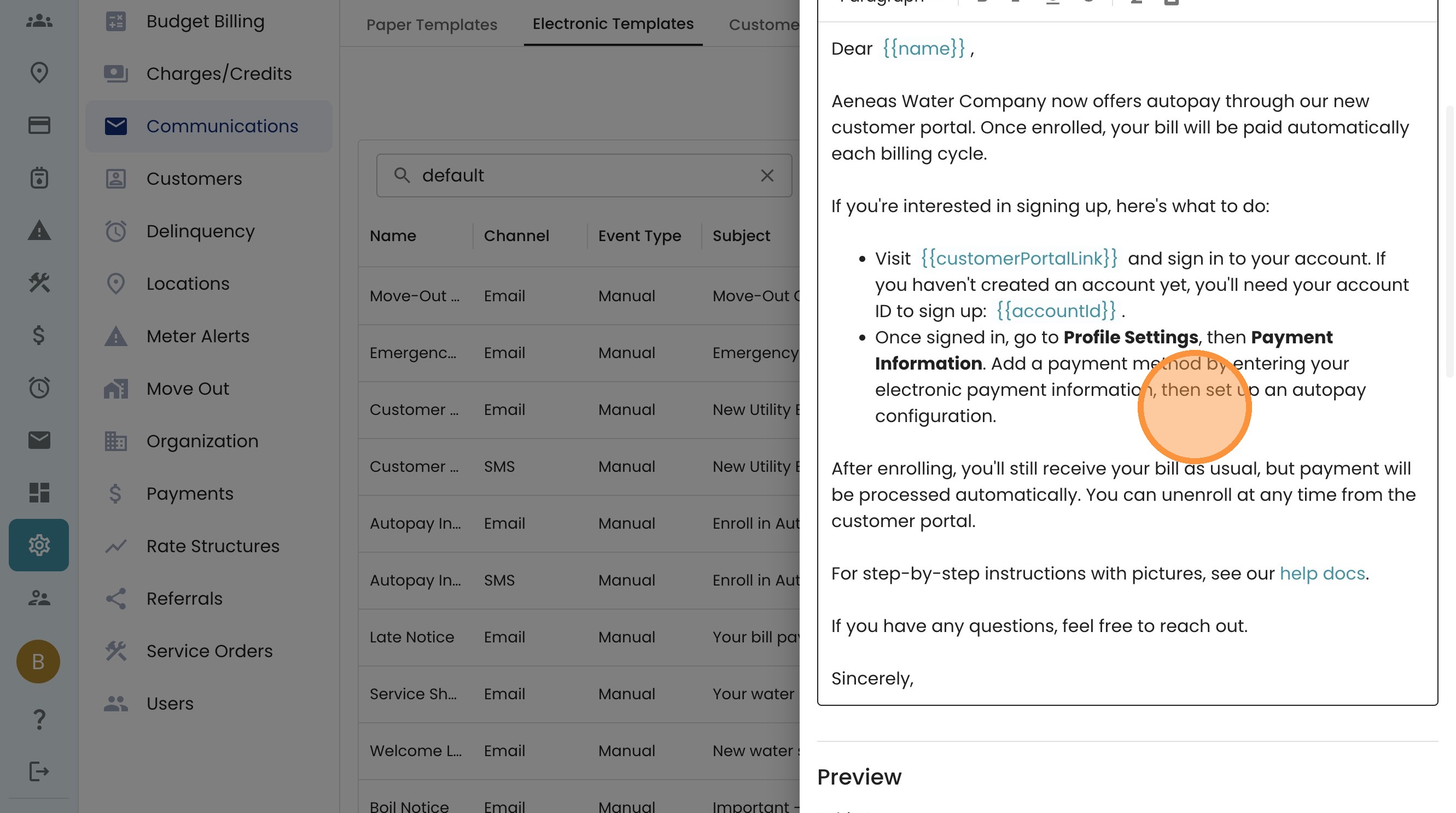
7. See the templated text in this box. You can click into it and edit any words or sentences that you like. Be mindful of the blue text which are default variables.
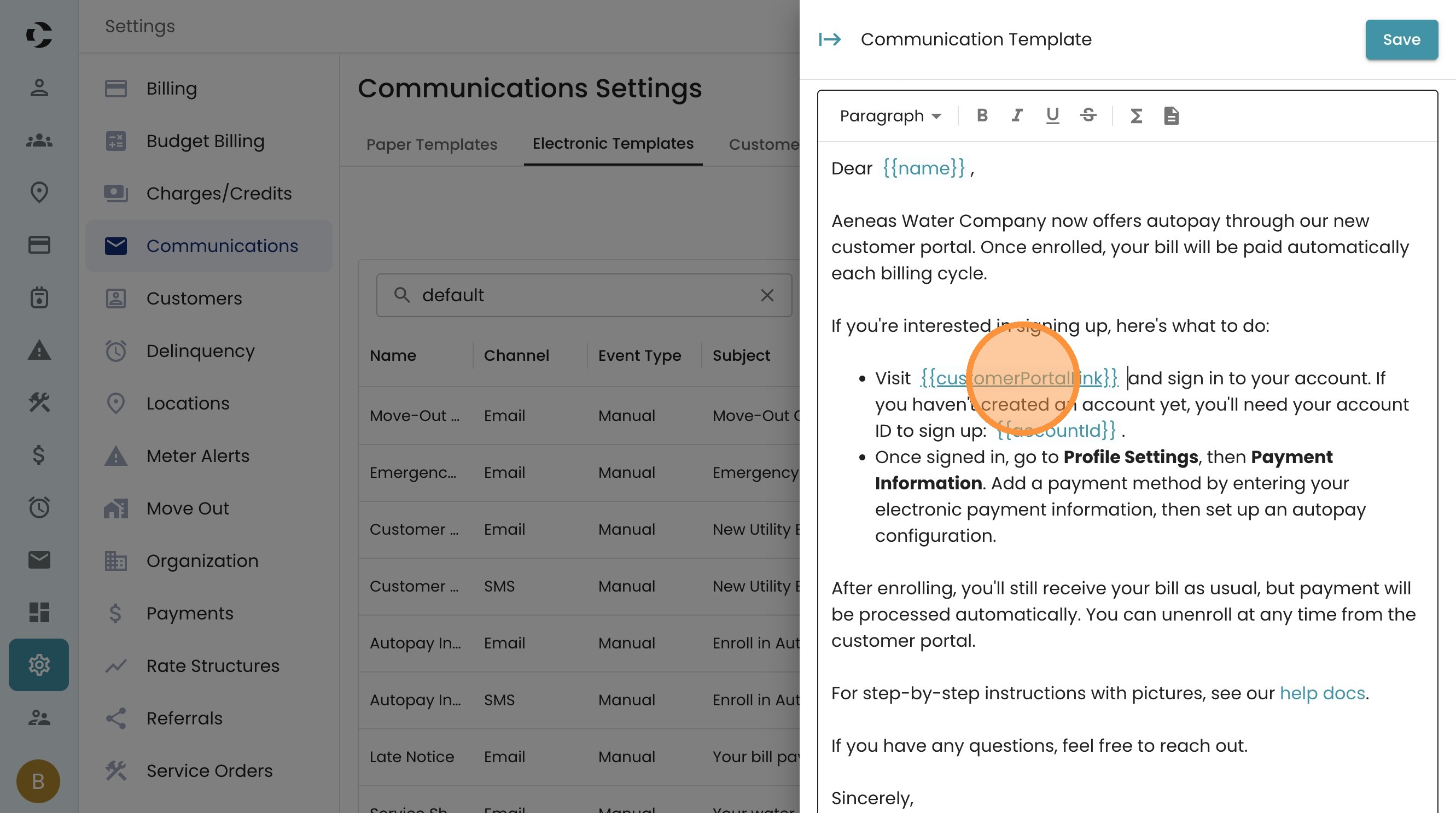
8. For example, customerPortalLink is your dedicated URL for online payments. This will be the same for all customers in your organization. If you have multiple organizations (for example, multiple utilities within your Community), it will pick the correct one for each account.
AccountID will be tailored for each individual recipient.
Preview and Test
9. To see how this email looks, you can put your own email address in the Send Preview To box.
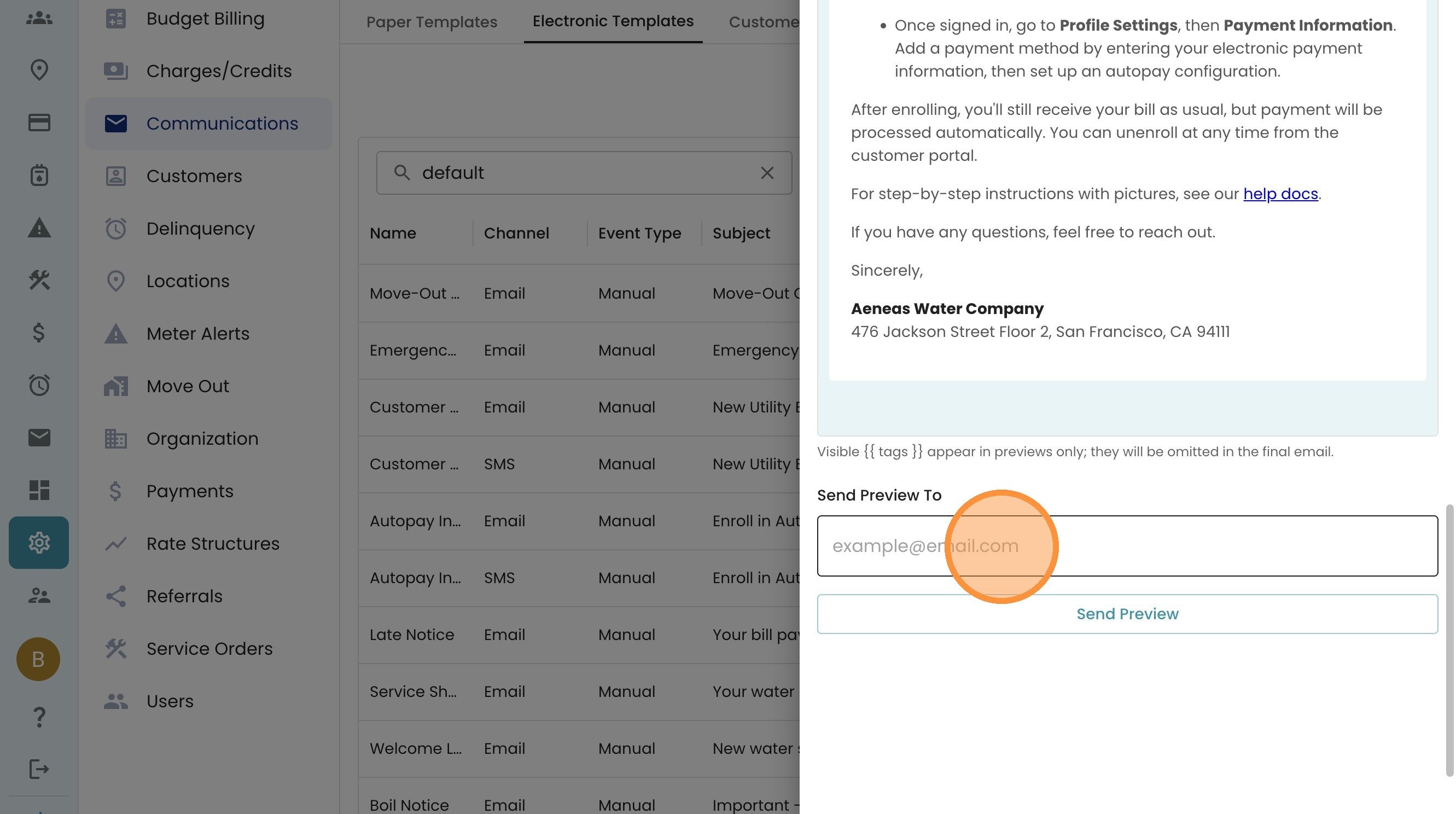
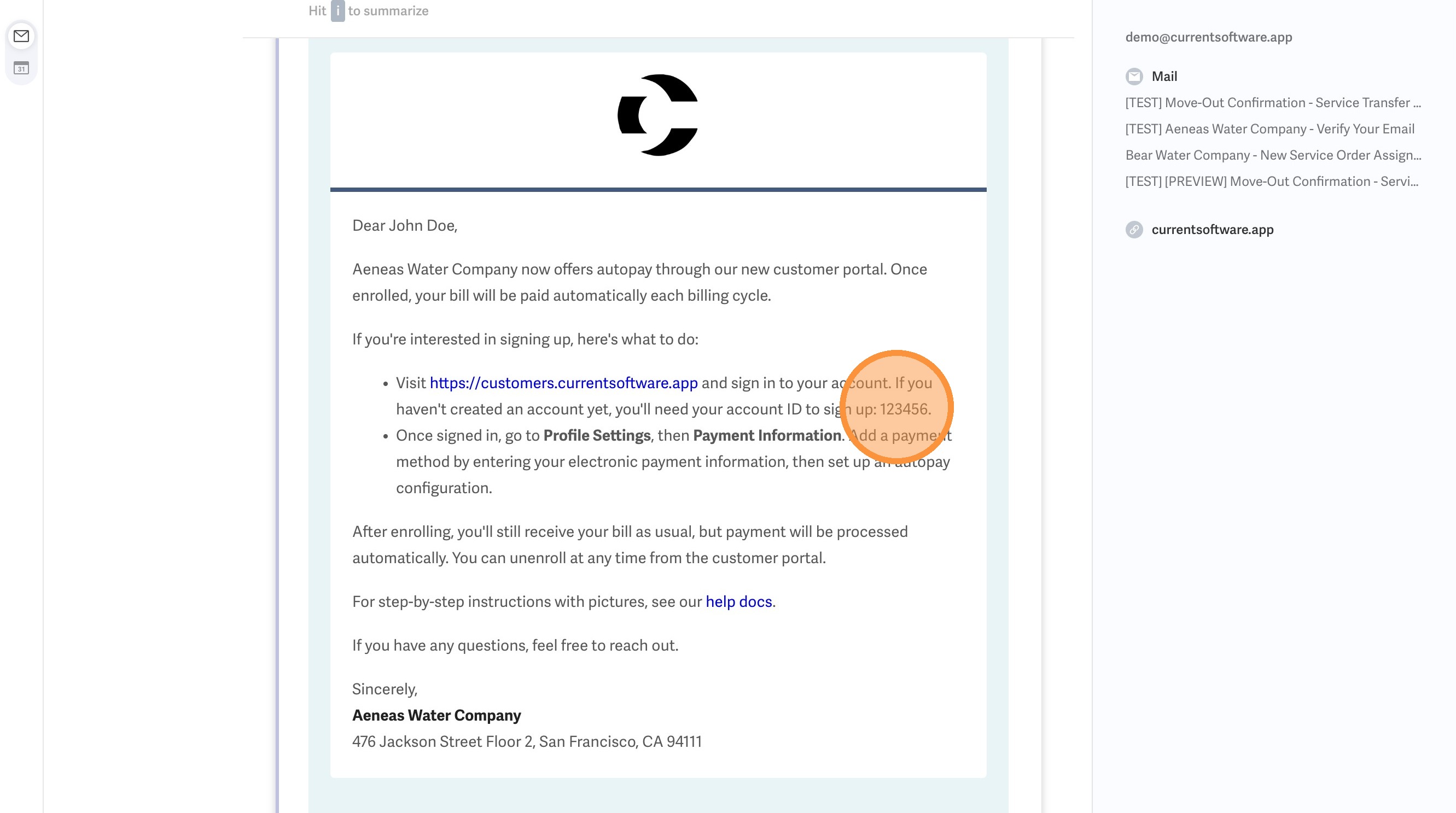
10. View the email and see how the variables are filled in. For the preview, you are given a generic name (John Doe), account ID (123456), and the correct organization portal link.