View and Complete Open Service Orders
View & Complete Open Service Orders
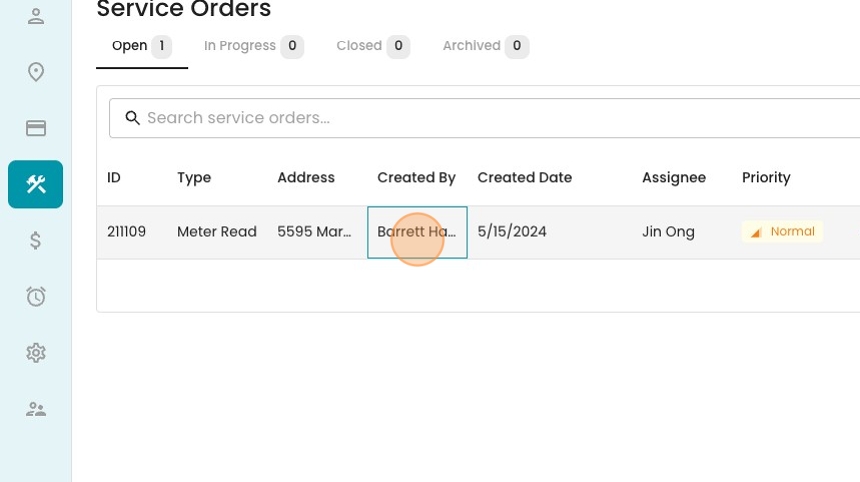
1. On the Service Orders page, click on the Open tab to see any outstanding work to be done.

2. Double-click on any record to open it up
3. To complete it, scroll down toward the bottom for the operator fields. In this case, because it was a meter read, we can enter the value here.
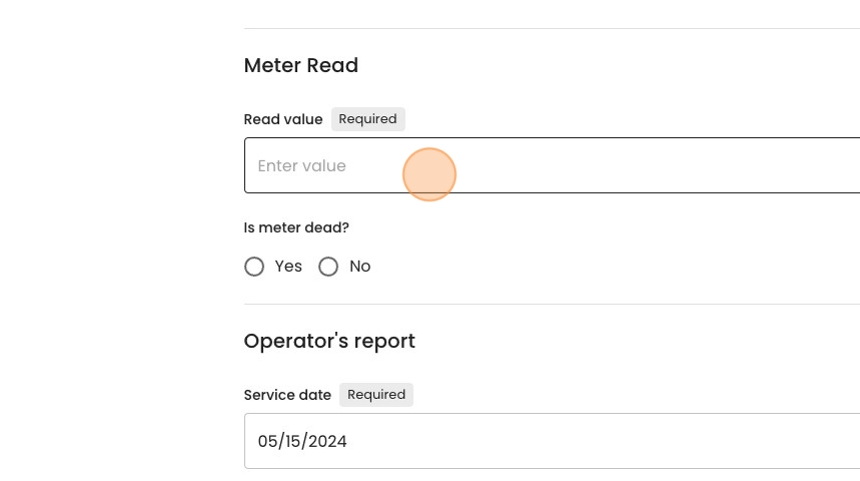
4. And here.

5. Type in any additional notes from the field here.

6. And use this area to upload items such as photos.

7. When you're done, you can mark the Service Order "Closed"

8. And "Save" it to finalize.

9. On the main Service Orders page, you'll now see no more open Service Orders, and can view your recently completed one under the "Closed" tab.
