AI Assistant
Overview
The AI Assistant is a chat panel in the admin portal that answers questions about your organization's accounts, bills, transactions, locations and form responses by looking up live data. It can also make a few changes for you, such as creating a service order, updating a contact's details, changing an account's status or turning on a setting, but only after you approve each one.
It knows which page you are on, so on an account or location page you can ask about "this account" without typing its number. It only sees data from the organization you are signed in to. Answers include links, so you can click straight through to the account, service order or settings page it's talking about.
Look for the AI Assistant item with a sparkle icon near the bottom of the left sidebar, where Help Center used to be. On mobile, the sparkle icon is in the top bar.

Getting started
Contact Support to enable this feature for your Organization
Open the assistant from AI Assistant in the left sidebar. It takes the place of the Help Center link once your organization has the feature turned on.
-
Click AI Assistant in the sidebar (on mobile, tap the assistant icon in the top bar).
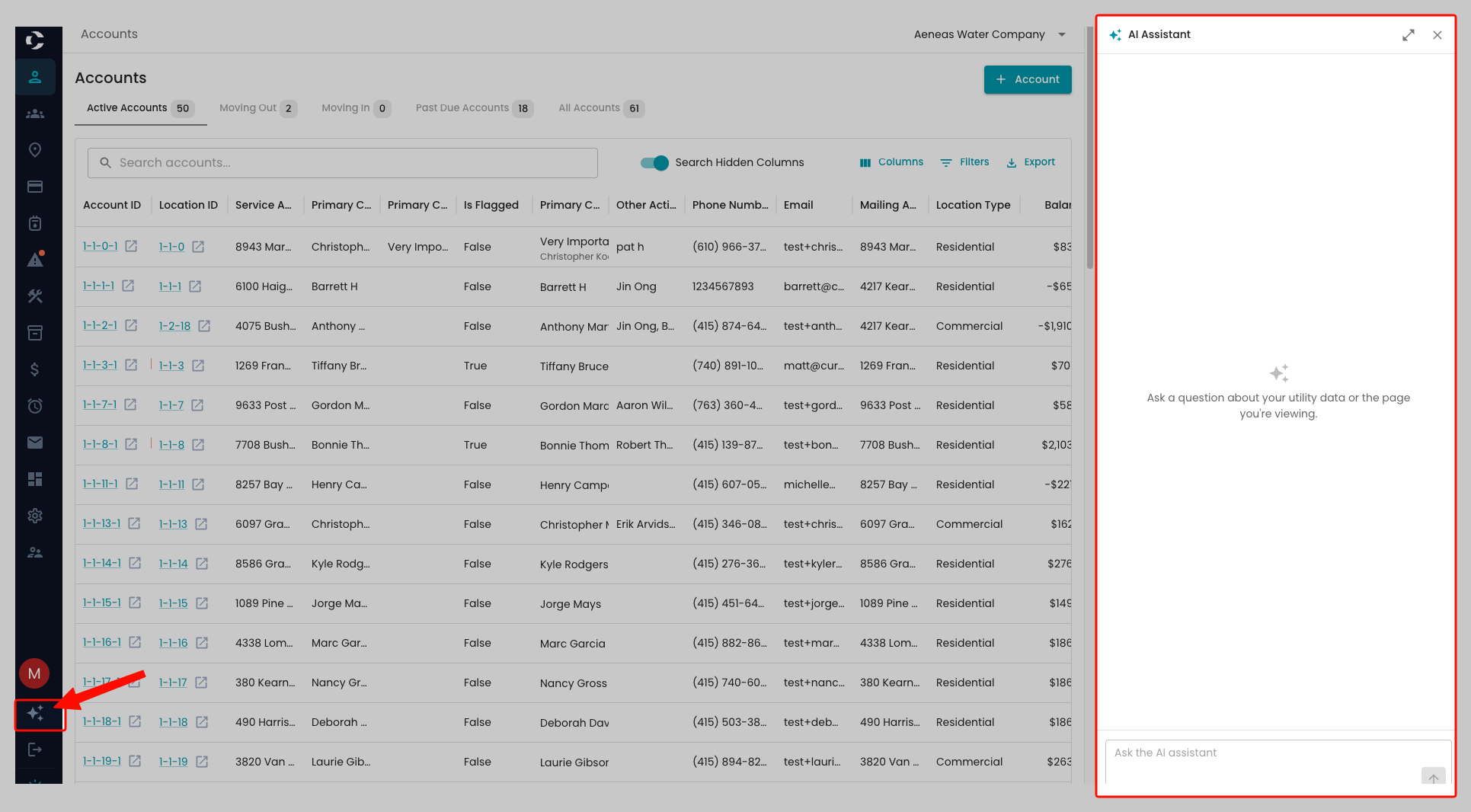
- Type a question in the box at the bottom and press Enter.
-
Use the expand control to widen the panel to full screen; collapse it to return to the side panel.

- Close the panel when you are done. Your conversation is saved and reappears next time you open it.
When you move to another page, the panel collapses back to the side (on mobile it closes), and the assistant picks up the new page as its context.
Starting a new chat and finding old chats
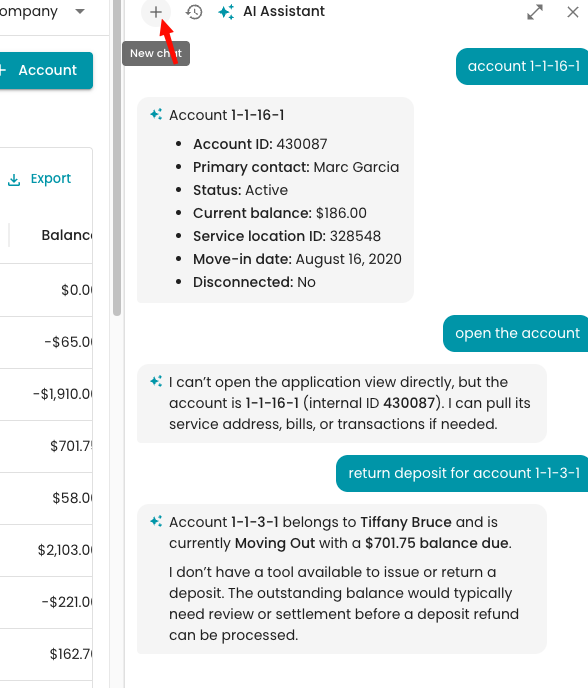
Each chat is saved with a short title based on your first question, so you can keep topics separate and come back to them later.
-
To start fresh, click the New chat icon at the top of the panel.
-
To go back to an earlier chat, click the Chat history icon, then click the chat you want. Click Load more chats to see older ones.
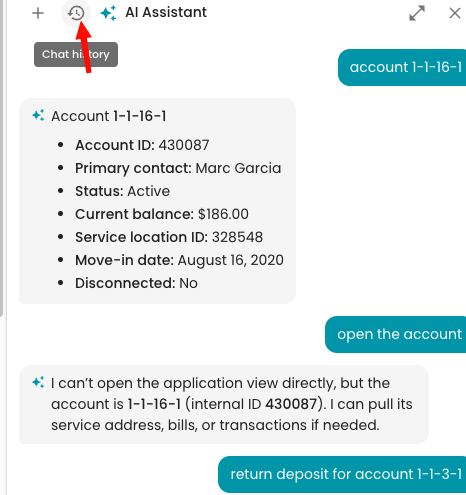
- Click Back to chat to return to the chat you were in.

You can't switch chats while the assistant is still answering or waiting for you to approve a change. Finish that first.
Don't see AI Assistant in your sidebar? Contact Support to get it enabled for your organization.
What you can ask
The assistant can look up accounts, bills, transactions, locations, form responses and settings, and make a few changes with your approval. Which of these you get depends on your role.
| Task | Example prompt | Who can use it |
|---|---|---|
| Find an account by name, email, address or part of the account number | "Find the account for Maria Lopez on Oak Street." | All roles |
| Find a service location by street, city or part of the location ID, including vacant locations | "Find the location at 120 Pine Street." | All roles |
| Look up an account by account number | "What's the status and balance of account 10452?" | All roles |
| Review an account's bill history | "Show the last 6 bills for this account and flag any estimates." | All roles |
| Review an account's transactions | "List recent payments and adjustments on this account." | All roles |
| List service order types | "What service order types do we have?" | All roles |
| Create a service order, with type, assignee, scheduled date and site contact | "Create a meter reread for account 10452, assign it to Jake, scheduled for Friday." | All roles (not auditor) |
| Get a full account overview | "Give me an overview of this account: contacts, last bill and payment, delinquency, autopay and open service orders." | Admin, User, Auditor |
| Look up a specific bill | "Break down the line items on bill 88213." | Admin, User, Auditor |
| Look up a specific transaction | "What was transaction 55120 for?" | Admin, User, Auditor |
| Look up a service location | "What's the address and route for this location?" | Admin, User, Auditor |
| Compare several accounts | "Compare balances for accounts 12, 14 and 19." | Admin, User, Auditor |
| Look up a form response | "Summarize form response 312." | Admin, User, Auditor |
| Check organization settings | "Are payment plans turned on?" | Admin, User, Auditor |
| Ask a reporting question (organizations that use Omni only; answers can take up to about 90 seconds) | "Which 10 accounts have the highest past-due balances?" | Admin, User, Auditor |
| Change an account's status | "Set account 10452 to Moving Out." | Admin, User (not auditor) |
| Update a contact's email, phone, mailing address or bill delivery | "Change the mailing address for this account's primary contact to PO Box 88, and switch them to email bills." | Admin, User (not auditor) |
| Turn a form response into a service order | "Create a leak investigation service order from this form response." | Admin, User (not auditor) |
| Start a move out from a form response | "Start a move out for account 10452 from form response 312, moving out May 31." | Admin, User (not auditor) |
| Turn an organization setting on or off | "Turn on deposits." | Admin only |
Field Technicians get the "All roles" tasks only. Auditors are read-only, so changes are never offered to them.
Account statuses the assistant can set: Active, Inactive, Moving In, Moving Out.
Settings the assistant can turn on or off include: Payment Plans, Deposits, Meters, Backflow Devices, Mobile Meter Readings, Communication Campaigns, Zero Read Exceptions, Round Cash Payments, one-time payment verification and the Customer Portal Chatbot. Ask "Which settings can you change?" for the full list.
Tips for good answers
- If you don't know the account number, search by name, company, email, street address or part of the number. If more than one account matches, the assistant lists them and asks which one you mean.
- Bill and transaction lookups use the ID numbers shown on those records.
- Ask follow-ups in the same chat; the assistant remembers the conversation.
- Ask for a summary or explanation ("Why did this bill go up?") and it will pull the bills and transactions it needs.
How it works
Each question is answered by looking up current data, not from memory, and every change waits for your approval.
Page awareness. With each message the panel sends what you are viewing: the page path, plus the account, location or form response ID on those list and detail pages. If a peek panel is open, that record counts as your current focus. The assistant uses this only as a hint and re-checks the data before answering.
Links in answers. When the assistant mentions an account, location, service order, move out or settings page, it links to it so you can open it in one click.
Approving changes. Reading data never needs approval. Every change does, whether it's updating an account's status, creating a service order (on its own or from a form response), starting a move out, updating a contact's details, or turning a setting on or off:
- You ask for the change.
- The assistant proposes it on an approval card.
- You choose Approve or Deny.
- Approve → the change is made and the activity is logged
- Deny →nothing changes, and the assistant won't retry unless you ask again.

The approval card lists the exact change (e.g., "Change account 10452 status from Active to Moving Out") and the related details. The chat box stays locked until you approve or deny. Once approved, the change is recorded in the activity log under your name. Starting a move out also sets the account's status to Moving Out.
Conversation memory. Each chat is saved between visits, and you can return to any of them from Chat history. Within a chat, scroll up to load older messages. In very long chats, older messages are condensed into a summary so the assistant keeps the key facts, IDs and decisions.
Limits per answer. The assistant takes at most 10 steps (lookups) per reply and one approval request at a time. Bill and transaction histories come back 50 at a time (up to 100), newest first. Account searches return up to five matches.
Limitations and troubleshooting
The assistant covers accounts, bills, transactions, locations, form responses and a set of organization settings. Its actions are changing account status, creating service orders, starting a move out from a form response, updating a contact's email, phone, mailing address or bill delivery, and turning a short list of settings on or off. Every change needs your approval.
It cannot yet: look up meters or payment batches, post payments or adjustments, edit account details other than contact information, change settings other than the ones listed above, or send communications. Reporting questions across many records work only if your organization uses Omni. Omni answers can take up to about 90 seconds. The chat shows a typing indicator until they arrive. Page awareness works on Accounts, Locations and Form Responses pages; elsewhere it only knows the page path.
| What you see | What it means | What to do |
|---|---|---|
| No AI Assistant in the sidebar | The feature is off for your organization | Contact Support to get it enabled for your organization |
| Chat box says "Approve or deny the pending action" | A change is waiting for you | Approve or deny the card above |
| Your message shows as failed or cancelled | The reply could not be completed | Click retry on the message; it resends with the same page context |
| "Session is unavailable or already processing a response" | A reply is still running, for example in another tab | Wait for it to finish; a stuck reply clears after 5 minutes |
| "This tool approval is no longer awaiting a response" | The approval was already answered | Refresh the panel to see the result |
| The assistant says it can't find a record | Wrong ID type, or the record belongs to another organization | Use the account number shown in the portal, or open the record and ask "this account" |
Always check important figures against the record itself before acting on them.
FAQ
Can the assistant change data without me knowing? No. Every change it makes, such as updating an account's status or creating a service order, needs you to click Approve first. Denied actions are not retried unless you ask again.
Can other staff see my conversation? No. Conversations are stored per user and per organization, and only you can load yours.
Does it see other organizations' data? No. Every lookup is limited to the organization you are signed in to.
Why did it give a different answer than the page shows? It fetches data at the moment you ask. If the page was open for a while, refresh it; if they still differ, trust the record and report the answer.
Can I start a new chat? Yes. Click the New chat icon at the top of the panel. Your earlier chats stay in Chat history.
What happens if I close the panel mid-answer? The reply keeps running and appears when you reopen the panel.
Can the assistant change my organization's settings? Only a short list of on/off settings, such as Payment Plans or Deposits, and only for admins. Each change needs your approval and is recorded in the activity log. Other settings still need to be changed on the Settings page; the assistant can link you there.