Download Batch Summaries for Reconciliation
Download batch summaries for reconciliation
This guide provides a straightforward process for downloading payment batch details specifically for reconciliation. In the below example, we export a report of the e-payment batches produced this month. Each row in this report will contain a batch ID, a date, and the total amount (among other details). These amounts can be compared direclty against bank records for easy reconciliation.
1. Navigate to Payment Batches

2. To select a specific set of batches, click "Filters"

3. Click "Id" to pick an attribute to filter on

4. Let's say in this case we want to find all of our e-payment records. That can be found under "Batch Type"

5. Click "equals" for the operator

6. Type "Finix" to pick e-payments. Press "Enter"
7. See how the filter icon is present to indicate the report is filtered to "Finix" batches only.

8. To add another filter, click the "Filters" button again.

9. Click "Add filter"

10. Let's say we want to only look at batches created during a certain window. Click "Created At"

11. Select from the date range options. To pick batches from this month (for instance), select "is on or after"

12. Type in the date you want here.

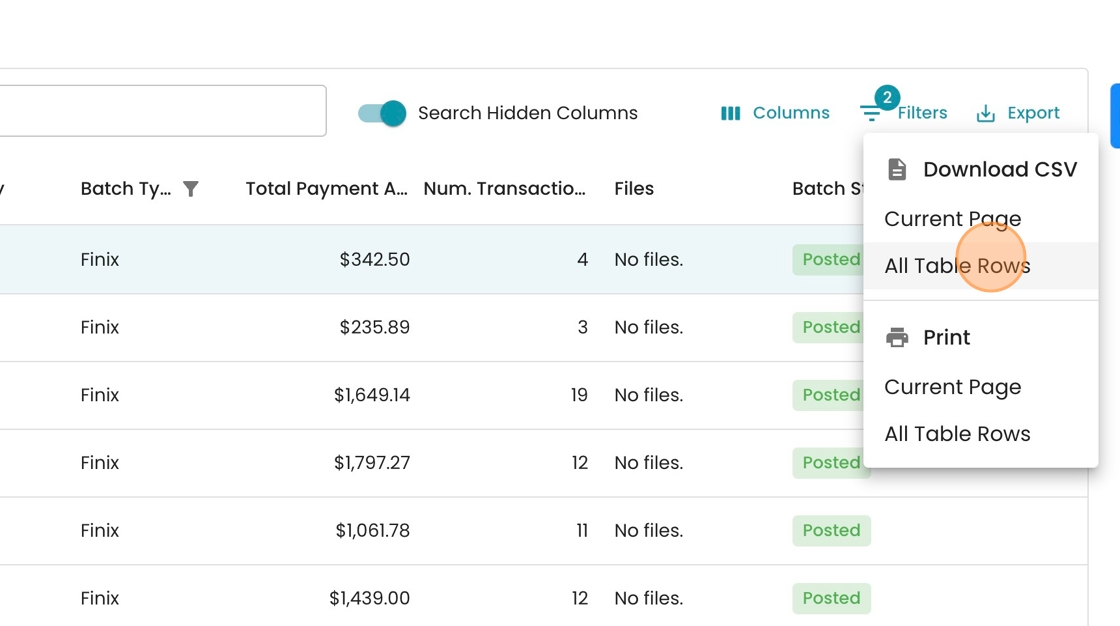
13. Now click "Export"

14. Click "All Table Rows" to get all the data, or "Current Page" to get only what you see on the screen in front of you.
Tip: This report will have one row per payment batch, making this an ideal report to compare against your bank records for easy reconciliation