Log in as Customer using Magic Link
Log in as Customer using Magic Link
1. From a given Account page, click "Contact Information"

2. Find the customer portal icon on the right hand side of the contact screen
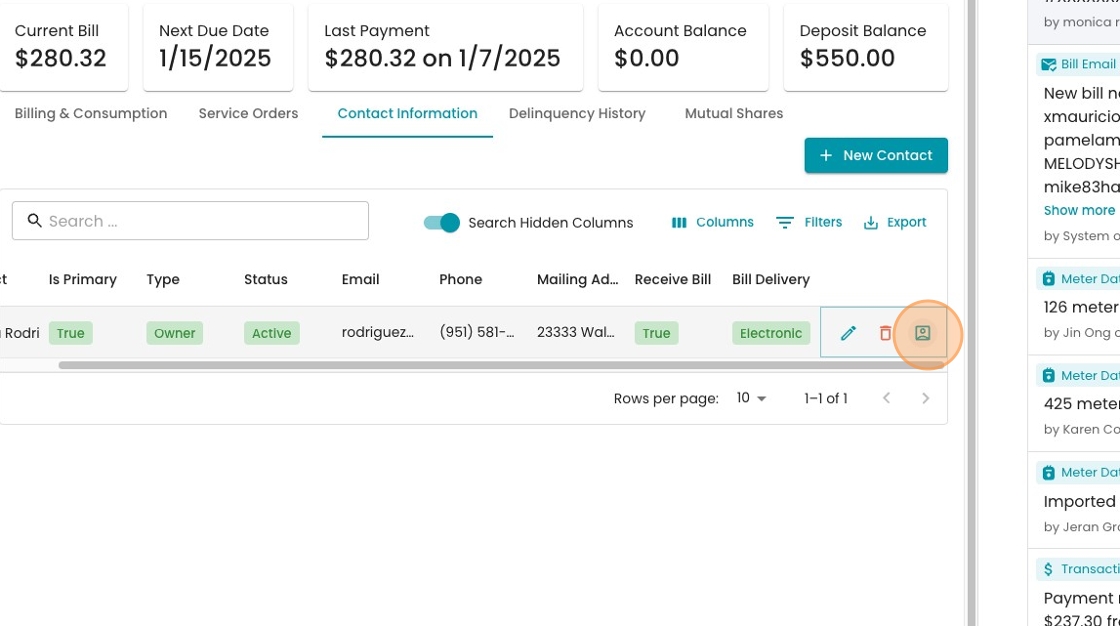
3. You will be routed to an admin-view version of the customer portal using the "Magic Link"

4. See the overview of accounts, just as the customer does.

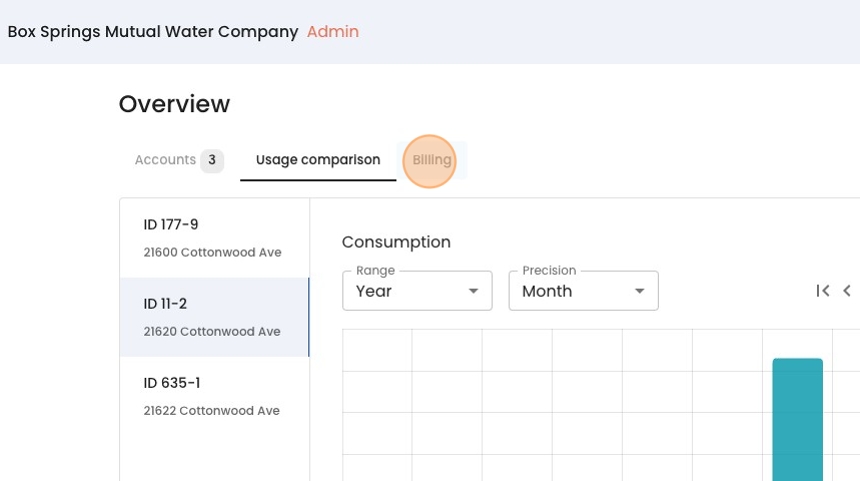
Tip: Note the banner on top that indicates you're viewing as an admin.
5. You can navigate the portal as if you were a customer.

6. For instance, under "Usage comparison" you can see how water usage and bills have evolved over time.

7. You can toggle between accounts just as if you were a customer.

Tip: Trying out the customer portal actions can be helpful if you want to educate your customers about what tools are useful to them!
8. Click "Billing"
9. You can also navigate to "Profile Settings" in the top right

10. To manage saved payments and autopay, click "Payment information"

11. Here you can see which saved payment methods the customer has set. From here, you may:
- Add a new saved payment method (customer can give you the information verbally)
- Set up an autopay schedule
