Set up Autopay for the Account
1. Navigate to your profile settings from the top right menu.

2. Click here.

3. Click "Payment information"

4. Click "Autopay" to add an autopay schedule.

5. Select which account you want to enable autopay for.

6. Select from your saved payment methods. If you have not saved a payment method, please add one first.

7. Select that amount you want to pay. You can choose between the most recent statement balance, your total account balance, or a specific amount to be paid each month.

8. Schedule your payment to either be dependent on the bill's due date, or a specific day of the month.

9. Type in a number here. "1" means you will be debited one day before the due date.

10. You may also select to have your autopay run on a specific day of the month. Enter a number 1-31.

11. Now you can choose when to begin autopay.

12. The earliest possible day is to current date. Select that to have this be effective immediately.
Note that this is NOT when your payment will be taken, but tells us when to begin your autopayment request. Select a later date if you'd like to pay manually for an upcoming period.

13. Click "Save"

14. Read the terms of the autopayment program, and click "Accept" if you consent.

15. View your autopayment schedule here.
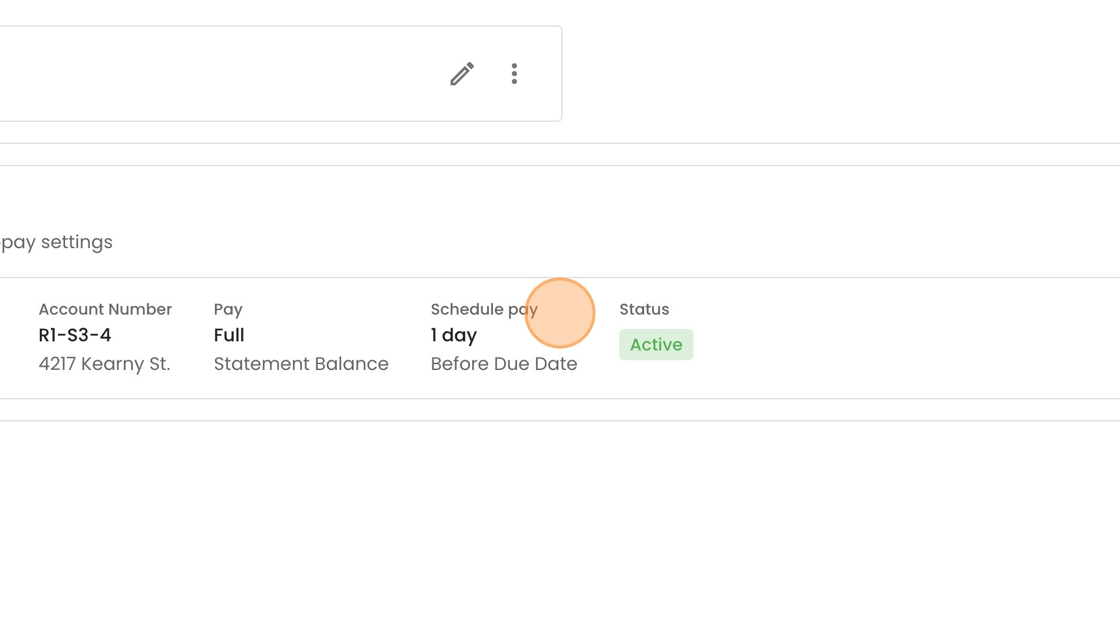
16. You may edit it at any time with this pencil icon.
