Move Out Settings
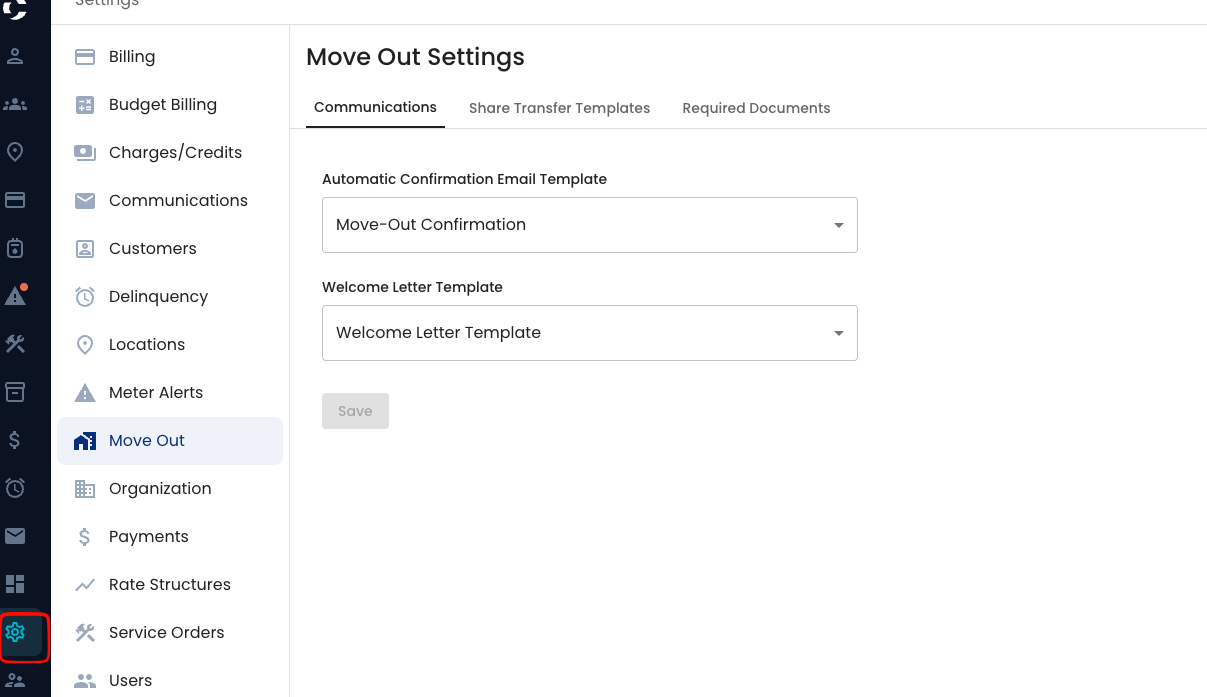
Move Out Settings let you configure what happens automatically during a move out, plus manage related templates and reference documents. Go to Settings > Move Out. There are three tabs: Communications, Share Transfer Templates, and Required Documents.
Communications
Set the templates used automatically when a move out is completed:
- Automatic Confirmation Email Template: sent to confirm a move out has been completed.
- Welcome Letter Template: generates a welcome letter for the new account or occupant.
Select a template from each dropdown and click Save. If left blank, you can still generate these manually during the move out.
These dropdowns don't create templates, they just let you pick from templates created elsewhere:
- Automatic Confirmation Email Template options come from your Electronic Templates (Settings > Communications > Electronic Templates).
- Welcome Letter Template options come from your paper Notices (Settings > Communications > Paper templates ).
If the template you want isn't in the list, create it in one of those places first, then come back to this tab to select it.
Share Transfer Templates
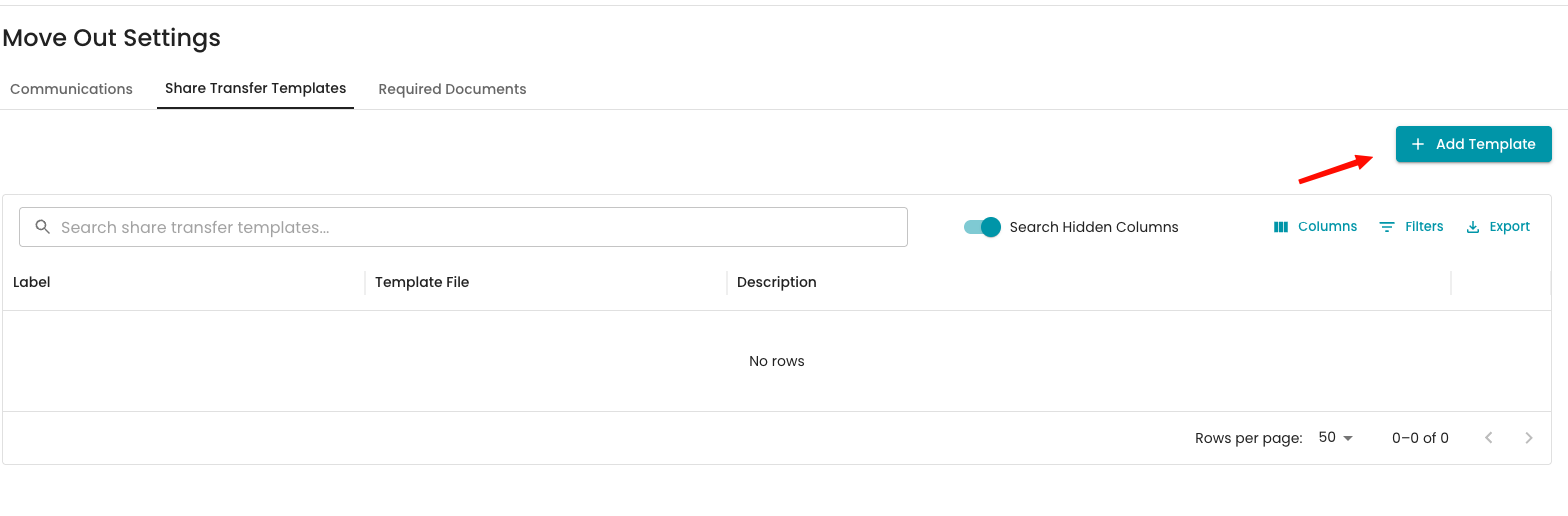
For organizations that need to document a transfer of shares or stock (for example, mutual water companies transferring ownership between accounts). Unlike the Communications tab, these templates are created directly here, not pulled from another settings page.
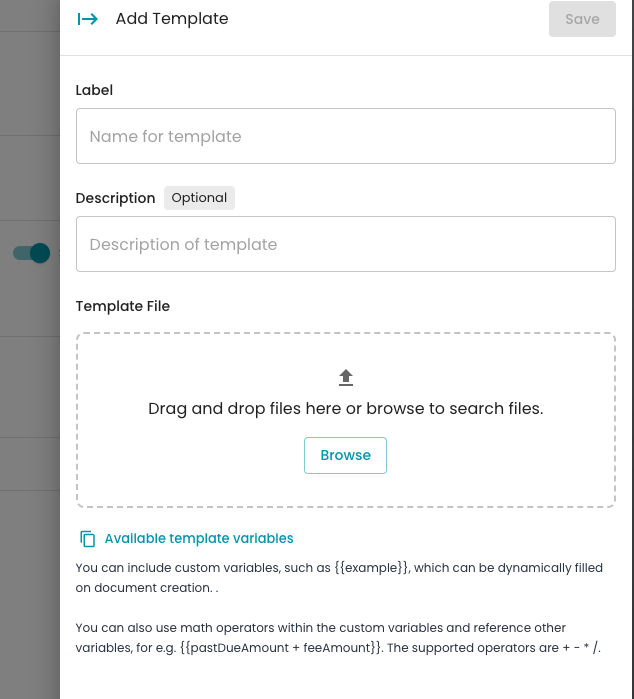
Click Add Template, give it a label, upload the file, add an optional description, and save. The template then appears in the list with its file attached, ready to use in the move out workflow. Templates can be edited or deleted from the list at any time.
Required Documents
A reference list of documents your organization requires to complete a move out (for example, proof of ownership or ID). This list is informational only and not editable from this page.
FAQ
Do I have to configure all three tabs before processing a move out? No. These are optional. Without them, you can still complete move outs, you'll just generate communications manually and won't have a documented checklist.
I don't see the template I want in the Communications dropdowns. Where do I add it? Add the email template under Settings > Communications > Electronic Templates, or the letter under Settings > Communications >Paper tempates. It will then show up in the Move Out Settings dropdown.
Can I edit the Required Documents list? Not from this page. Contact support if it needs to change.
Where do these settings apply? Communications templates trigger automatically when a move out is completed. Share Transfer Templates and Required Documents are referenced from within the move out workflow on an account.