How to Cancel and Un-cancel a Payment Batch
Overview
Cancel stops a payment batch before it posts, so none of its payments are applied to customer accounts. Un-cancel brings back a batch that was cancelled by mistake, along with its payments, so you don't have to re-enter or re-import them.
A restored batch comes back as Under Review, ready for you to check and post.
Why cancel a batch?
Cancel is your safety net for a batch that shouldn't be posted. Use it when something is wrong with the batch as a whole, not just one payment. For example:
- The wrong file was imported, such as last week's lockbox file or another organization's file.
- A file was imported twice. Cancel the duplicate so the payments aren't applied twice.
- The batch has too many errors to fix row by row. Cancel it, correct the file, and import it again. Payments in a cancelled batch don't count as duplicates, so the corrected file imports cleanly.
- The batch was started by mistake and shouldn't be posted.
Because a cancelled batch is kept rather than deleted, you still have a record of what was imported, and you can un-cancel it if you change your mind.
To fix a single payment instead, edit that row before posting, or adjust the payment after it posts.
How to cancel a batch
You can cancel a batch if you're an admin and the batch is Under Review. Posted batches can't be cancelled.
- Go to Payment Batches and open the batch you want to cancel.
- Save or finish any row you're editing. The button is unavailable while a row is being edited or saved.
-
At the top of the batch page, click Cancel.
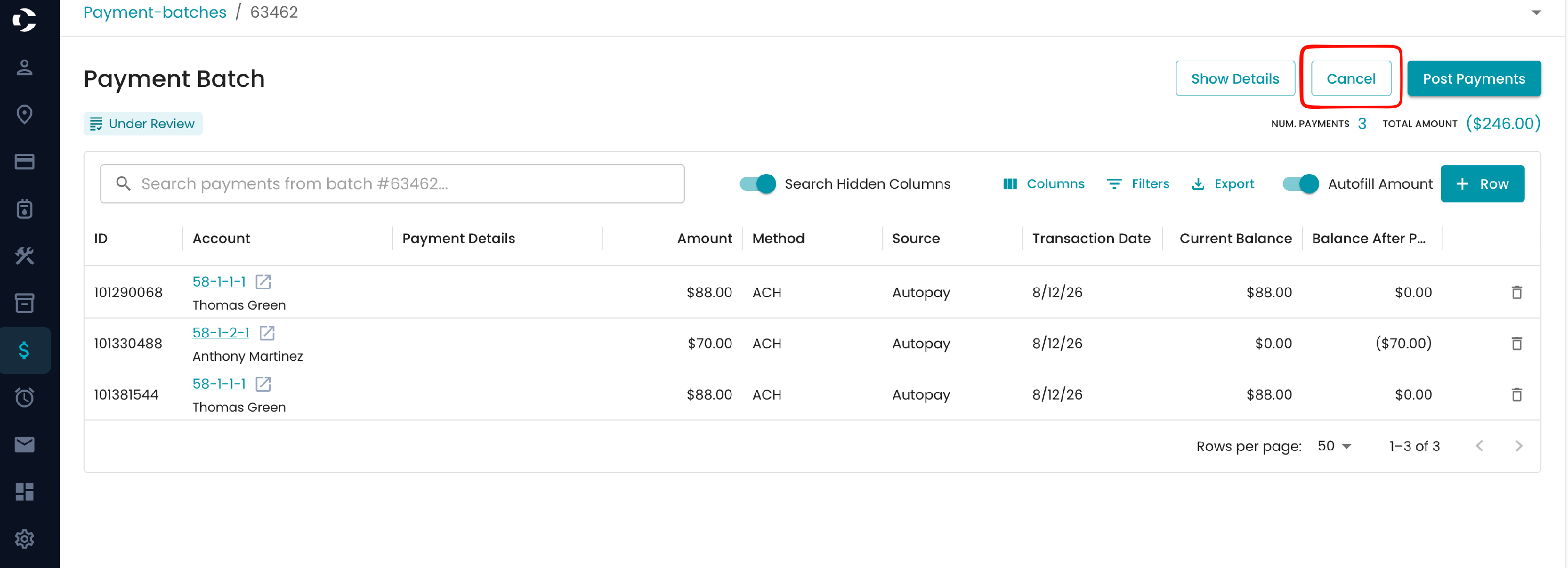
- A "Payment batch cancelled successfully." message confirms it worked. The batch status changes to Cancelled, and its payments are cancelled too.

If the batch has no payments yet, you'll see Delete instead of Cancel. An empty batch is simply removed.
Cancel or delete? Cancel keeps the batch so you can un-cancel it later. Once a batch is deleted, it can't be brought back.
When you can un-cancel
- Admins only. Other users won't see the button.
- Cancelled batches only. The button appears only when the batch status is Cancelled.
- Not after deleting. A deleted batch can't be restored. Don't delete a cancelled batch you might need again.
- Not if payments were re-imported. If any of the batch's payments have since been imported into another batch, un-cancel is blocked so the payments aren't counted twice. Keep the other batch, or start a new one.
How to un-cancel a batch
-
Go to Payment Batches and open the Completed tab, where cancelled batches are listed with a Cancelled status.
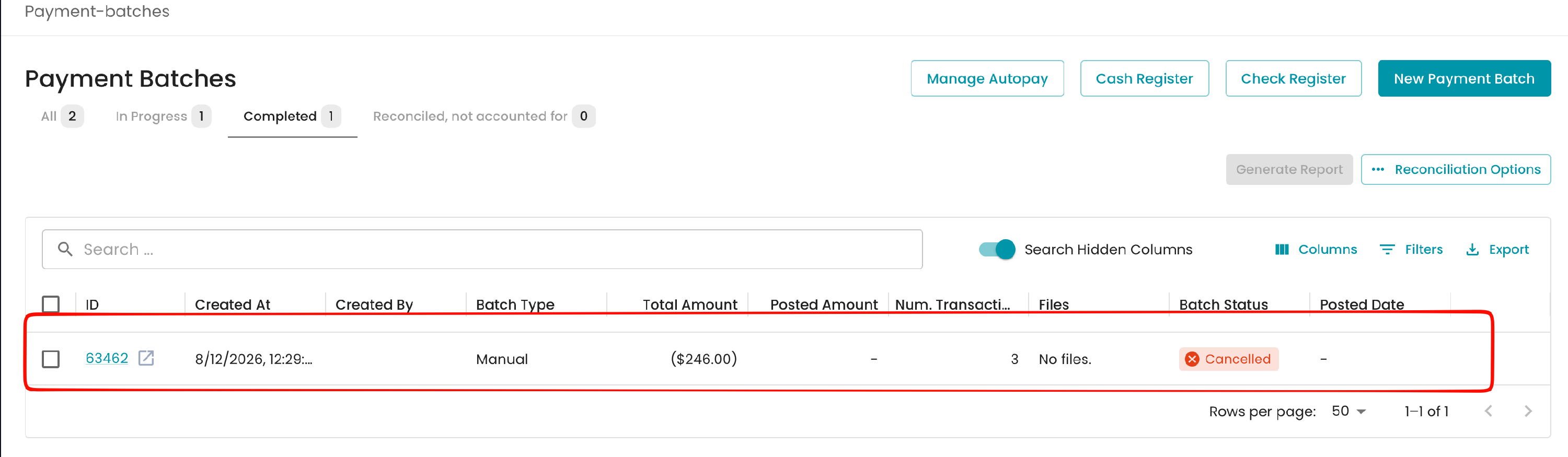
- Open the batch to view it.
-
At the top of the batch page, click Un-cancel (next to Delete).
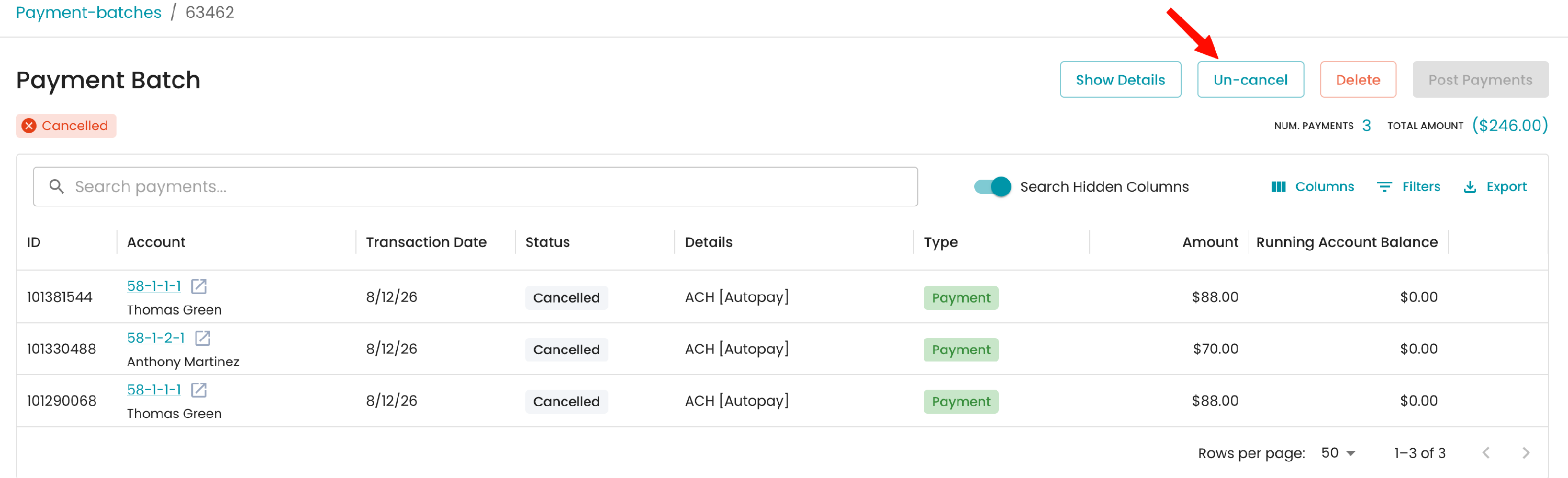
- A "Payment batch restored." message confirms it worked. There's no confirmation step, so check that you picked the right batch before clicking.

What happens after
- The batch moves to Under Review, whatever status it had before it was cancelled.
- Its payments come back as unposted payments in the batch. Nothing is applied to customer accounts yet.
- You post it as usual. Review the payments, make any changes, then post the batch when it's ready.
- The activity log records it as a Payment Batch Restored entry under your name.

FAQ
The Cancel button is grayed out. The batch isn't Under Review (for example, it's already posted), or a row is still being edited or saved. Finish your edit and try again. To undo a posted payment, adjust or refund it from the account instead.
I don't see the Un-cancel button. It only shows for admins, and only on a batch whose status is Cancelled. It isn't in the Payment Batches list; open the batch to find it.
I got "payment(s) in this batch have already been imported in another batch." Some of these payments were re-imported into a different batch after this one was cancelled. To avoid posting them twice, the batch can't be restored. Use the other batch, or start a new one.
Will un-canceling post the payments? No. The batch returns to Under Review, and payments only post when you post the batch.
Can I get back a batch I deleted? No. A deleted batch can't be retrieved.