Account Groups
Account Groups let you link related accounts under one parent account, for example several properties owned by the same landlord, or all the accounts for one business or school district. Each linked account is a child of the parent.
Groups help you see related accounts together, move between them quickly, and take one payment for the whole group. Grouping accounts doesn't combine their bills or balances: each account keeps its own.
Not the same as Group Billing. Account Groups don't combine bills. To send one combined bill for several accounts, see Group Billing (Combined Bills for Linked Accounts).
Contact Support to enable this feature for your organization. Account Groups is a limited release feature and is off by default. Until it's on, you won't see the Account Group tab or options.
Seeing an account's group
On the account header. Accounts in a group show a label at the top of the account page:
- Parent – 3 child accounts on the parent account.
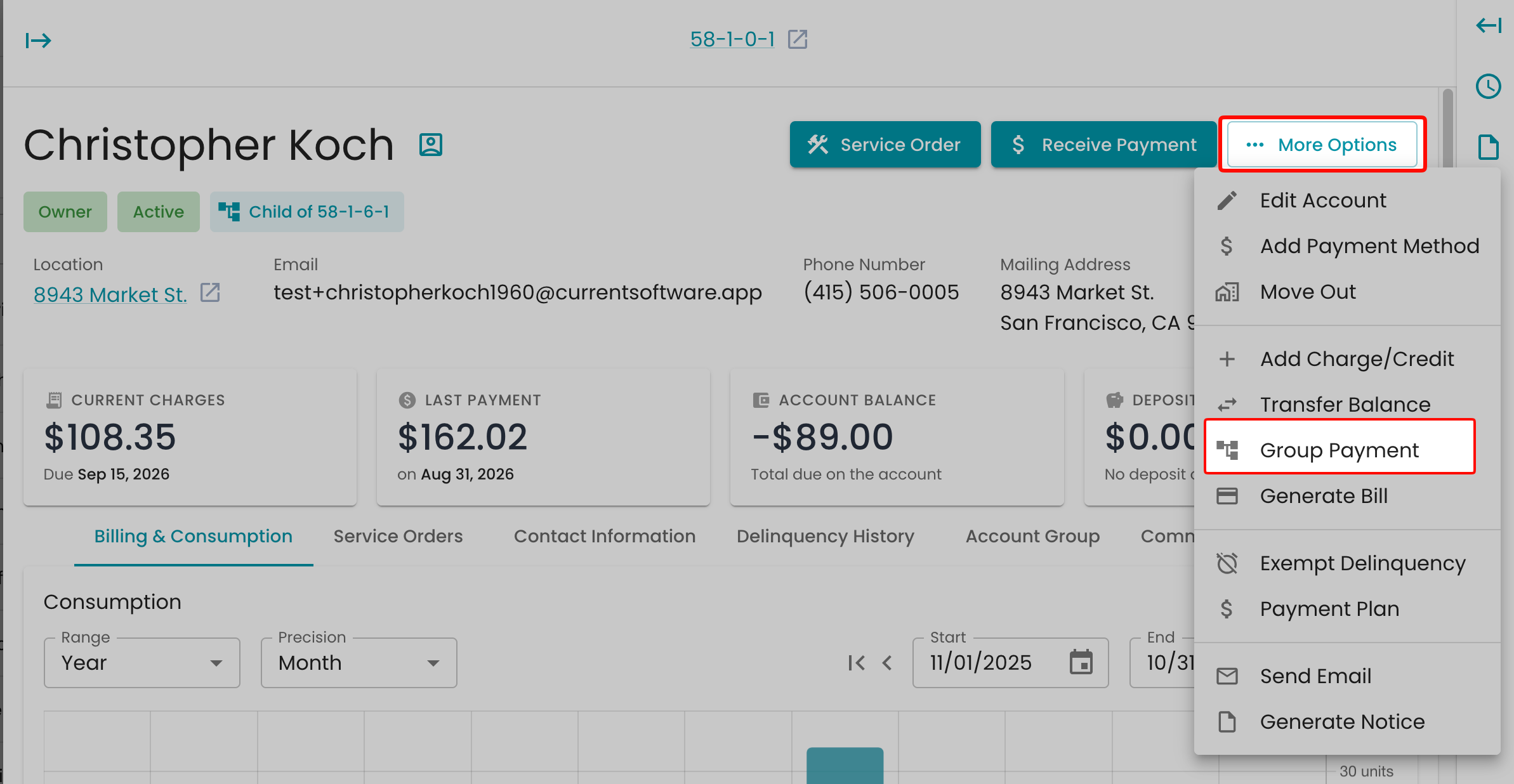
- Child of 58-1-6-1on each child. Click it to jump to the parent.


On the Account Group tab. Open any account in the group and click the Account Group tab. It lists the parent first, then each child, with:
- Account number and role (parent or child)
- Primary contact
- Service address
- Status
- Balance

If the account isn't in a group, the tab says "This account is not part of a group."

Building a group
Admins and billing users can add and remove accounts. Read-only roles can view groups but can't change them.
Add a child account
- Open the account you want as the parent and click the Account Group tab.
-
Click Add Child Account.
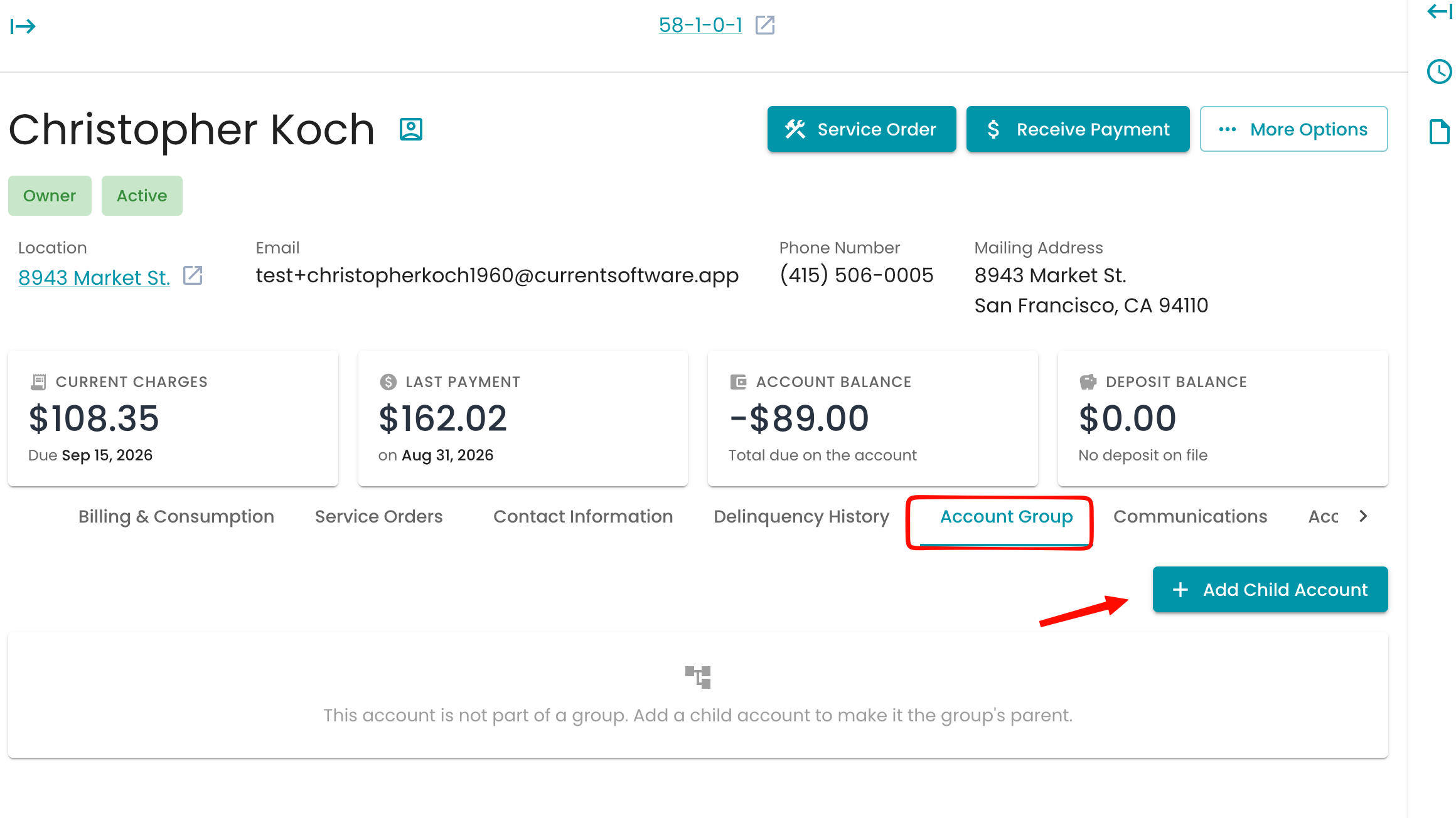
- In the Add Child Account panel, search for and choose the Account to add.
- Save. A message confirms "Added account [number] to the group."


The first child you add turns the account into a parent. Repeat for each account you want in the group.
Remove a child account
- On the Account Group tab, click Remove from group on the child's row.
- Confirm in the Remove child account window.


The account goes back to being a standalone account. Nothing else about it changes.
Set the parent from Edit Account
You can also choose a child's parent from the account itself: open the account, click More Options → Edit Account, and pick the Parent Account. Clear the field to remove it from the group.


The Parent Account field is locked on an account that's already a parent of other accounts.
Every change is recorded in the activity log.
Taking a group payment
When one customer pays for several accounts in a group, such as a landlord paying for all their properties, you can take a single payment and have Current split it across the accounts.
-
Open any account in the group, click More Options, and choose Group Payment.
- The Group Payment panel lists every account in the group with its balance, and shows the total due at the top. All accounts with a balance are selected. Uncheck any you don't want this payment to cover.
- Enter the Amount. It starts at the total due for the group.
-
Choose the Payment Method and fill in the details, such as check number, Transaction Date and Comment. For cash, check Round cash payment if your organization rounds cash.
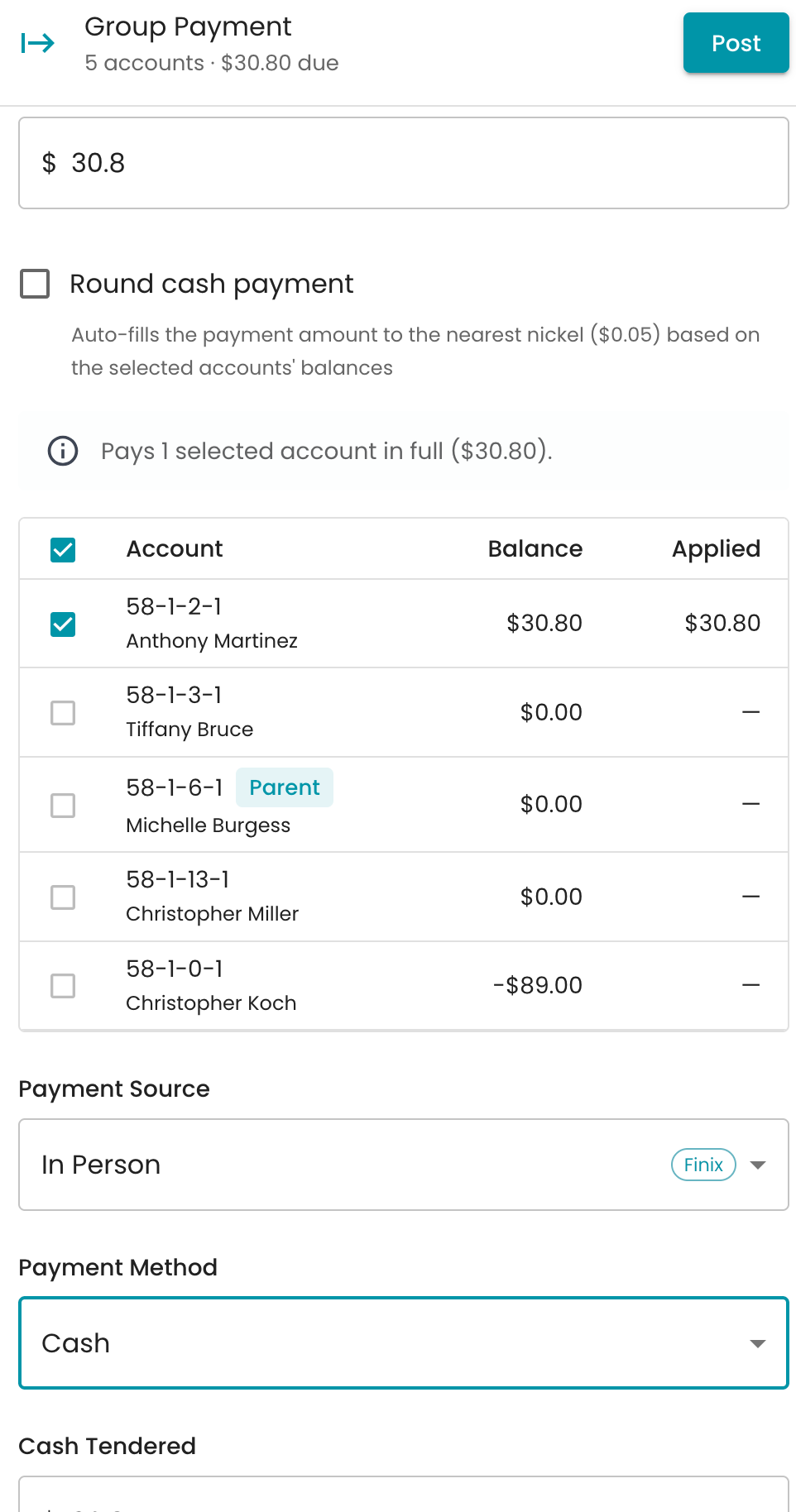
- Check the Applied column to see exactly how much goes to each account.
- Click Post. A message confirms "Group payment applied to [number] accounts."
How the payment is split
- Selected accounts are paid in full, highest balance first, until the money runs out.
- If the payment is less than the selected total, the panel shows how much stays unpaid. The last account paid may be partly paid.
- If the payment is more than the selected total, the extra pays the other accounts in the group, highest balance first.
- Anything left after that is added as a credit on the parent account.
Each account gets its own payment transaction, so its balance and history stay accurate.
Group rules
- One level only. A group has one parent account and its child accounts. Child accounts can’t have children of their own.
- One group per account. An account can belong to only one group at a time. To add an account using Add Child Account, first remove it from its current group. To move a child to a different group, you can also change its Parent Account in Edit Account.
- Parents stay parents. An account with child accounts can’t be added to another group as a child. Remove its child accounts before assigning it a parent.
-
An account with children can’t be a child. Remove its child accounts before assigning it a parent.
If an account is added to a group after you select it, saving will show an error explaining that it already belongs to another group.
Common questions
Does grouping accounts combine their bills or balances? No. Each account keeps its own bills, balance and payments. For one combined bill, use Group Billing.
Can a customer see the group in the Customer Portal? No. Groups are only shown in the admin portal.
What happens if I remove the last child from a group? The parent goes back to being a standalone account. Nothing else changes.
I don't see the Account Group tab. The feature isn't turned on for your organization. Contact Support to enable it.