How to Generate a New Bill
This guide walks you through manually generating a bill for an individual account from the Account Detail page.
1. Manually generating a single bill is useful when you need to bill an account outside of the normal billing cycle — for example, after reactivating an account, correcting a missed bill, or handling a one-off charge.
Note: If the account is currently marked Inactive, you'll need to reactivate it first (Account → More Options → Edit Account → set Account Status to Active → Save) before a bill can be generated.
2. Open the account — Navigate to the Accounts page and open the account you want to bill.
3. Select "More Options". This opens the additional actions menu for the account.
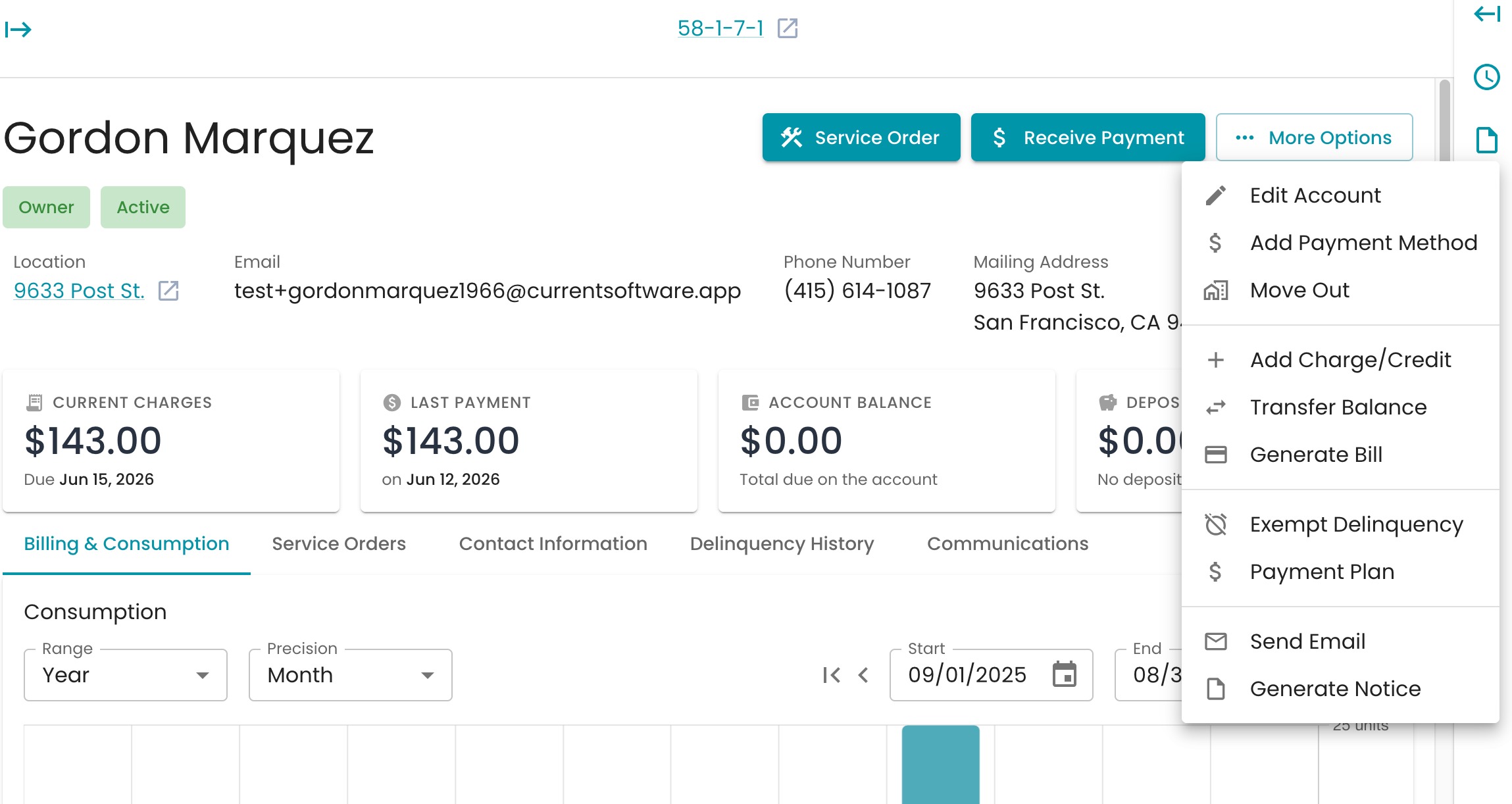
4. Select "Generate Bill" — This opens the bill creation panel.
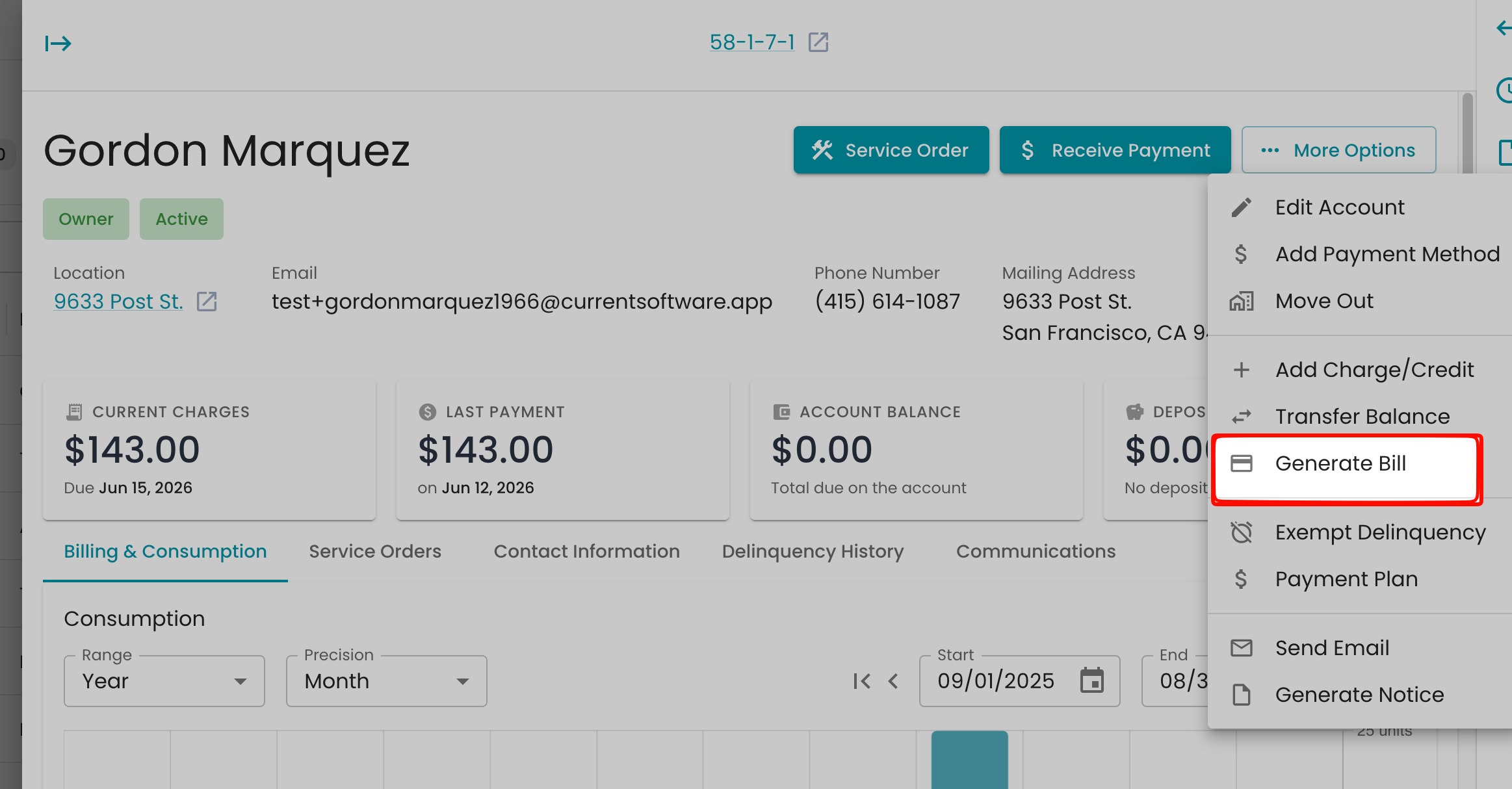
5. Choose any special billing options (optional) — Check "Bill Usage Since Last Bill," "Disable Proration," and/or "Itemize Previous Bill" if any apply to this bill.
"Bill Usage Since Last Bill" calculates charges from the last billed date. "Disable Proration" bills the full period regardless of partial service. "Itemize Previous Bill" breaks last month's bill into its separate charges on the new bill, instead of showing it as one lump "Previous Bill Amount" line.
6. If you checked "Bill Usage Since Last Bill" — A Meter Read section appears showing the Meter ID, Previous Read, and Consumption. Enter the new Read value and its Read Date.
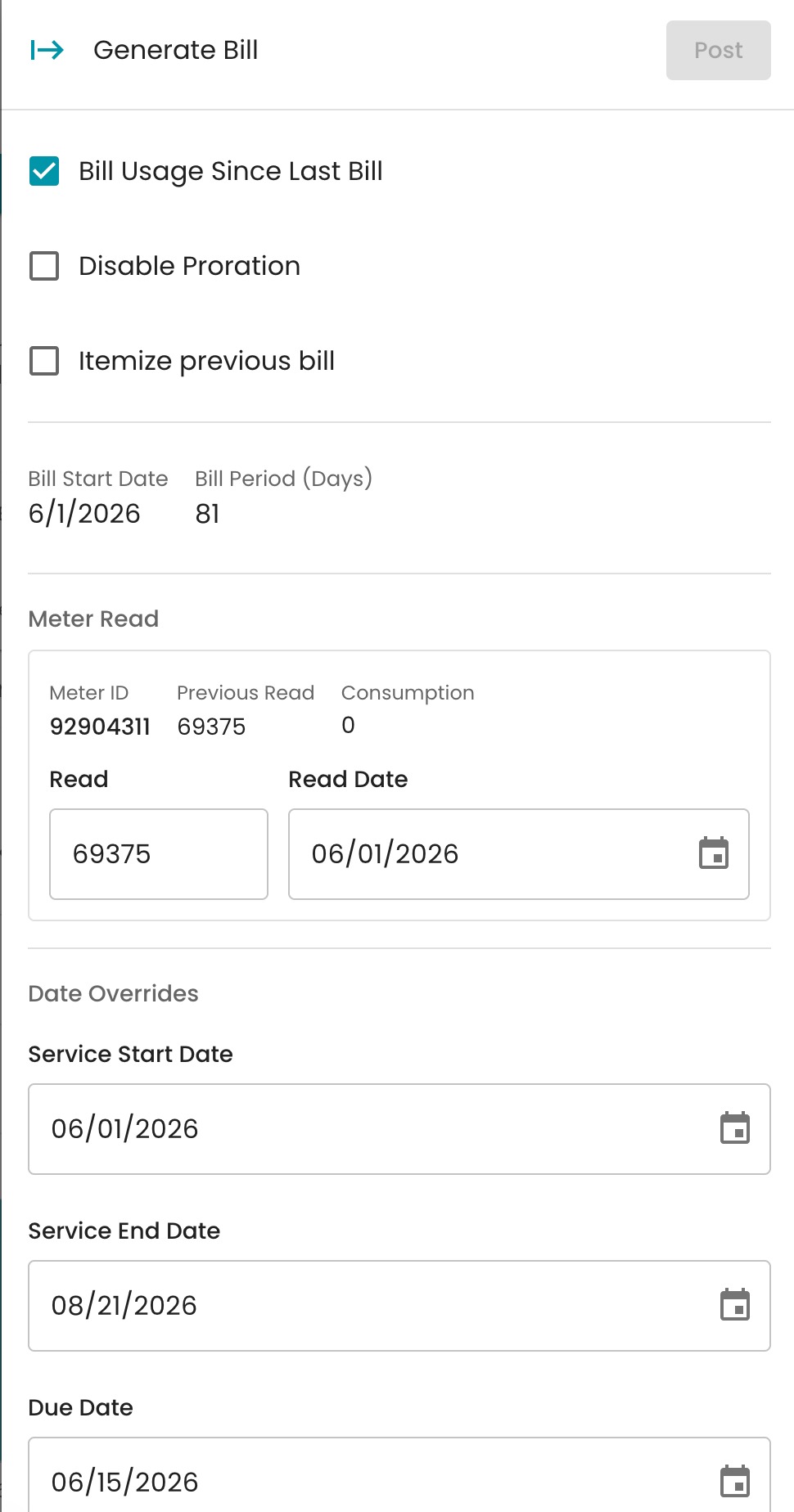
7. Set the Service Start Date — Under Date Overrides, enter the date service began for this billing period.
8. Set the Service End Date — Enter the date service ended for this billing period.
9. Enter the Due Date — Set the date the bill payment will be due.
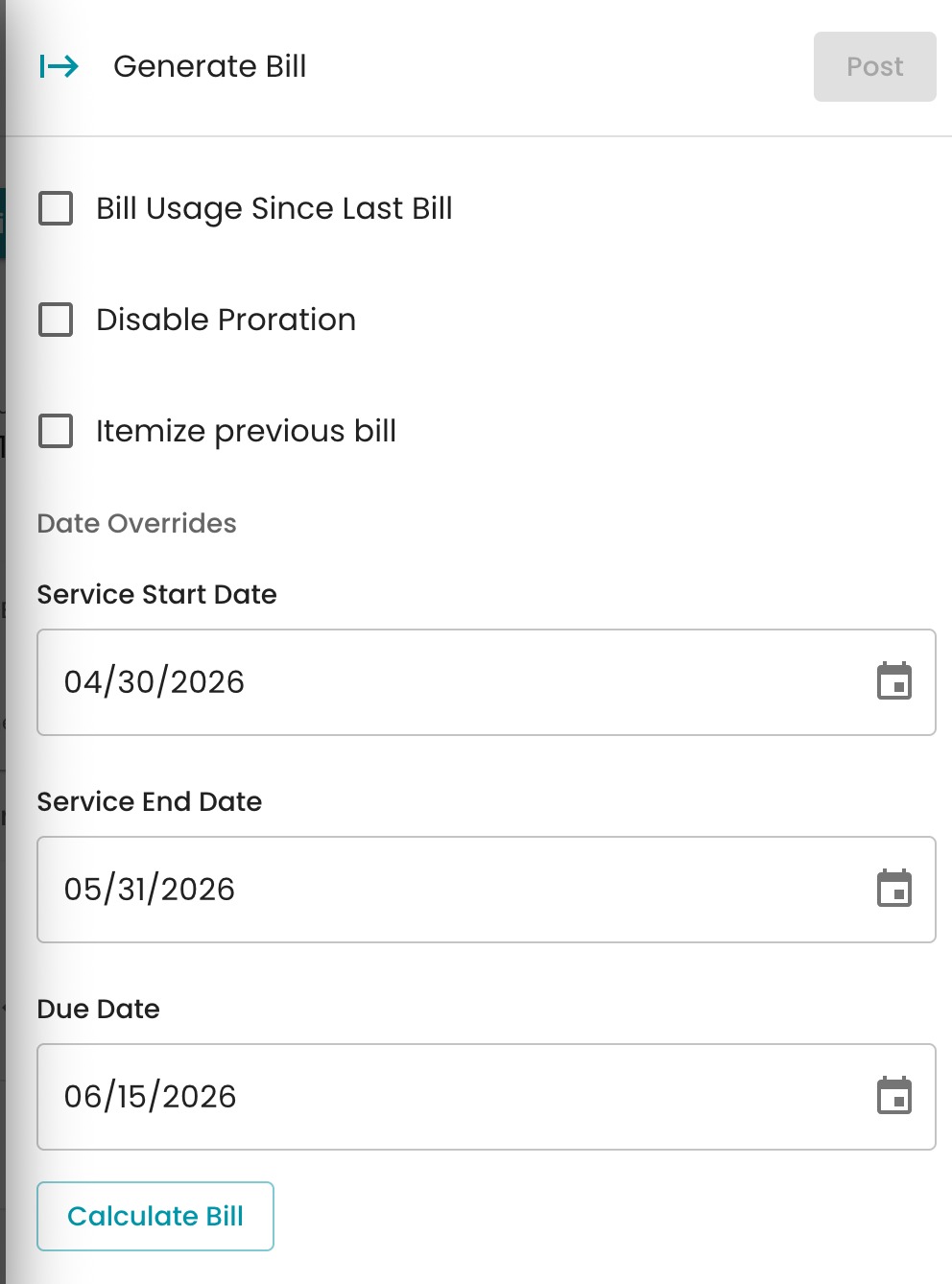
10. Click "Calculate Bill" — This generates a preview of the bill amount so you can confirm it looks correct before posting.
11. Review the preview — Double-check the calculated amount, dates, and charges.
12. Click "Post" — This finalizes and posts the bill to the account.
13. View the bill — Click the eye icon next to the new entry to open and review the generated bill.

14. Tips:
- Always use "Calculate Bill" to preview the amount before clicking Post — once posted, corrections require an adjustment rather than a simple edit.
- Service Start and End Dates should align with your normal billing cycle to avoid proration issues.
- If a bill needs correcting after posting, see "How to Adjust a Bill with a Corrected Meter Read."