How to Delete a Payment Batch
Deleting a payment batch removes it from the Payment Batches list for good. Use it to clear out a batch you started by mistake, or a cancelled batch you're sure you won't need again.
Deleting is permanent. A deleted batch can't be retrieved or un-cancelled. If you might need the batch later, cancel it instead of deleting it.
Which batches can be deleted
Only admins can delete batches, and only these two kinds:
- Empty batches with no payments in them.
- Cancelled batches, with or without payments.
A batch that has payments must be cancelled before it can be deleted. Posted batches can't be deleted.
How to delete a batch
From the batch page
- Go to Payment Batches and open the batch.
-
At the top of the page, click Delete.
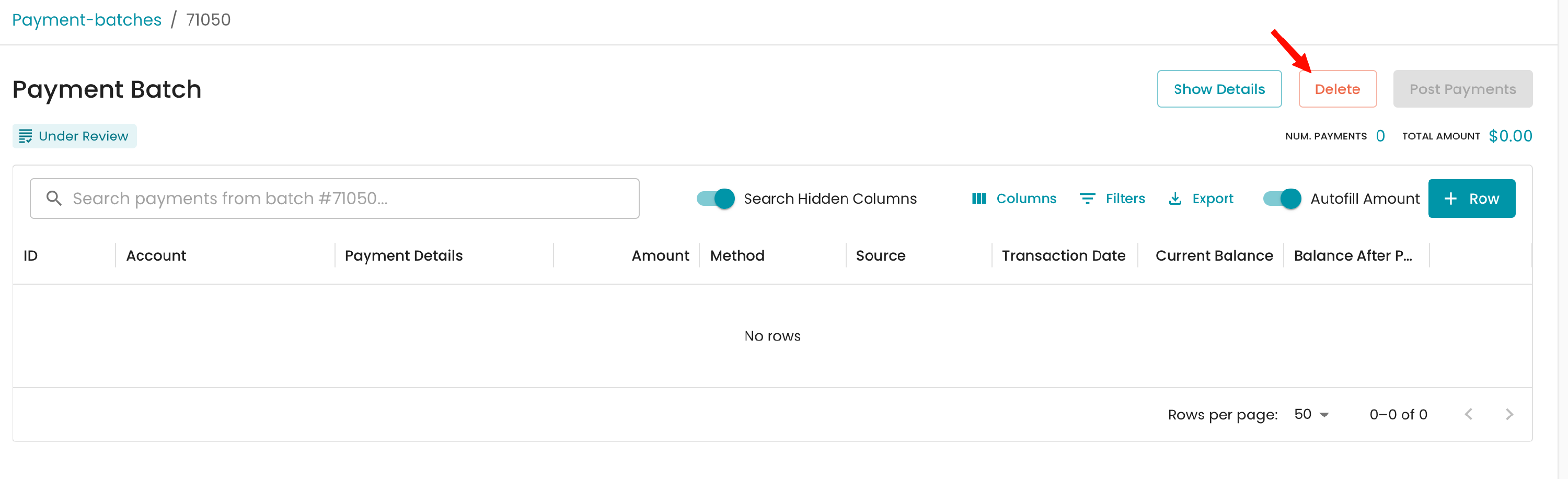
- A "Payment batch successfully deleted." message appears, and you're taken back to the Payment Batches list.
From the Payment Batches list (cancelled batches only)
- Open the Completed tab and find the cancelled batch.
-
Click Delete in that batch's actions.
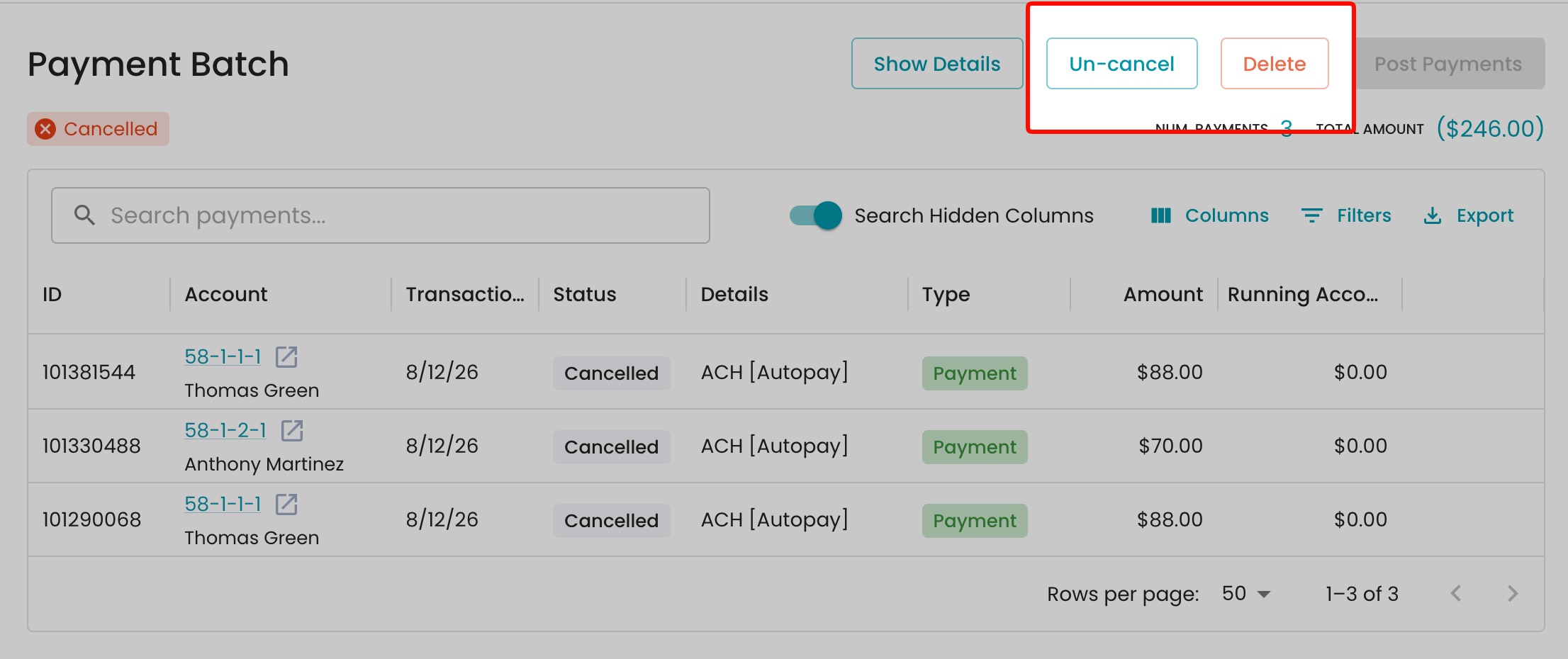
There's no confirmation step, so make sure you've picked the right batch before clicking.
FAQ
I see Cancel instead of Delete. The batch has payments. Cancel it first, and then the Delete button appears.
Can I get back a batch I deleted? No. A deleted batch can't be retrieved.
Should I delete or cancel? Cancel if there's any chance you'll need the batch again, since a cancelled batch can be un-cancelled. Delete only when you're sure it's no longer needed.
I got "Failed to delete payment batch." The batch probably has payments and isn't cancelled. Cancel it first, then try again.