Payment Plan
Payment plan feature can be enabled in Settings > Organization settings > Features
A payment plan lets a customer pay off a past-due balance in monthly installments. You can forgive part of the balance, take a down payment, and spread the rest over a number of months. You can also:
- send the customer automatic email or text reminders before each payment,
- update the account with the plan, so the monthly installments are billed for you, and
- generate an agreement for the customer to sign, using your own template.
How to create a payment plan
Open the customer's account, click More Options, and choose Payment Plan.

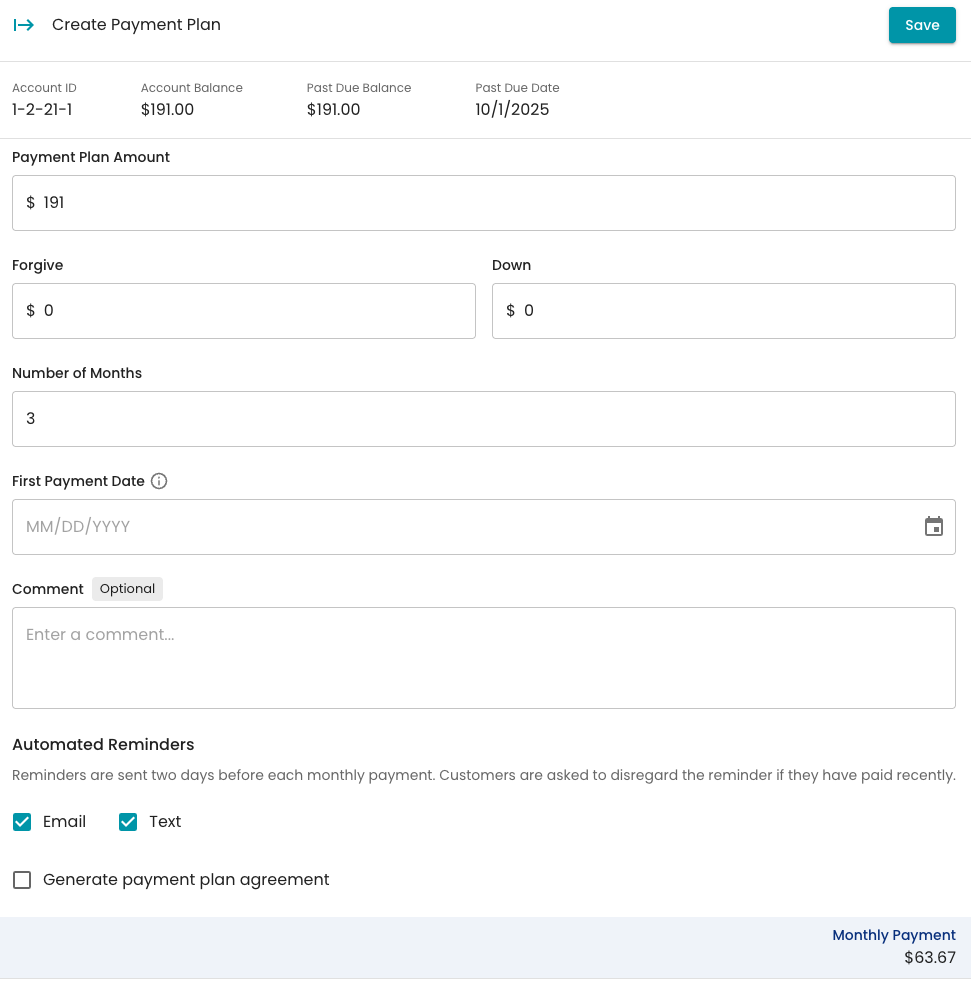
- The Create Payment Plan panel shows the account balance, past-due balance and past-due date. Fill in:
- Payment Plan Amount: the amount to be paid over the plan.
- Forgive (optional): any amount you're waiving.
- Down (optional): a down payment.
- Number of Months: how long the plan lasts.
- First Payment Date: the date the first monthly installment is due. Later installments fall on the same day each month. You need this to send reminders or update the account with the plan.
- Comment (optional): notes about the arrangement.
- Check the Monthly Payment at the bottom of the panel. It updates as you enter the details.
-
Under Automated Reminders, check Email, Text or both to remind the customer two days before each monthly payment. Customers are asked to disregard the reminder if they've paid recently.
-
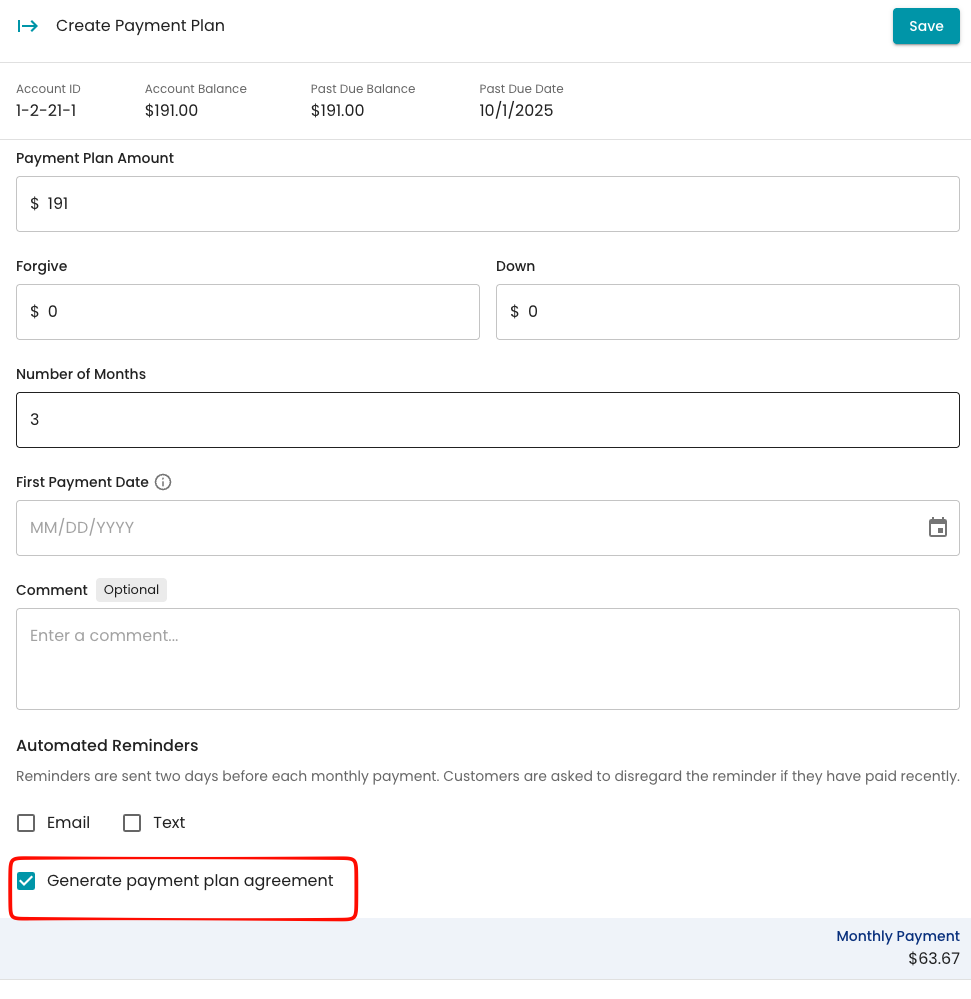
To create the agreement at the same time, leave Generate payment plan agreement checked. This option only works if an agreement template is set up (see Set up your agreement template below). Without one, the checkbox is grayed out with the note "Select a payment plan agreement template in Settings, Communications, Paper Templates."
- Click Save. A "Payment plan created successfully" message confirms it.
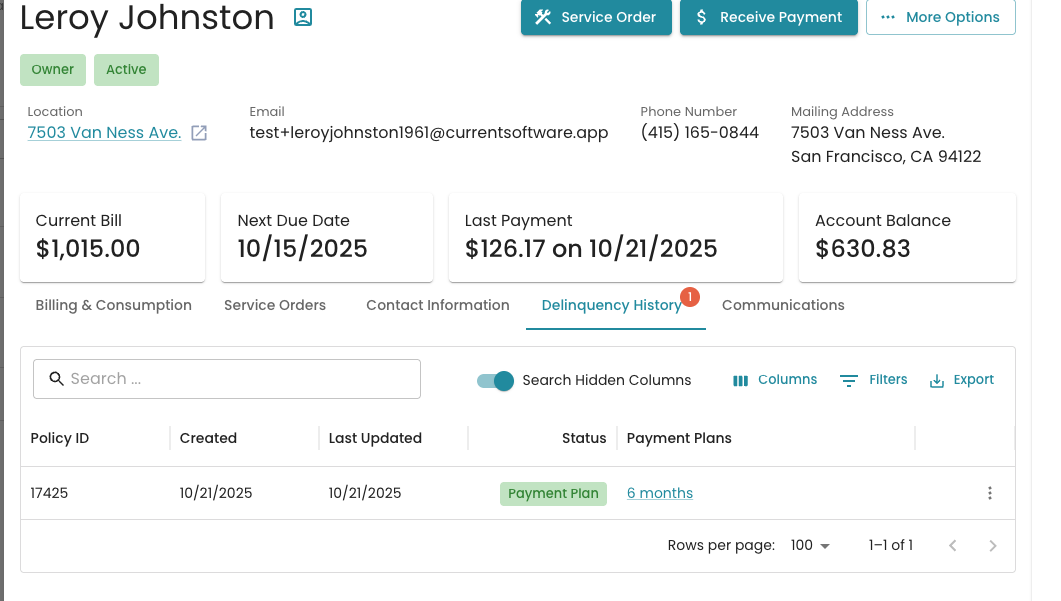
You can see every account on a plan on the Payment Plan tab of the Delinquency page, and an account’s plan on its Delinquency History tab.

Set up your agreement template (optional)
You need this before you can generate payment plan agreements. Until a template is linked, the agreement options on the payment plan are grayed out or hidden. Link a Word (.docx) notice template to payment plans; you only need to do this once.
- Go to Settings → Communications → Paper Templates.
- Click Add Notice to create a new template, or Edit an existing one.
-
Under Feature, check Payment Plans.
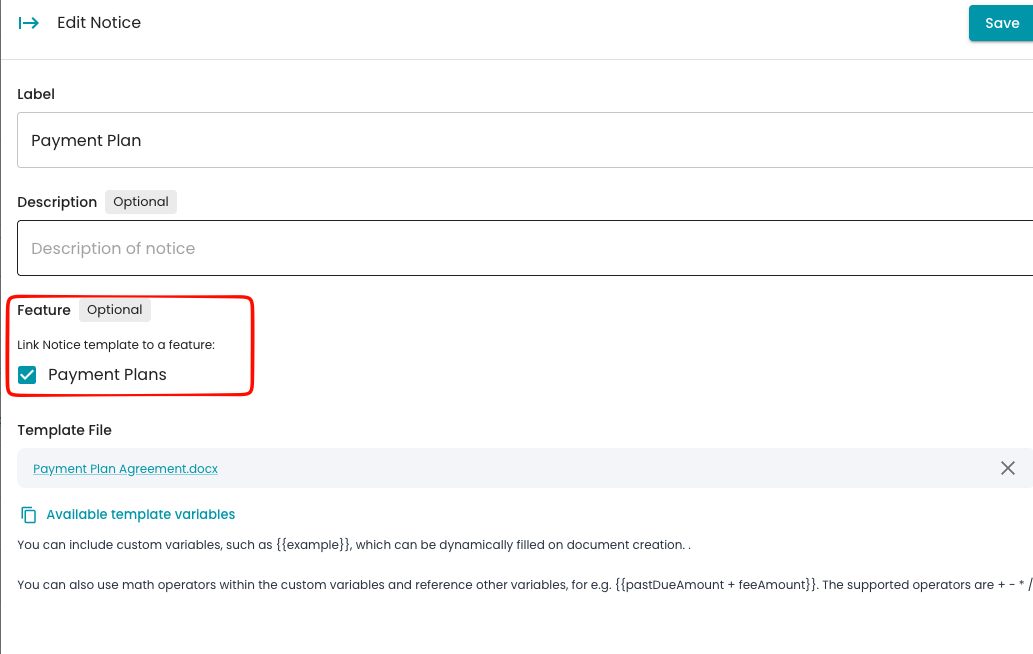
- Upload your agreement template file and click Save. The template must have a file uploaded, or it won’t be available for agreements.
The template can include tags for account and plan details, such as the customer's name and monthly payment. You'll be able to review and change those values each time you generate an agreement. See How to Create a Paper Notice for more on templates.
Generating the payment plan agreement
If Generate payment plan agreement was checked, the Payment Plan Agreement Template Values window opens right after the plan is created.
-
Review the values that will fill your template, such as names, amounts and dates, and change any that need it.
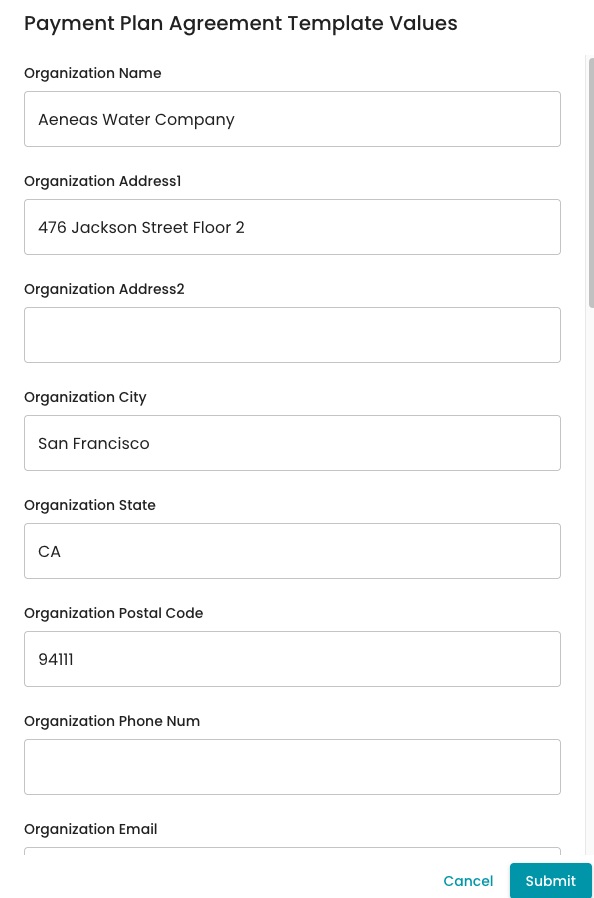
- Click Submit. If you click Cancel, the plan is still created, but no agreement is generated.
- The agreement downloads as a Word file named PaymentPlanAgreement-[account ID].docx. A "Payment plan agreement generated" message confirms it.
The agreement is also saved to the account's files and recorded in the activity log, so you can find it later.

To generate it later, open the account's payment plan (Delinquency History →Click on the payment plan blue link) and click Generate Notice. Use this if you skipped it when creating the plan or need a new copy. The button only appears when an agreement template is set up.
Managing an existing plan
To open a plan, go to the account's Delinquency History tab and click the payment plan's blue link. The Edit Payment Plan panel opens.

What you can change
- First Payment Date: until the account has been updated with the plan.
- Automated Reminders: turn Email or Text on or off while the plan is active. A "Payment plan reminders updated successfully" message confirms the change.
The plan amount, forgiven amount, down payment and number of months can't be changed. To change those, terminate the plan and create a new one.
Update the account with the plan
This puts the plan on the customer's bills, so they're billed the monthly installment instead of the full past-due balance.
- Open the plan and make sure it has a First Payment Date that hasn't passed. Save any changes first.
-
Click Update account with plan.
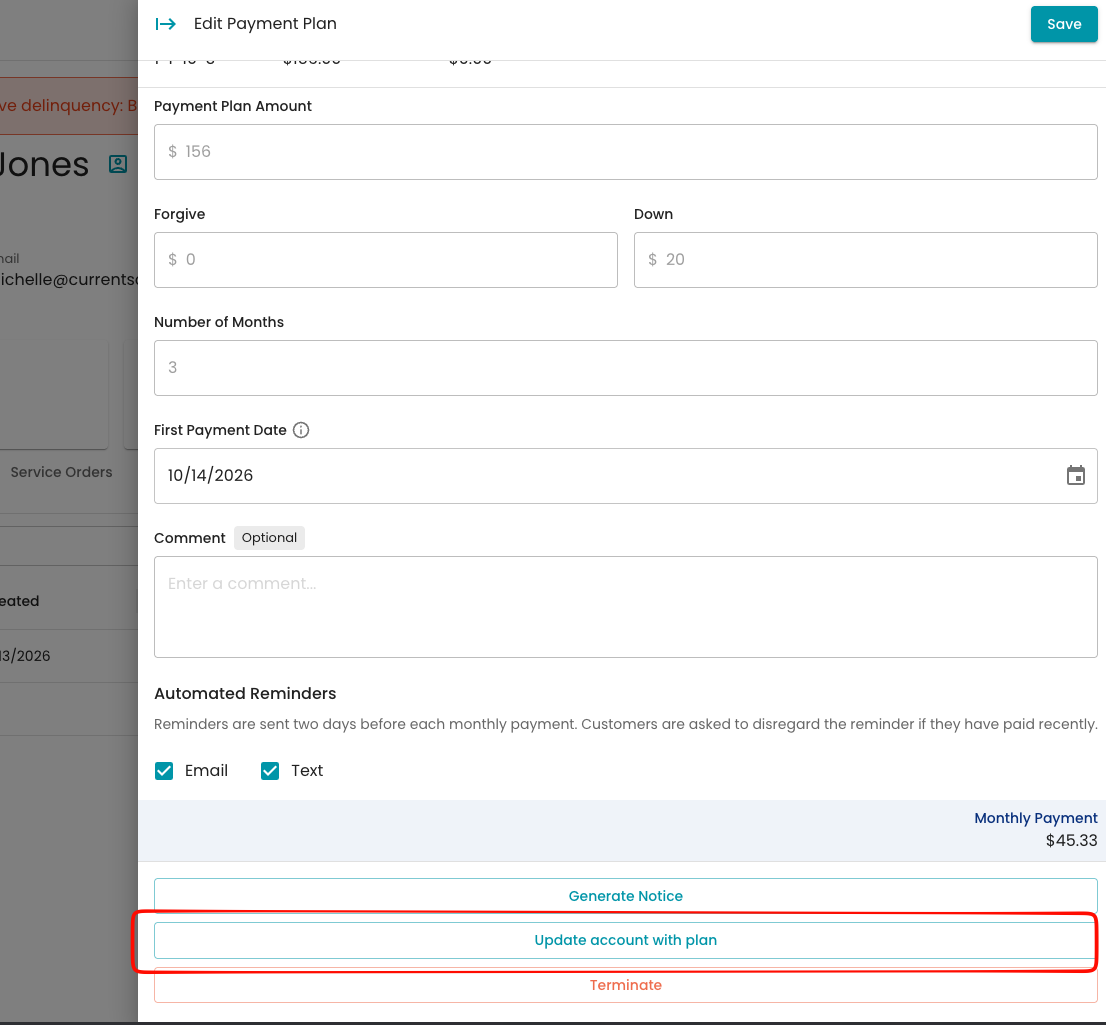
- Review the Update account with plan? window. It explains that Current will:
- post a Payment Plan Adjustment credit (subtype: Payment Plan) for the plan total, to bring the account balance down, and
- add a Payment Plan service that bills the monthly payment for the number of months in the plan, starting on the first payment date.
-
Click Update Account. An "Account updated with payment plan" message confirms it.
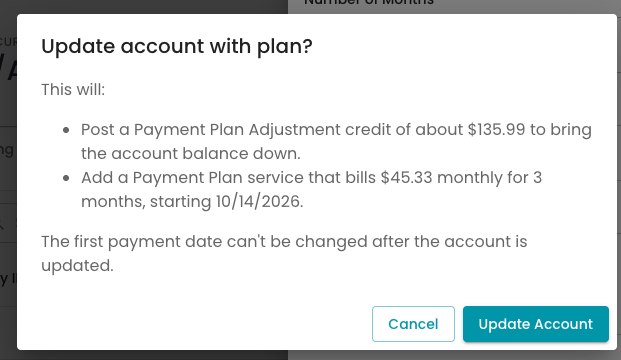
After the account is updated, the first payment date can't be changed, and the plan can't be applied again.
How installments appear.
On the account's Transactions table, each monthly installment is posted as one line per charge type, such as "Payment Plan – Water Usage." On bills, those installments show as a single Payment Plan Charges line.
Ending a plan early
Open the plan and click Terminate. A "Payment plan terminated successfully" message confirms it, and the account goes back into the regular delinquency process.

Already updated the account with the plan? Terminating doesn't remove the Payment Plan Adjustment credit or the Payment Plan service. Adjust the credit and end the service on the account yourself, so the customer isn't billed for installments they no longer owe.
FAQ
Does a payment plan change the customer's bill? Only if you update the account with the plan. Until then, the past-due amount still shows as past due and the customer keeps paying their bill as usual; the plan just guides your delinquency process. Once you update the account, the past-due balance is credited and the monthly installment is billed as a Payment Plan service.
The Generate payment plan agreement checkbox is grayed out. No template is linked to payment plans yet. Link one under Settings → Communications → Paper Templates (see above).
The agreement downloaded, but I got a message that it couldn't be saved. Keep the downloaded file. Upload it to the account's files yourself if you need a copy there.
Can I change a plan after it's created? Partly. You can change the First Payment Date (until the account is updated with the plan) and turn reminders on or off. To change the amounts or number of months, terminate the plan and create a new one.
The Update account with plan button is grayed out. Check the message below it. Save any unsaved changes, and make sure the plan has a First Payment Date. If you see "The first payment date has passed," pick a new date, save, and try again. The button is also unavailable if the account was already updated or the plan was terminated.
When are reminders sent? Two days before each monthly payment, by email, text or both, depending on what you checked. Reminders need a First Payment Date and stop when the plan ends or is terminated.
How do I keep a customer on a plan out of the delinquency process? See Managing Payment Plans via the Exempt List.