Schedule a Rate Structure Change
This document provides a step-by-step guide on scheduling a rate change, allowing you to set up a future rate update in advance.
Scheduling a rate change lets you set up a future rate update in advance — the new rate stays inactive until its effective date arrives, and the current rate keeps applying until then.
Before You Start
You'll need:
- The existing Rate Structure you want to update
- The effective date the new rate should start on
- The updated rate value(s)
Step 1: Start the Scheduled Change
-
Open the Rate Structure you want to update.
-
Click Schedule Rate Change (top right, next to Duplicate).
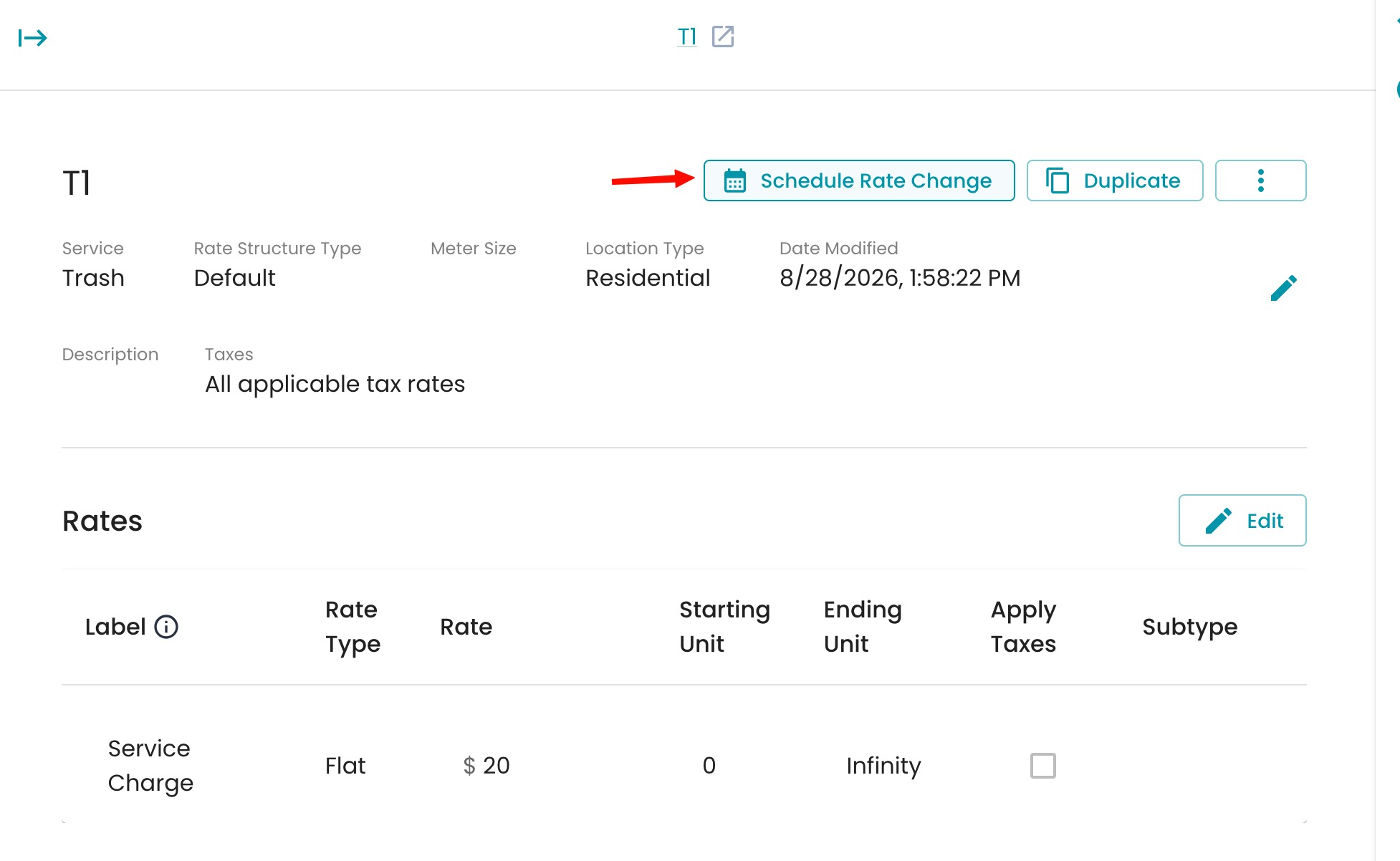
The Schedule Rate Change button on a rate structure's detail page.
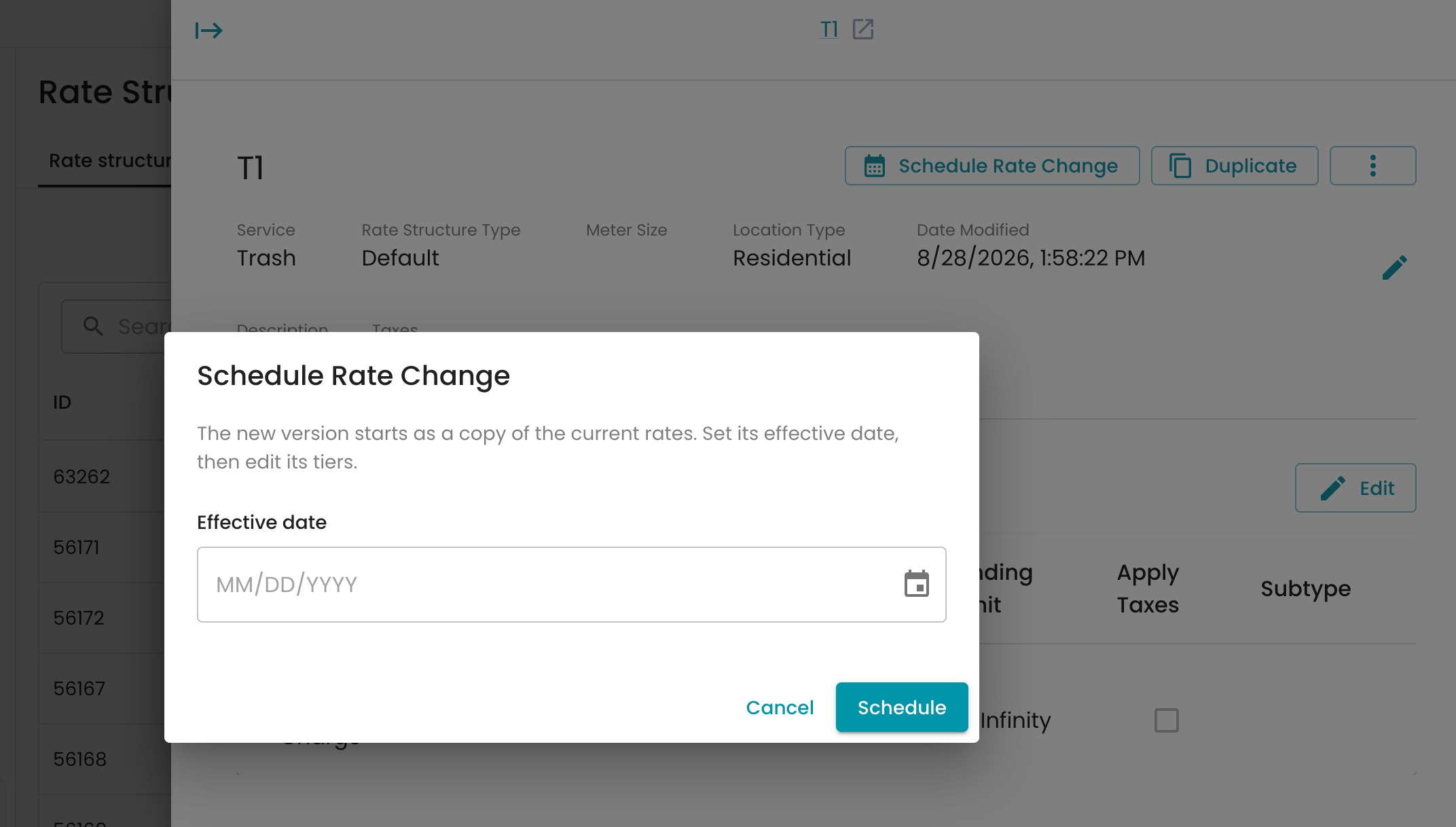
A dialog opens explaining that the new version starts as a copy of the current rates , you'll set its effective date, then edit its rate values.
The Schedule Rate Change dialog.
Step 2: Set the Effective Date
1 Click the Effective date field.
2 Use the calendar picker to select the date the new rate should take effect, then click OK.
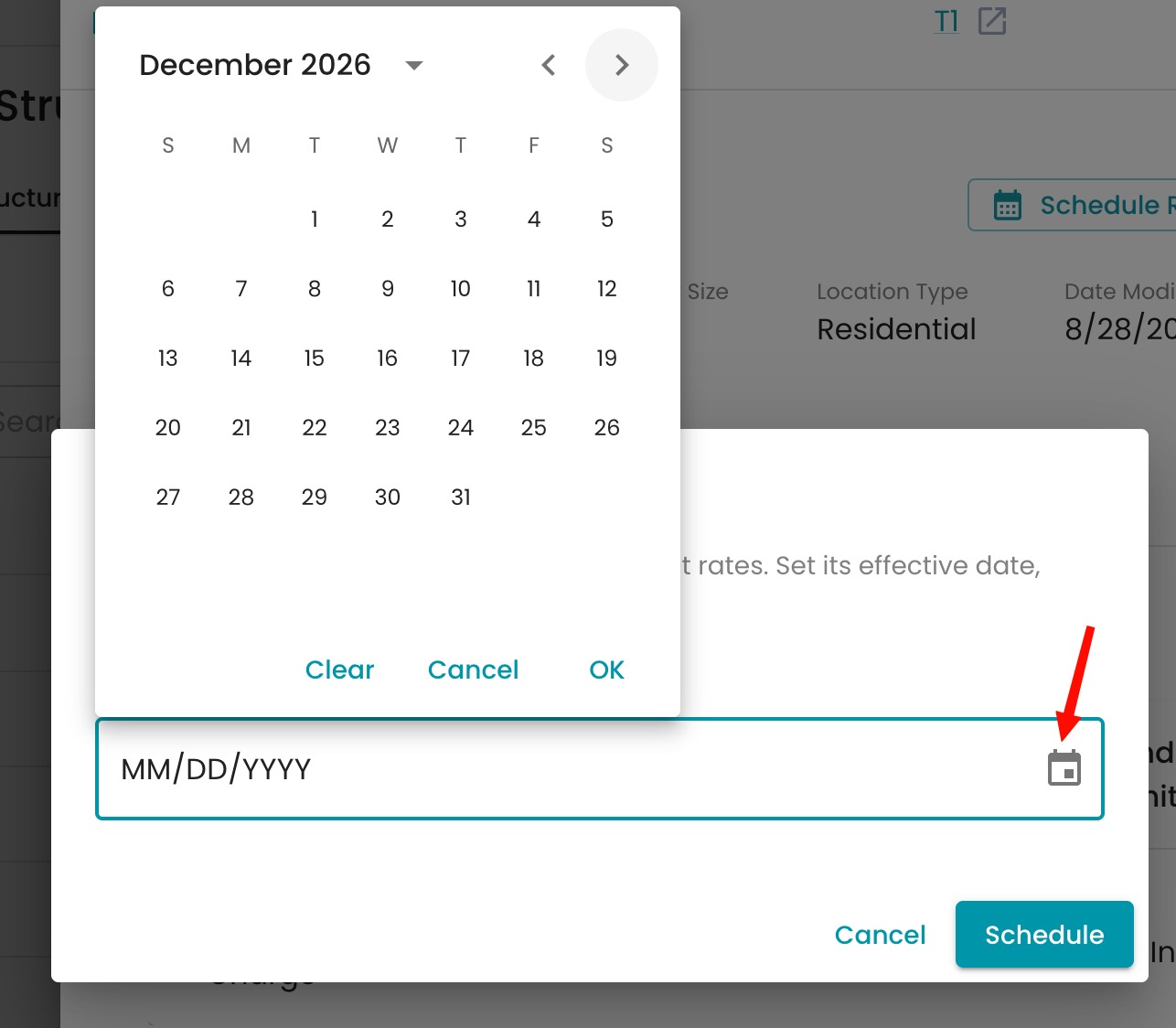
Selecting the effective date from the calendar picker.
- Click Schedule.
Effective date set and ready to schedule.
Step 3: Review the Rate Timeline
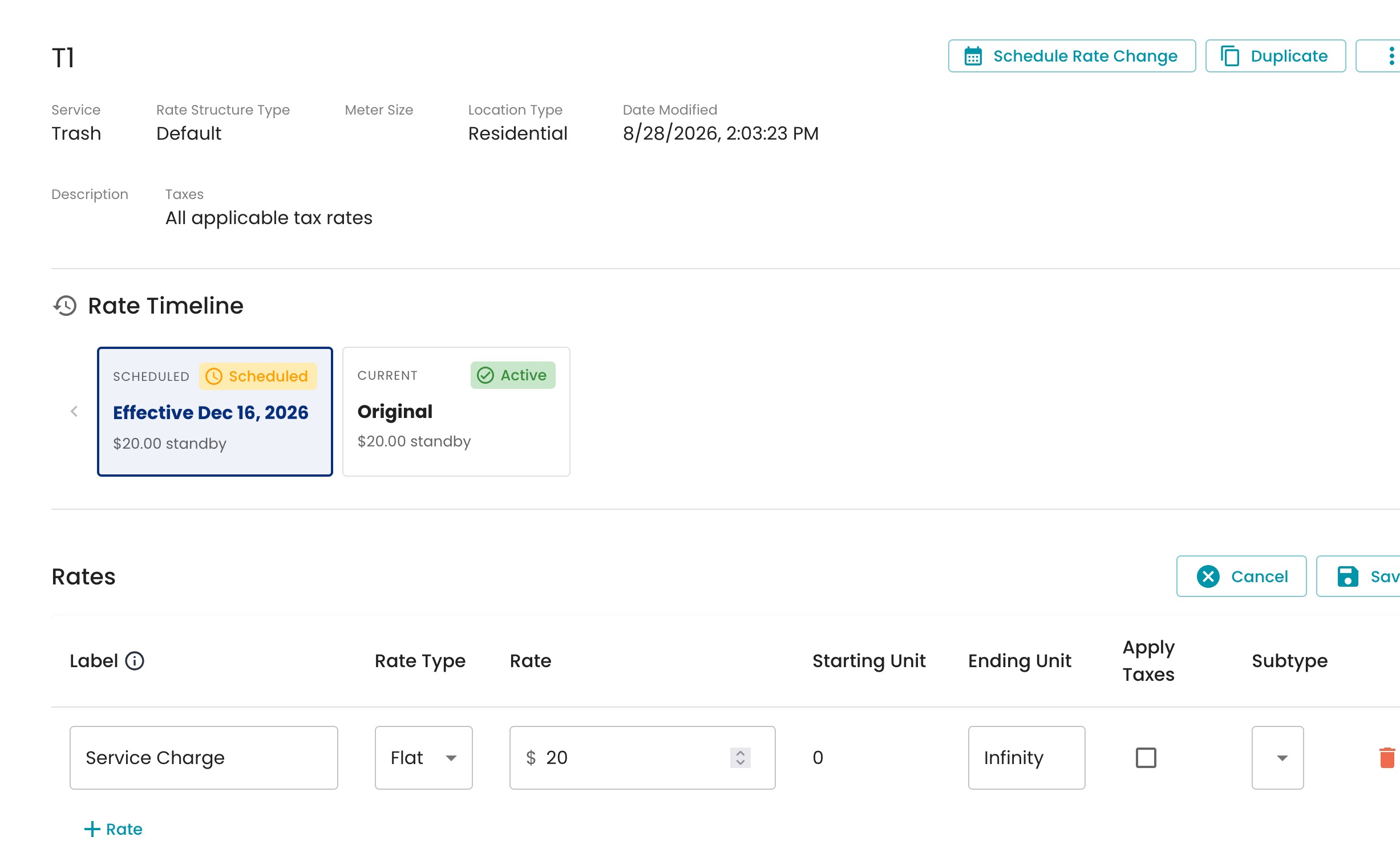
Once scheduled, the Rate Timeline section shows two versions side by side:
-
Scheduled — the new version, labeled with its effective date (e.g., "Effective Dec 16, 2026"). This starts as an exact copy of the current rate.
-
Current / Active — the version currently in effect ("Original"), which keeps applying until the scheduled date arrives.
The Rate Timeline showing the Scheduled and Current (Active) versions.
Step 4: Edit the Scheduled Version's Rates
The scheduled version starts identical to the current one, so you'll need to update it with the new rate:
-
Make sure the Scheduled card is selected in the Rate Timeline.
-
Click Edit in the Rates section.
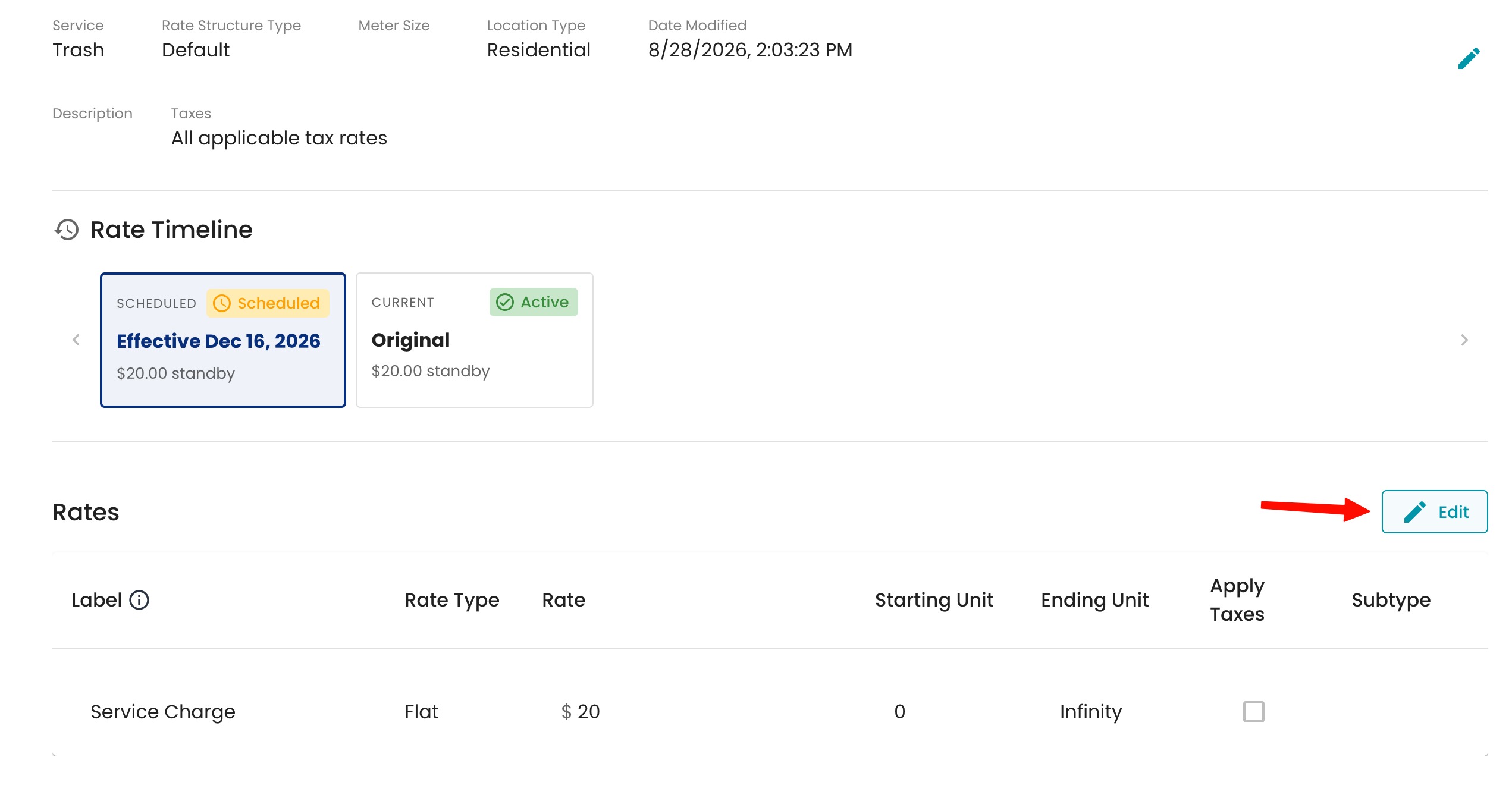
The Edit button in the Rates section.
-
Update the rate value(s) as needed (e.g., changing a flat rate from $20 to $10).
-
Click Save.
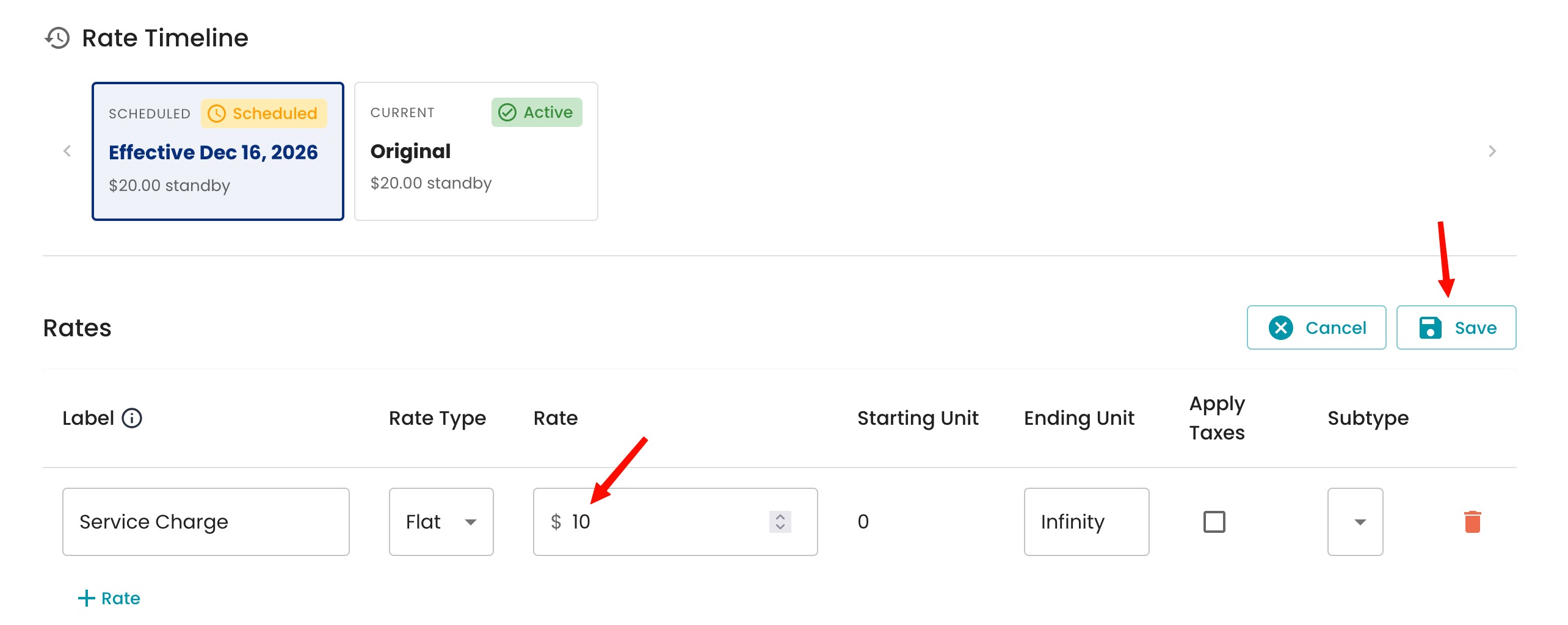
Editing the rate value before saving.
You'll see a confirmation banner ("Rate structure updated"), and the Scheduled card will now reflect the new rate — while the Original card keeps showing the current rate until the scheduled date arrives.
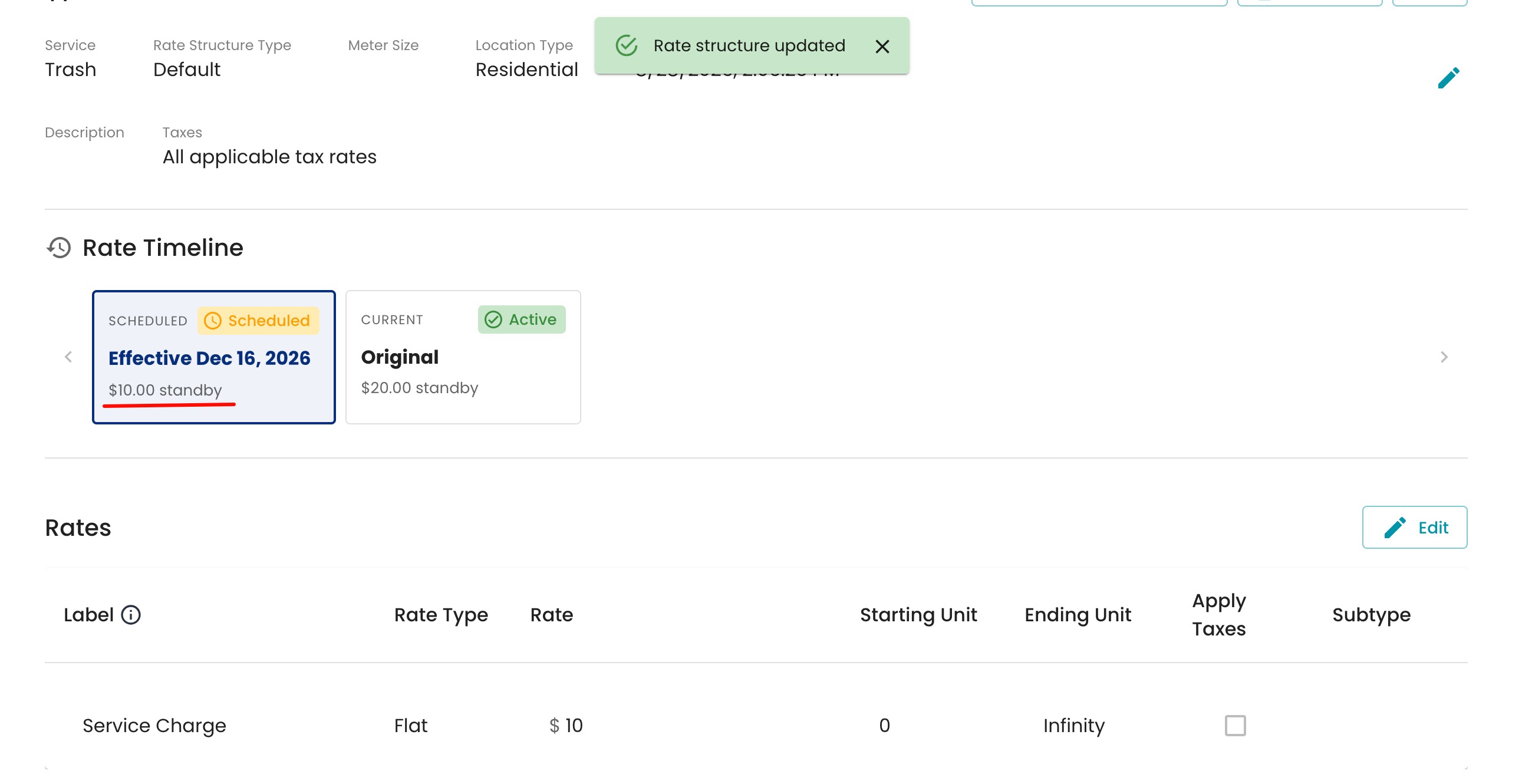
Note: The new rate won't apply to billing until its effective date. Until then, the Original/Active version continues to be used.