Create A Form
Forms let you collect information from your customers, shareholders, or accounts: things like service requests, backflow test submissions, move-out details, satisfaction surveys, or proxy voting ballots. You build a form once, send it out (or let people find it in their portal), and review the responses as they come in.
Where to find Forms
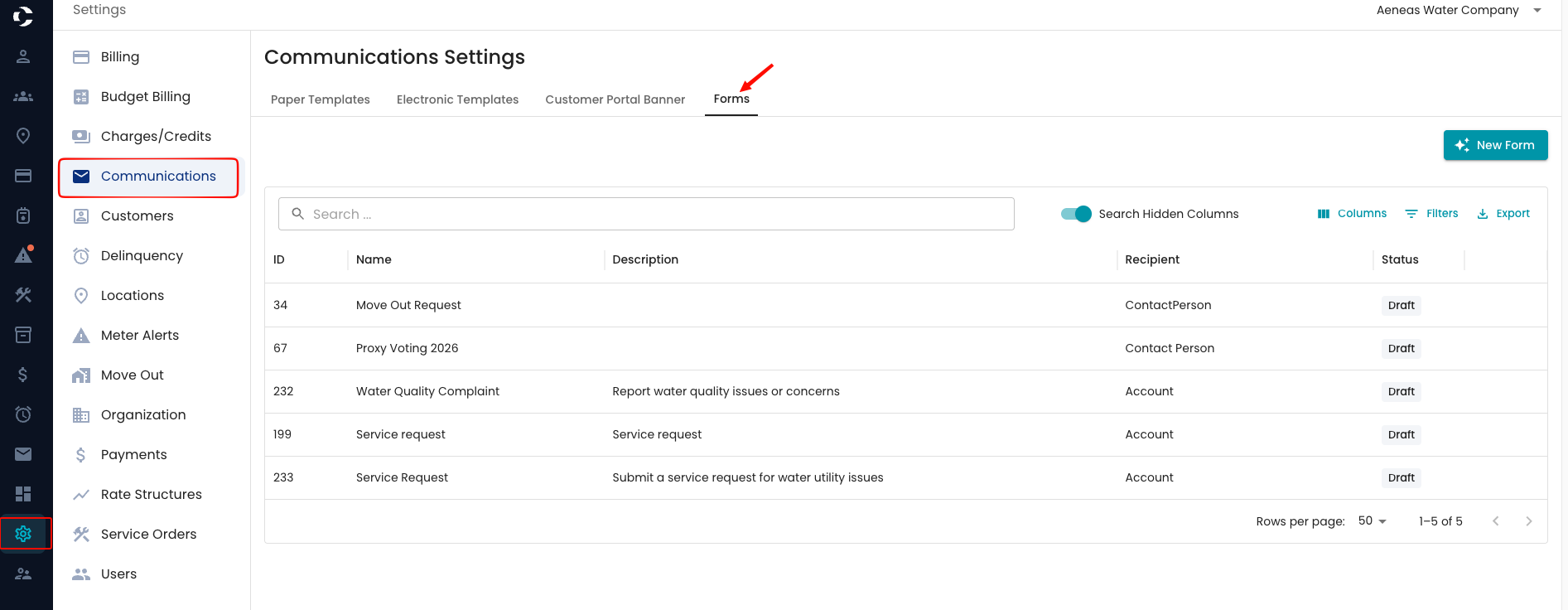
Go to Settings > Communications > Forms to see every form your organization has created, along with its status (Draft or Active).
Creating a form
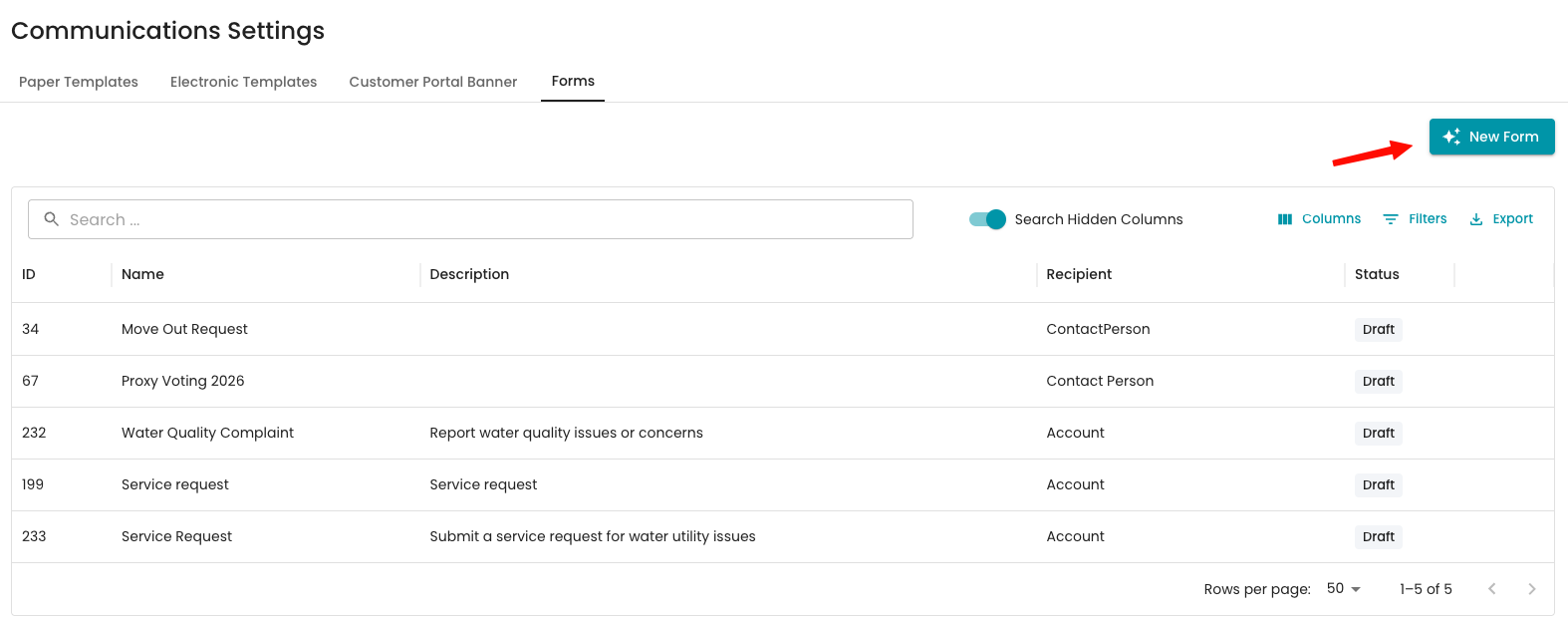
From the Forms list, click New Form.
Choose the form's:
Identity: who fills it out: Account, Contact Person, or Shareholder.
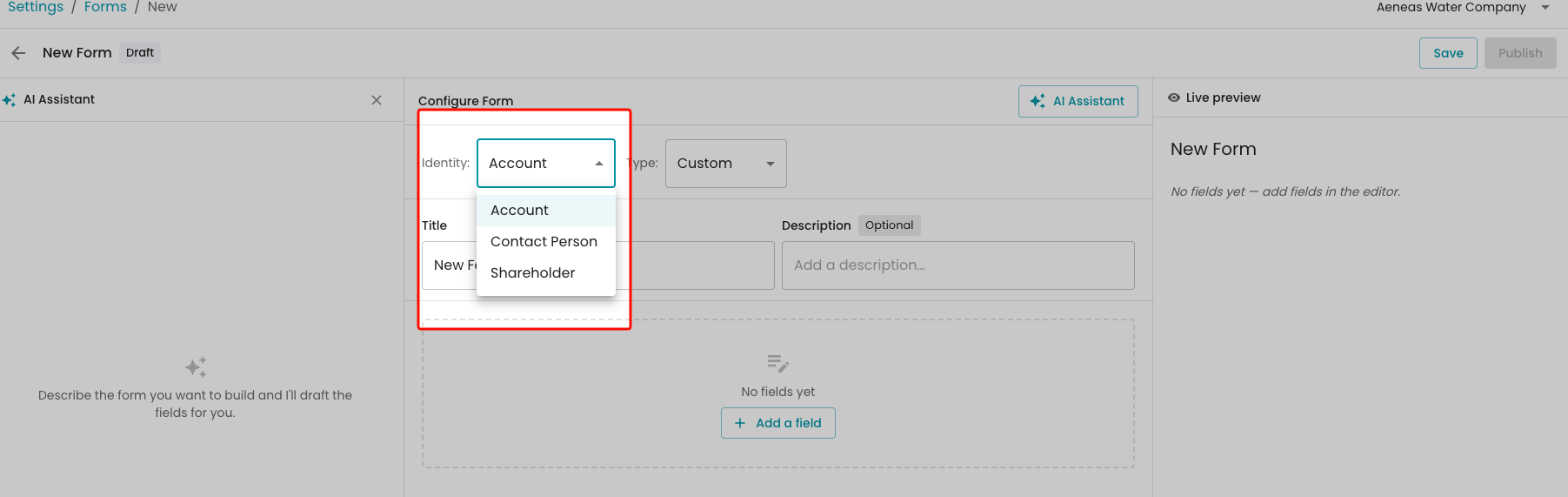
Type: Custom for anything you design yourself, or Proxy Voting for shareholder ballots.
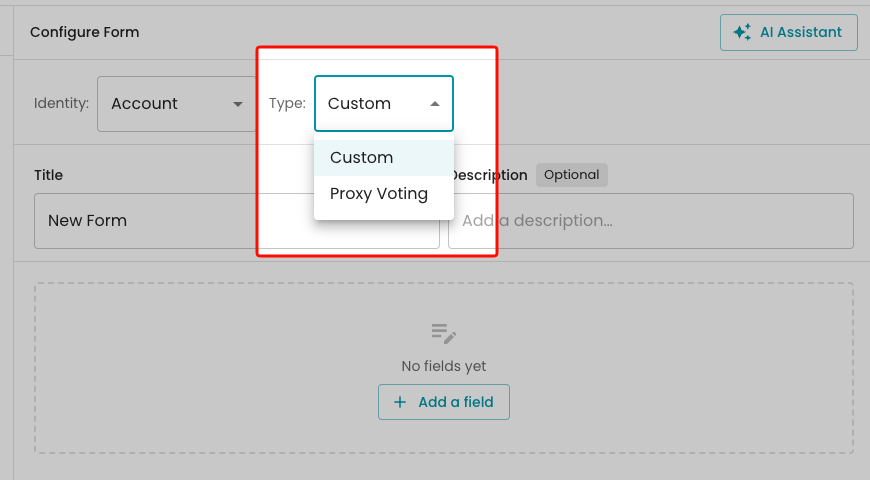
Build the fields using either method below.
Click Save, then Publish when you're ready for people to start filling it out.
A new form starts as a Draft. Drafts aren't visible to customers and can't be sent. Publish the form to make it Active.
Building fields with the AI Assistant
If you're starting from scratch, describe what you need in plain language and the assistant will draft the fields for you. For example:
- "A service request form for water issues, leaks, pressure, outages"
- "An annual backflow prevention test submission"
- "Customer move-out: final bill address & last day of service"
- "A short customer satisfaction survey after a service call"
Once a draft exists, you can keep chatting to refine it, for example:
- "Add the customer's phone number"
- "Make all fields required"
- "Add a satisfaction rating at the end"
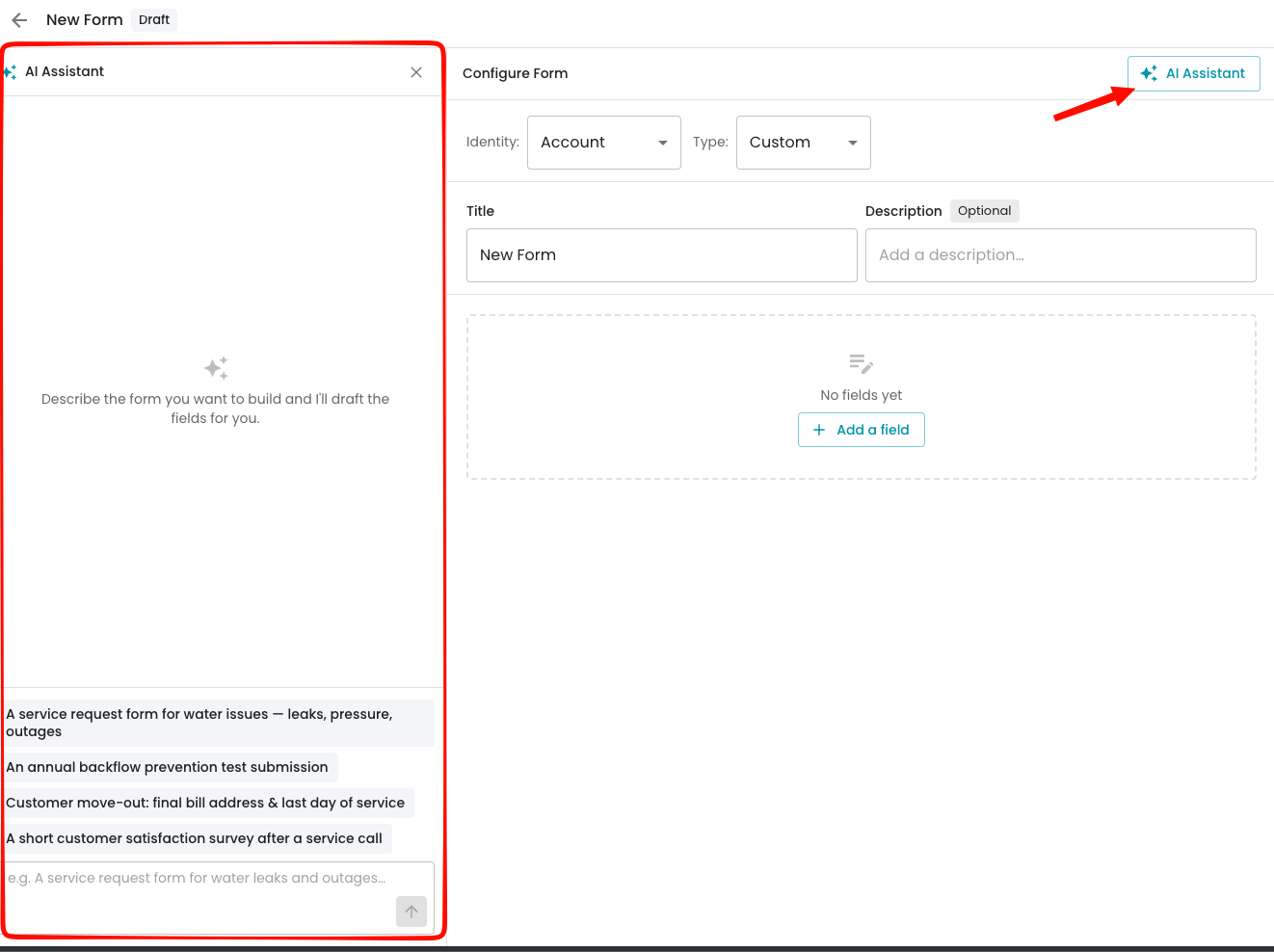
Building fields manually
Use the manual editor to add, remove, and reorder fields yourself. Available field types include:
| Field type | Notes |
|---|---|
| Text | Single-line text |
| Text Area | Multi-line text |
| Number | Numeric input |
| Date | Can default to today's date |
| Radio | Single choice from a list of options |
| Select | Dropdown choice from a list of options |
| Checkbox | True/false |
| File Upload | Attach a file |
| Parts List | List of parts used (useful for service-related forms) |
| Read-Only Text | Static instructional text, not an input |
For each field you can set a label, placeholder text, whether it's required, whether it should appear on printed copies, and (for Radio/Select) a default value and the list of options.
A live preview of the form updates as you build it, so you can see exactly what the person filling it out will see.
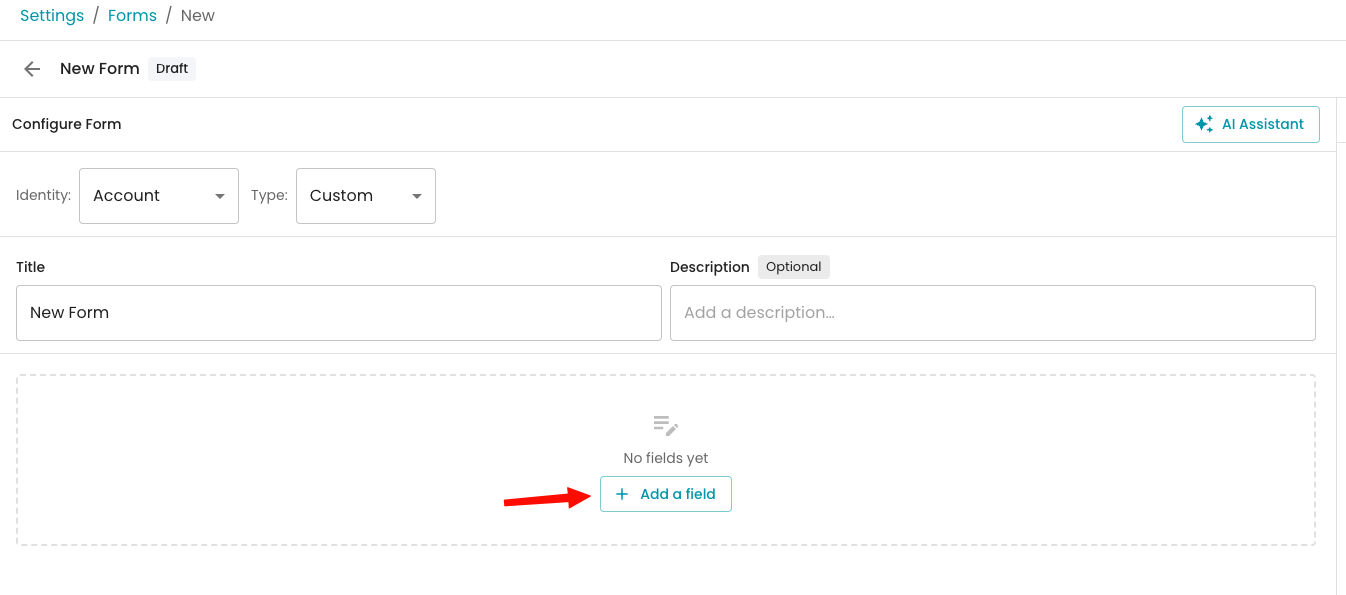
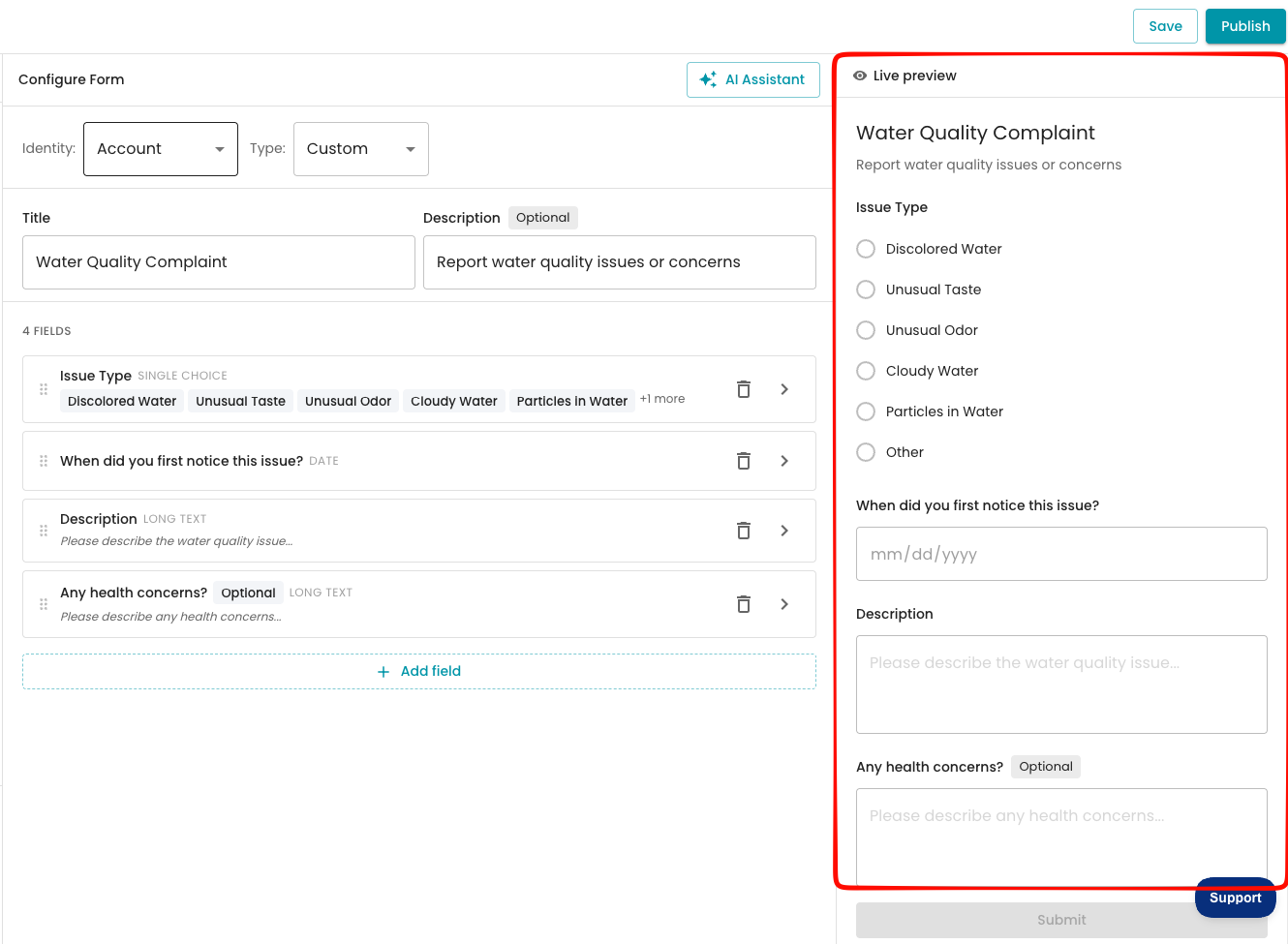
Sending a form to customers
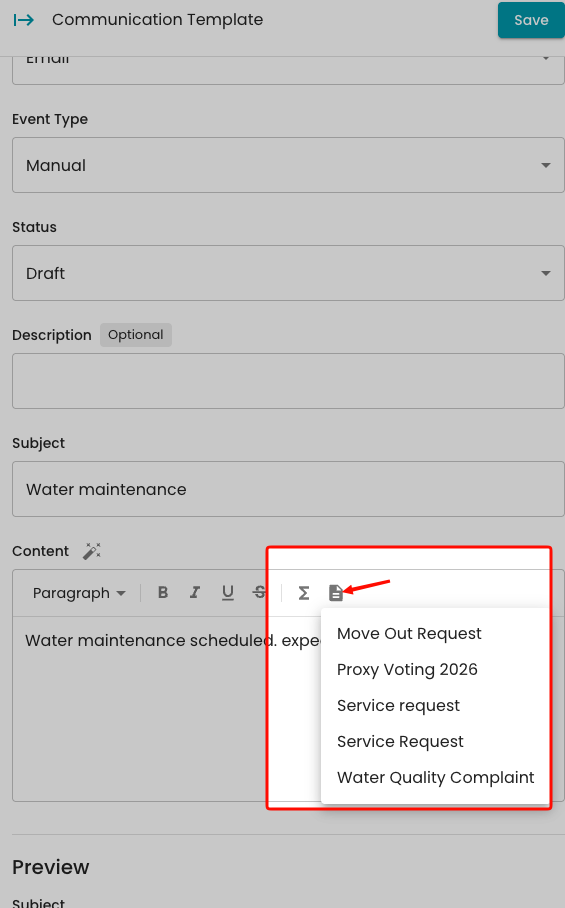
Forms can be inserted directly into email or text communication templates:
- When composing or editing a communication template, click the Insert Form icon in the toolbar.
- Choose a form from the list (only forms you've created will appear here; the button is hidden if you have none).
- The form is inserted as a placeholder link; when the message is sent, the recipient gets a link to fill out that specific form.
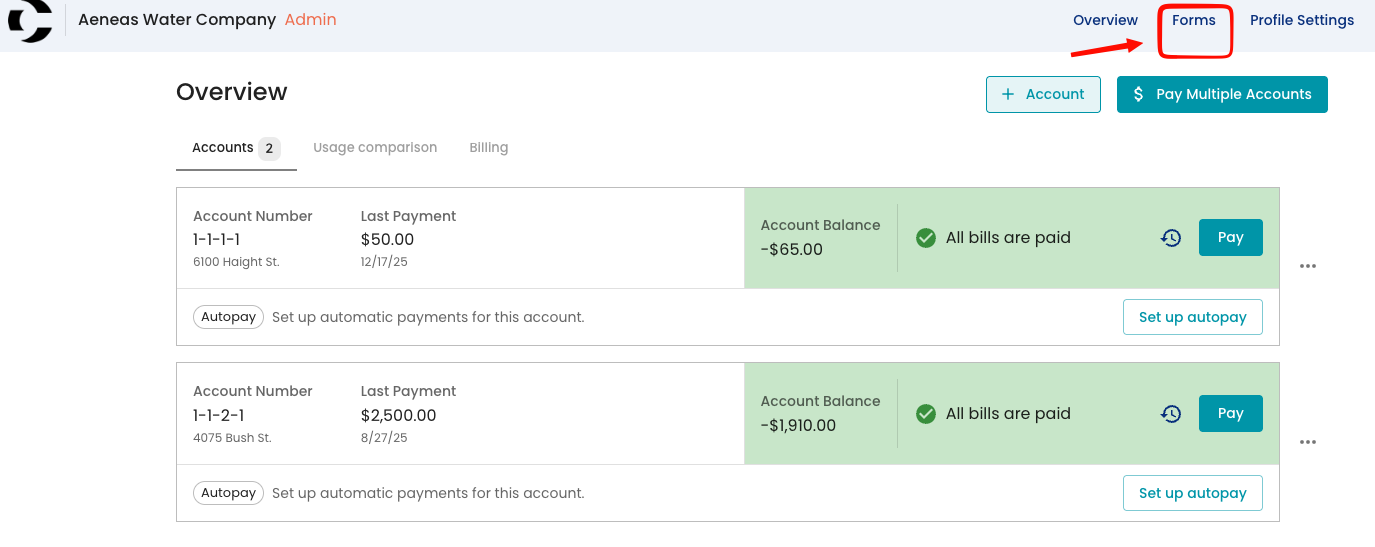
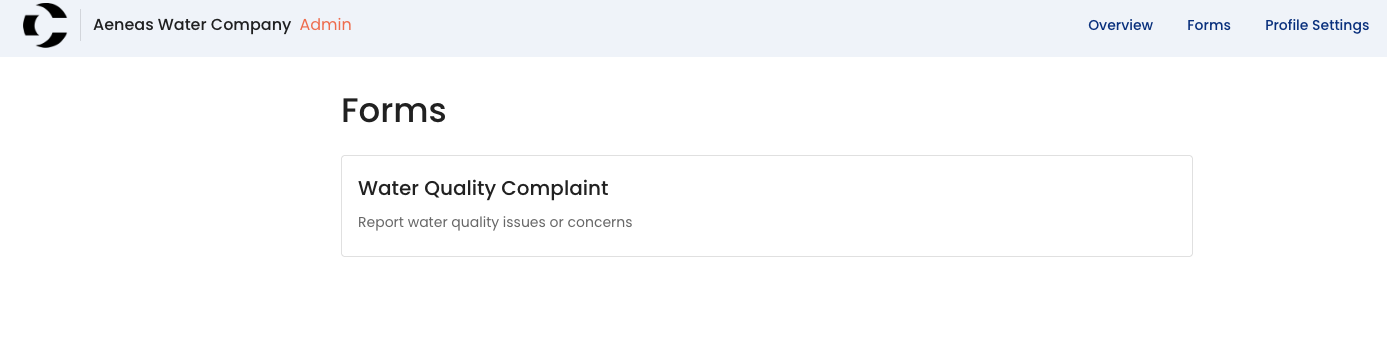
Customers can also see any forms available to them by logging into the customer portal and going to the Forms page, no email link required. If they've already filled out a form before, the portal shows when they last completed it.
How customers fill out a form
- If a customer opens a form via a link sent in a communication, the link is pre-tied to their account/contact/shareholder record.
- If a customer opens the Forms page in the portal directly (not via a link), and they have more than one account or shareholder record, they're prompted to pick which one the response applies to. If they only have one, it's selected automatically.
- Fields appear in the order you set when building the form.
- After submitting, the customer sees a simple confirmation ("Thanks for completing this form!").
Reviewing form responses
Go to Communications > Form Responses to see every response submitted across all your forms. Responses are organized into three tabs:
- Open: new responses awaiting review
- Completed: responses you've marked as done
- Archived: responses you've set aside
For each response you can see the form name, who submitted it (shareholder, contact person, or account), and when it was created/updated. Click a response ID to view the full submission in a side panel.
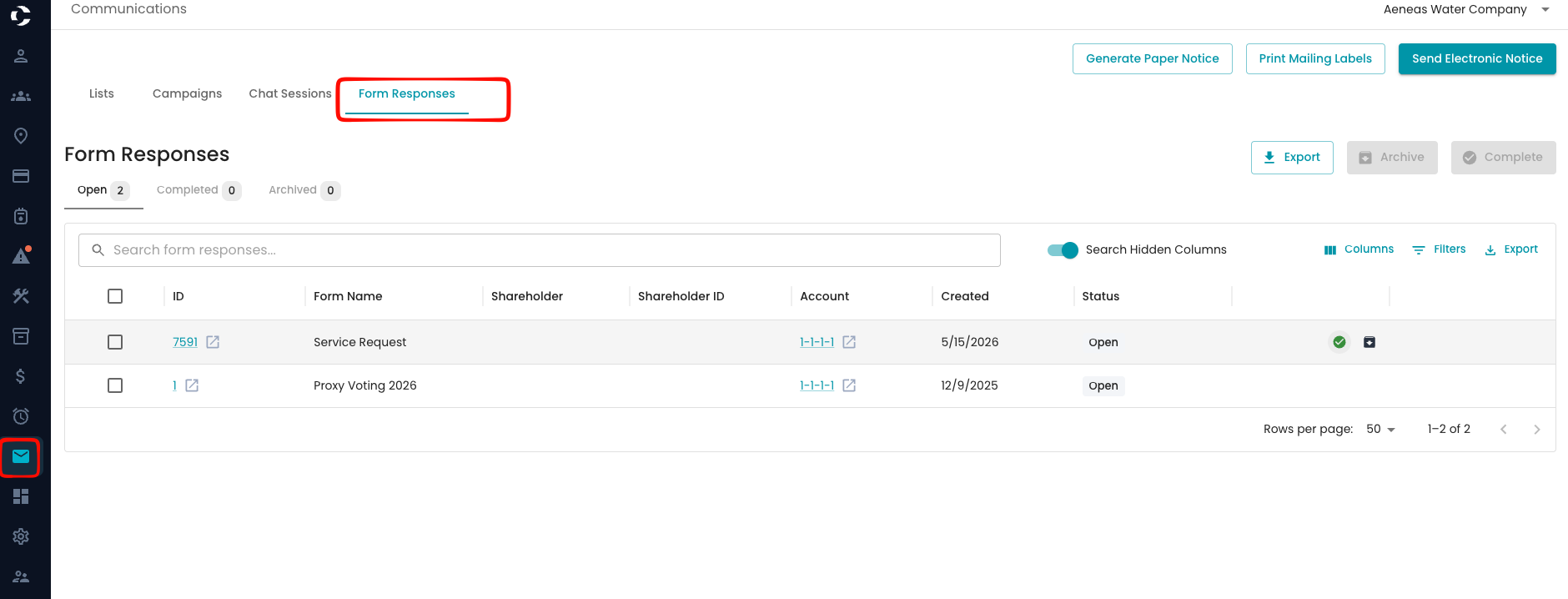
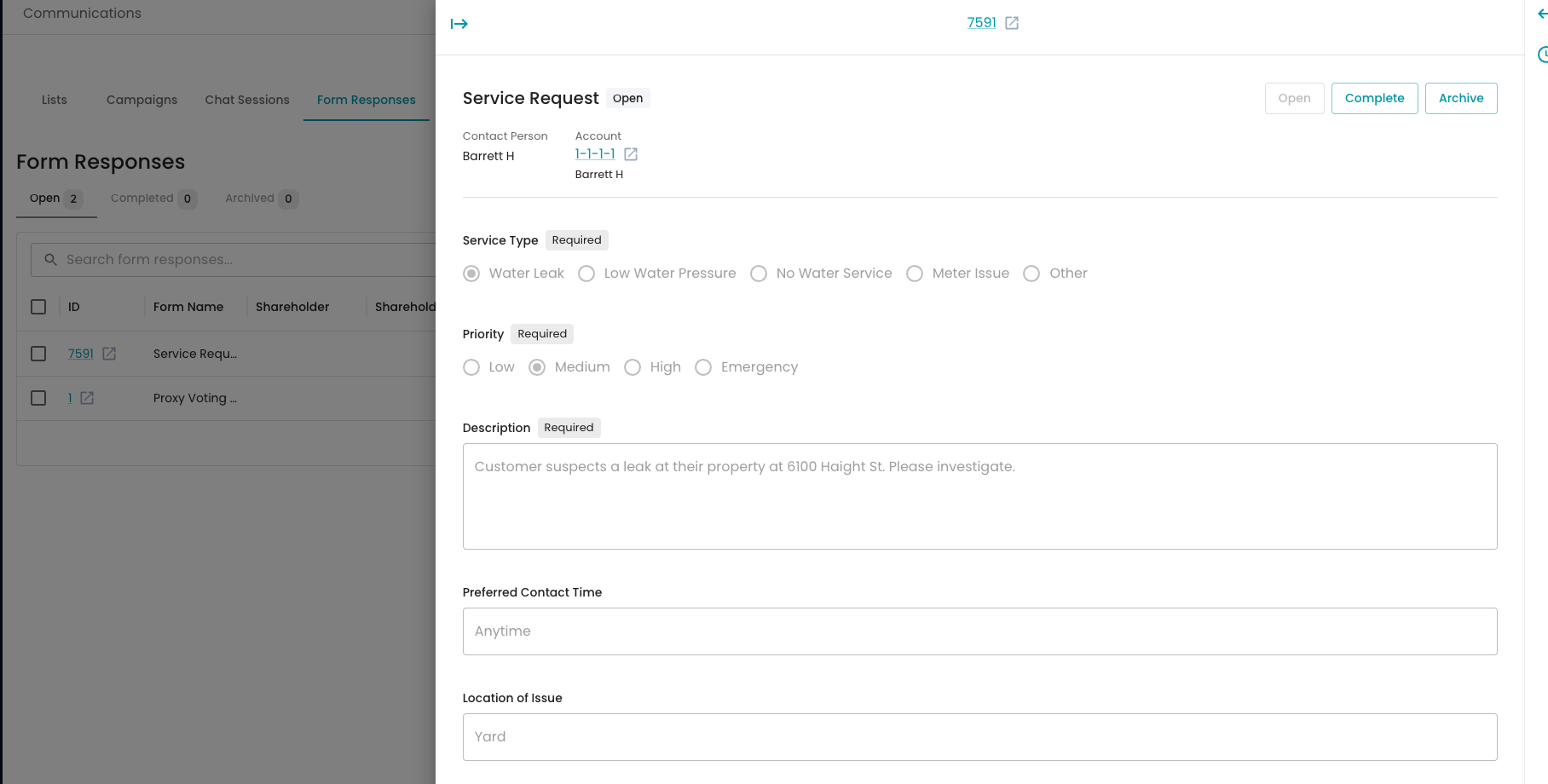
Actions available (admin only):
- Complete: mark a response as done
- Archive: set a response aside
- Open: move a Completed or Archived response back to Open
- These actions can also be done in bulk by selecting multiple rows.
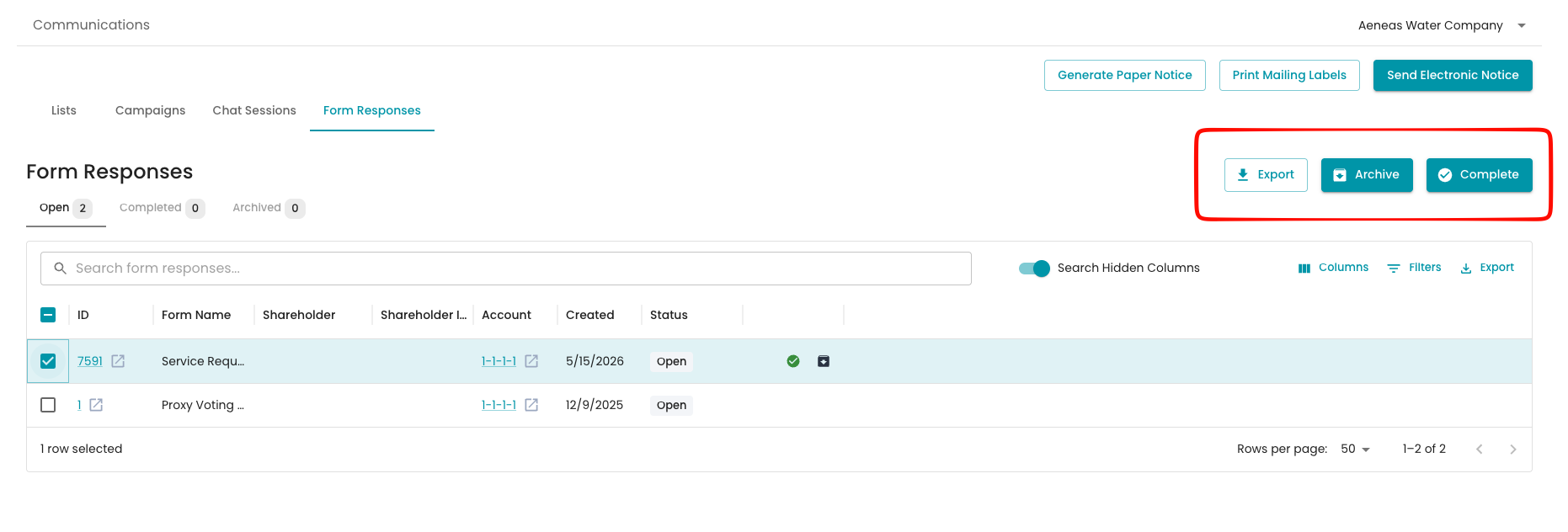
Exporting responses
Admins can export form responses to CSV:
- From the Form Responses table, click Export.
- Optionally filter by a specific form and/or a date range.
- Click Export to download a CSV of the matching responses.
Deleting a form
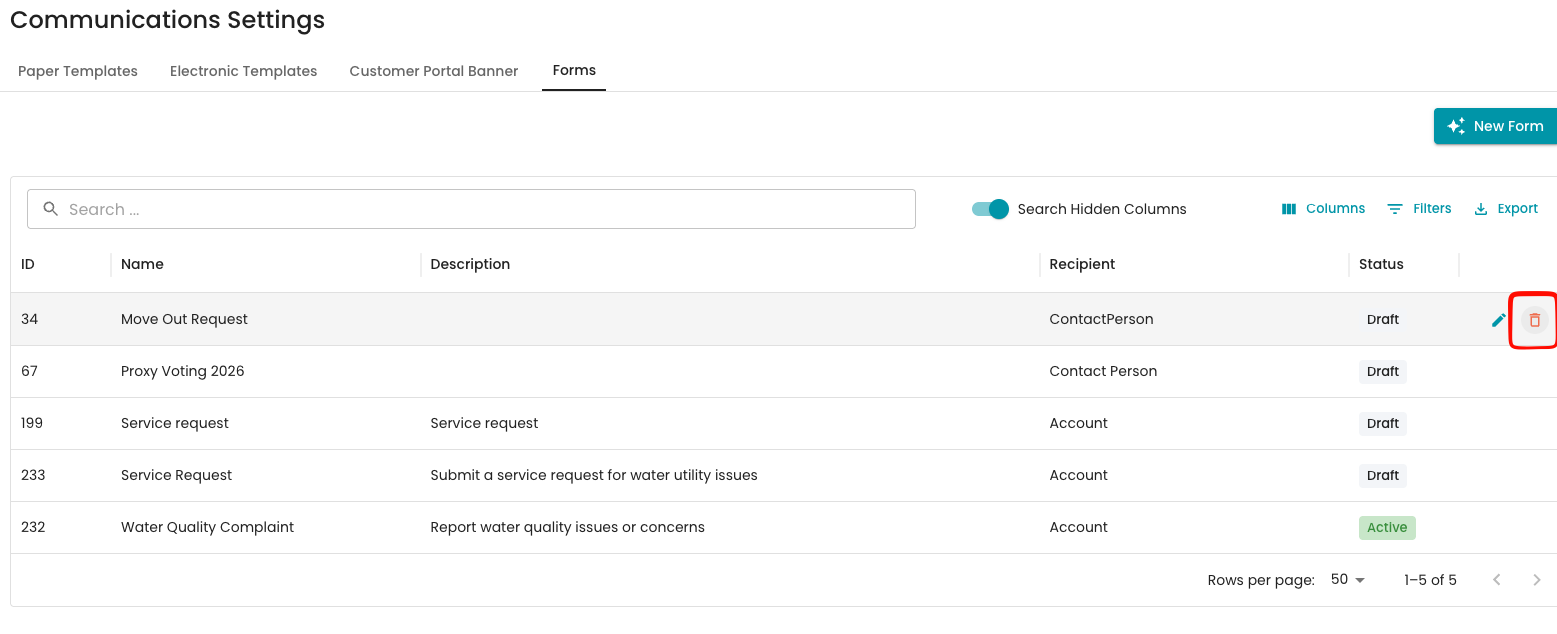
From the Forms list in your Settings > Comminications > Forms , use the row actions to Edit or Delete a form. You'll be asked to confirm before a form is deleted.